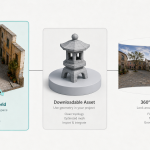
Most “image to 3D” tools mean one of two things — and people mix them up constantly.
- A downloadable 3D model (mesh / GLB / STL) for game engines, printing, or DCC software
- An explorable 3D world you can walk through, reframe, and photograph for creative production
This tutorial is about the second path: generating a navigable Gaussian Splat scene, exploring it in full screen, and capturing the best viewpoints into your image or video pipeline.
If that is what you need — environment concepting, branded spaces, or shot planning before final AI image/video generation — an AI 3D world generator is the right tool category.
What Is an AI 3D World Generator?
An AI 3D world generator turns text, an image, or a short video into a navigable three-dimensional scene.
On Topview, the result is a Gaussian Splat (SPZ) world powered by Marble models. You enter it in full screen, move with keyboard and mouse, then screenshot any framing back onto Canvas. It is not designed as a mesh exporter for printing or Unity/Unreal import.
Think of it as a virtual location scout: invent or expand a space, walk it, lock the shot, then continue generating stills or video from that captured view.
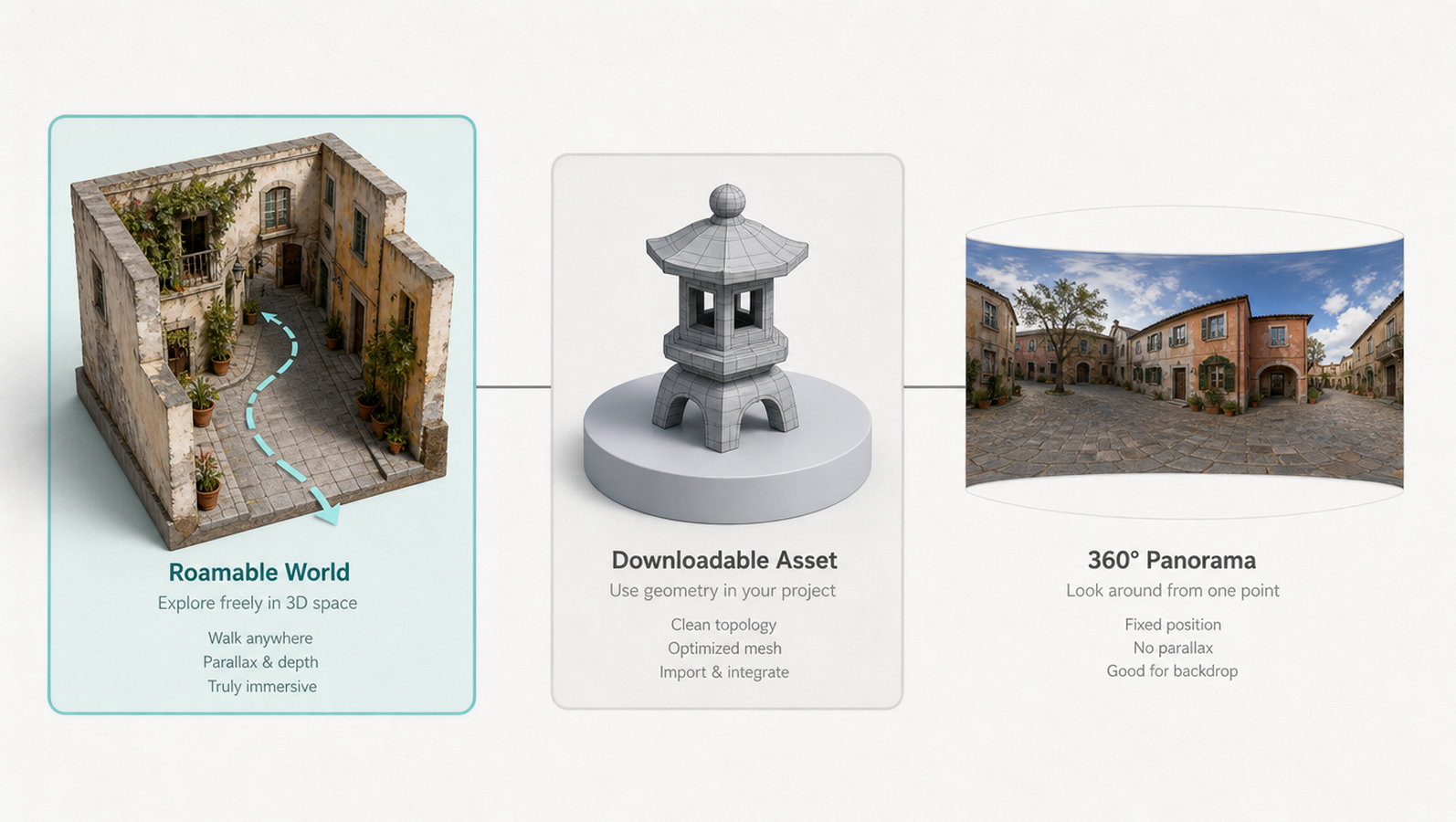
3D World vs 3D Model vs Skybox
| Approach | What you get | Best for |
| 3D world (Gaussian Splat) | Roamable scene + multi-angle captures | Shot planning, environment concepts, brand spaces |
| 3D model / mesh | Downloadable geometry | Games, product CAD-like assets, 3D printing |
| Skybox / 360° panorama | Look-around from a fixed origin | Quick immersive backdrops, VR-style wraps |
If you only need to look around from one point, a skybox may be enough. If you need to walk the space and capture many ratios from different positions, use a 3D world.
What You Can Create With It
Creators typically use explorable worlds for:
- Environment concepting for storyboards, ads, and film-style sequences
- Product and brand spaces — rooms, storefronts, outdoor sets — then capture hero angles
- Shot planning from inside the scene — lock FOV/aspect ratio before image or video generation
- Reference stills that feed the rest of a Canvas workflow
Three Ways to Start
Match the input to what you already have.
1) Text to 3D world
Describe location, architecture, lighting, and mood. Best when inventing a space from scratch.
Prompt pattern that works well:
Place + time of day + materials + lighting + atmosphere + camera-friendly details
Example:
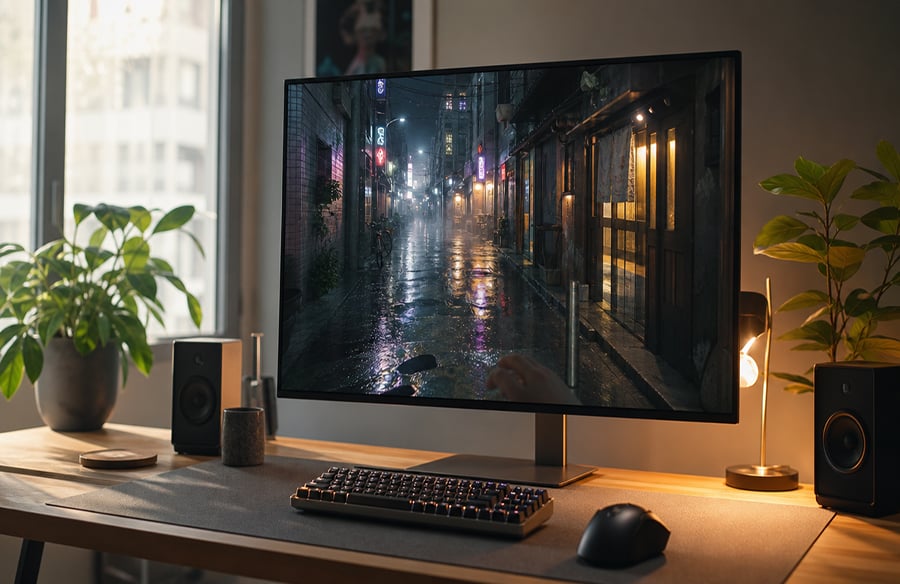
A rainy Tokyo side street at night — neon reflections on wet pavement, soft fog, narrow alley storefronts, cinematic lighting.
2) Image to 3D world
Upload one photo or concept still as visual reference. Panoramas with aspect ratio ≥2:1 can often stand alone as the sole media input. Add text when you want to clarify scale, weather, or missing details.
3) Video to 3D world
Upload one short clip to guide structure and motion cues.
Video limits to remember:
- Formats: MP4 / MOV / WebM
- Length: up to about 30 seconds
- Size: up to about 100MB
Important constraint: image and video cannot be used together. You can combine text with either media type, but not both media types in one generation.
How to Create a 3D World on Topview (Step by Step)
The workflow lives inside Topview Canvas. You can start from the product page for Topview’s AI 3D World Generator, then follow this path.
Step 1: Open 3D World in Canvas
- Open Topview Canvas
- From the Creation sidebar or right-click menu, open the 3D World dock
- Create a 3D World card on your Infinite Canvas
Step 2: Add your input and choose a Marble model
- Write a scene prompt and/or upload one image or one video
- Choose a model:
- Marble 1.1 — standard world
- Marble 1.1 Plus — Larger World
- Review credit cost shown before generation
- Click generate and wait for the card to succeed
Step 3: Enter, explore, and capture
- Open full-screen exploration
- Move with WASD and look with the mouse
- Adjust framing / FOV as needed
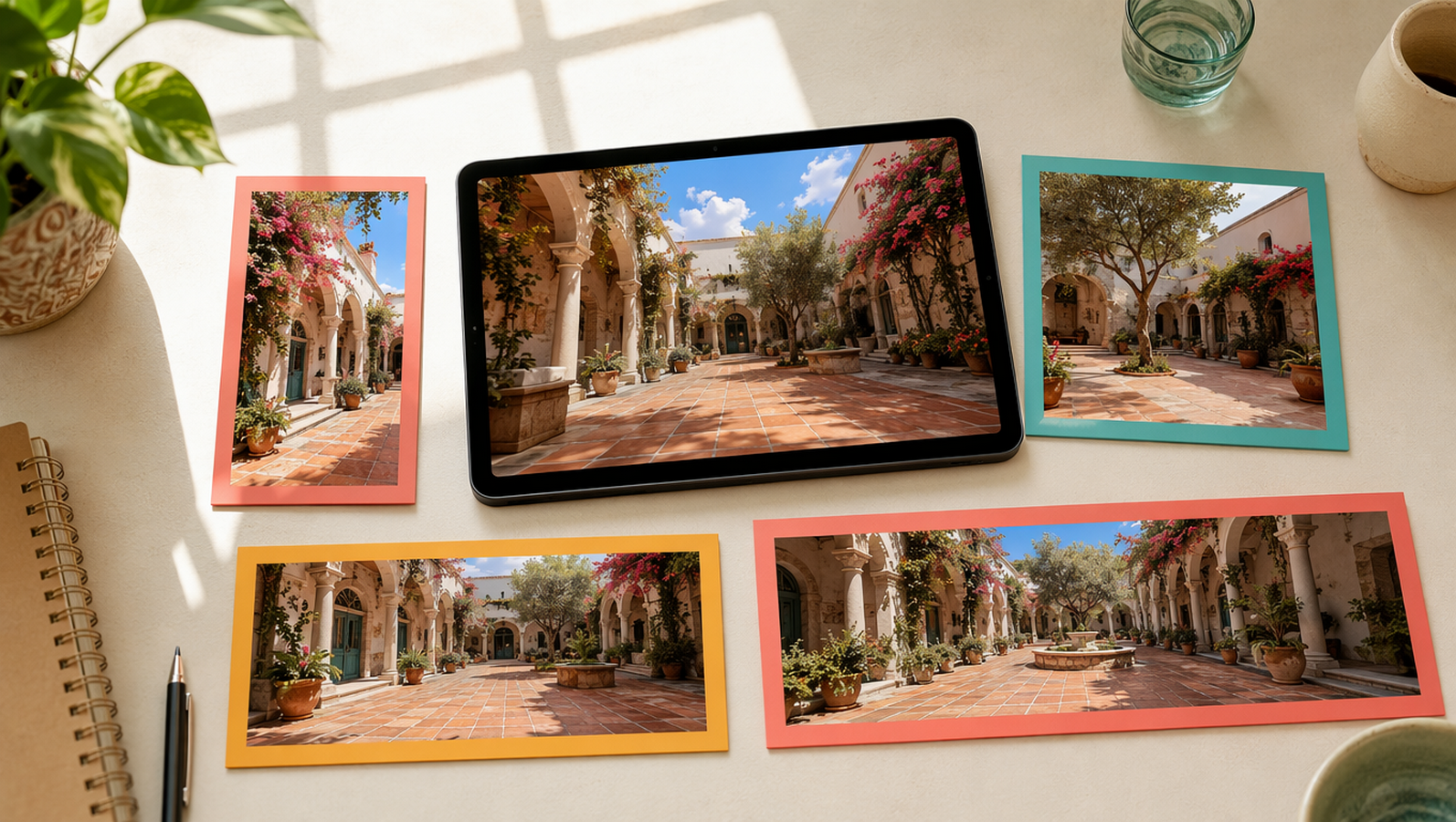
- Capture screenshots in ratios from 9:16 to 21:9
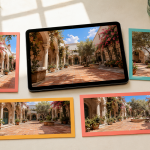
- Send the capture back onto Canvas as a new image node beside the 3D World card
That captured still becomes the bridge into downstream image edit, text-to-image refinement, or image-to-video.
What Is a Gaussian Splat World?
A Gaussian Splat represents a scene as millions of tiny ellipsoids instead of a classic polygon mesh. That representation is why free camera movement and view capture feel natural.
Practical implications:
- Great for exploration and photography inside the scene
- Different from mesh tools that export GLB/STL
- You do not need phone LiDAR or multi-view scanning hardware to start — generation can begin from text/image/video
 Prompt Tips for Better Worlds
Do
- Specify architecture and layout (alley, lobby, rooftop garden, warehouse aisle)
- Call out lighting direction and weather
- Add material cues (wet asphalt, brushed steel, paper lanterns)
- Mention depth cues (narrow corridor, layered storefronts, distant skyline)
- Keep one coherent location per generation
Avoid
- Vague mood-only prompts (“make a cool cinematic place”)
- Mixing five unrelated locations into one scene
- Expecting printable mesh fidelity from a roamable splat world
- Using both an image and a video in the same request
Good starter prompts
Sunlit Mediterranean courtyard with terracotta tiles, climbing vines, soft afternoon shadows, and a quiet fountain in the center.
Minimalist white product showroom with softbox lighting, a central pedestal, polished concrete floor, and large north-facing windows.
Foggy pine forest trail at dawn, wet dirt path, shafts of light through trees, muted greens and blues.
Capture Workflow Tips
Once you are inside the world:
- Scout first, shoot second — walk the full space before capturing
- Capture multiple ratios — 9:16 for social, 16:9 for video plates, wider for establishing frames
- Lock a hero angle — then take nearby variants for A/B creative tests
- Send captures to Canvas immediately — keep world card + stills side by side
- Use stills as the next generation seed — image edit, product placement, or image-to-video
This is where 3D worlds beat static moodboards: one environment can yield dozens of production-ready framings.
Common Mistakes
- Treating the output like a downloadable game-ready mesh
- Uploading both image and video, then wondering why generation fails
- Writing prompts with no spatial structure (only adjectives)
- Capturing from the spawn point only and missing better angles deeper in the scene
- Choosing the wrong tool when you actually need object mesh reconstruction
FAQ
Is this a 3D model generator?
No. It generates an explorable Gaussian Splat world for navigation and screenshot capture, not a typical mesh export workflow.
What inputs can I use?
Text, one image, or one short video. Text can combine with either media type. Image + video together is not supported.
Can I export the 3D world file?
The creator workflow is built around exploration and Canvas screenshots, not mesh downloads for external engines.
What models power 3D World?
Marble 1.1 and Marble 1.1 Plus (Larger World option).
How do screenshots work?
From inside the world, capture a framed view; it lands on Canvas as a new image node next to the 3D World card.
Do I need to scan a real place with a phone?
No. You can generate from prompt or a single reference without a capture session.
How is this different from a skybox?
A skybox usually lets you look around from a fixed origin. A 3D world lets you move through the scene and capture many viewpoints.
Final Checklist
- Chose text / image / video correctly (not image + video together)
- Prompt includes place, lighting, materials, and mood
- Selected Marble 1.1 or 1.1 Plus based on world size needs
- Explored beyond the first camera position
- Captured at least 3–5 framings into Canvas for downstream work
Bottom Line
If your goal is to invent a location, walk it, and pull production stills into an AI image/video pipeline, start with an explorable 3D world — not a mesh exporter and not a fixed skybox.
Open Canvas, generate from text or one reference, explore in full screen, then screenshot the angles that actually deserve the next generation step.