Freelancers work from cafés, home offices, and shared spaces. Designers may travel while projects remain on powerful studio computers. Remote workers often switch between laptops, tablets, and phones.
This freedom creates one serious challenge.
Your essential files, programs, and computing power may remain elsewhere. A lightweight travel laptop cannot always run demanding creative software. Your phone cannot replace a complete desktop setup.
Remote desktop technology closes that gap.
It lets you access and control another computer through the internet. You can open programs, retrieve files, manage projects, or play games remotely. Your main computer handles the demanding work.
You simply control it from another connected device.
This approach supports flexible work without constant hardware upgrades. It also helps creators protect their existing workflow.
Flexible Work Has Become a Lasting Work Model
Flexible work is no longer a temporary solution.
Many workers now divide their time between several locations. Some work fully remotely. Others follow hybrid schedules.
Gallup reported that hybrid work remained the leading model for remote-capable American employees in 2025. Its data showed only minor changes from earlier post-pandemic patterns.
This shift has changed what people expect from technology.
A modern work setup must travel across locations. It should also work across different screen sizes and operating systems.
People now expect to:
- Reach work files outside their main office.
- Run desktop programs from lightweight devices.
- Continue projects while traveling.
- Support clients without visiting their location.
- Control several personal devices from one place.
Cloud storage solves part of this problem. It keeps documents available online.
However, cloud storage cannot open every desktop program. It cannot reproduce your complete workstation. It also may not preserve specialist settings, plugins, or local resources.
Remote access offers a more complete solution.
What Remote Desktop Technology Actually Does
Remote desktop software links two devices through a secure connection.
One device acts as the host. This computer stores your applications, files, and processing power.
The second device acts as the controller. It displays the host computer’s screen. It also sends your keyboard, mouse, or touch commands.
You can then control the distant computer almost normally.
For example, a designer might leave a powerful workstation at home. The designer can access it through a smaller laptop while traveling.
The workstation still processes the large design files. The travel laptop only displays the remote session.
This setup reduces hardware limits. It also protects familiar tools and established workflows.
Why Creators Need Access to Powerful Computers
Creative programs often demand strong hardware.
Video editors may need powerful graphics cards and large storage drives. Animators depend on fast processors for rendering. Designers often use large files and detailed displays.
Buying another high-powered computer costs thousands of dollars. Carrying a desktop workstation is impossible.
Remote access offers another route.
Creators can keep their main computer in a secure location. They can then connect from a lighter device.
This setup supports several creative tasks:
- Editing videos stored on a home workstation.
- Reviewing large design files from another location.
- Starting long renders while away.
- Accessing licensed software installed on one computer.
- Checking exports without returning to the studio.
Performance still depends on the internet connection. The host computer also needs enough processing power.
However, a well-configured setup can remove major location limits.
A More Consistent Creative Workspace
Creators spend time building their ideal workspace.
They install fonts, plugins, color profiles, presets, and specialist tools. Rebuilding that setup on every device wastes time.
Remote access preserves the original workspace.
The creator connects to the same desktop each time. Every application remains in its usual place. Files keep their familiar folder structure.
This consistency reduces setup work. It also lowers the risk of using outdated files.
How Freelancers Can Improve Daily Productivity
Freelancers often manage several clients and deadlines.
They may work from home during the morning. Later, they might meet a client or visit a shared workspace.
Remote access keeps work available across these changes.
Imagine that a client requests a quick revision. The source file remains on your home computer. Your current laptop lacks the correct software.
Without remote access, you must delay the revision.
With remote access, you can open your home computer immediately. You can update the project and send the revised version.
That quick response can strengthen client trust.
Remote desktop tools also help freelancers separate work and personal hardware. A freelancer can keep sensitive client files on one dedicated computer.
The files do not need permanent copies across several devices.
Fewer Interruptions During Travel
Travel often exposes missing files and forgotten resources.
A proposal may remain inside a desktop folder. A saved login may exist only on one computer. A specialist program may not run on a tablet.
Remote access creates a backup path.
You still need internet access. The host computer must also remain available.
Yet this small preparation can prevent long delays.
Better File Access Without Constant Duplication
Sending files between devices creates several problems.
You may produce duplicate versions. You might edit an outdated document. Large transfers can also consume time and storage.
Remote access lets you work directly on the original computer.
You can open the correct file without creating another copy. You can also organize folders from a distant location.
Some remote desktop tools support file transfers too. This feature helps when you need a local copy.
The best method depends on the task.
Use direct remote access for quick edits. Transfer files when local processing offers better performance.
Cross-Device Control Creates a More Flexible Workflow
 People rarely depend on one device now.
You might use a desktop for serious work. A laptop supports travel. A tablet handles reviews. A phone provides emergency access.
Remote desktop software connects these devices.
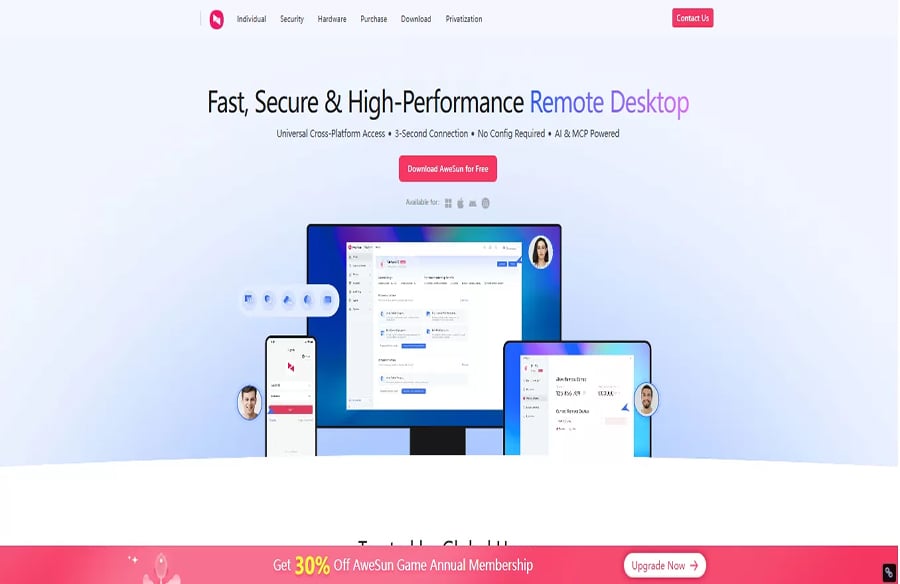
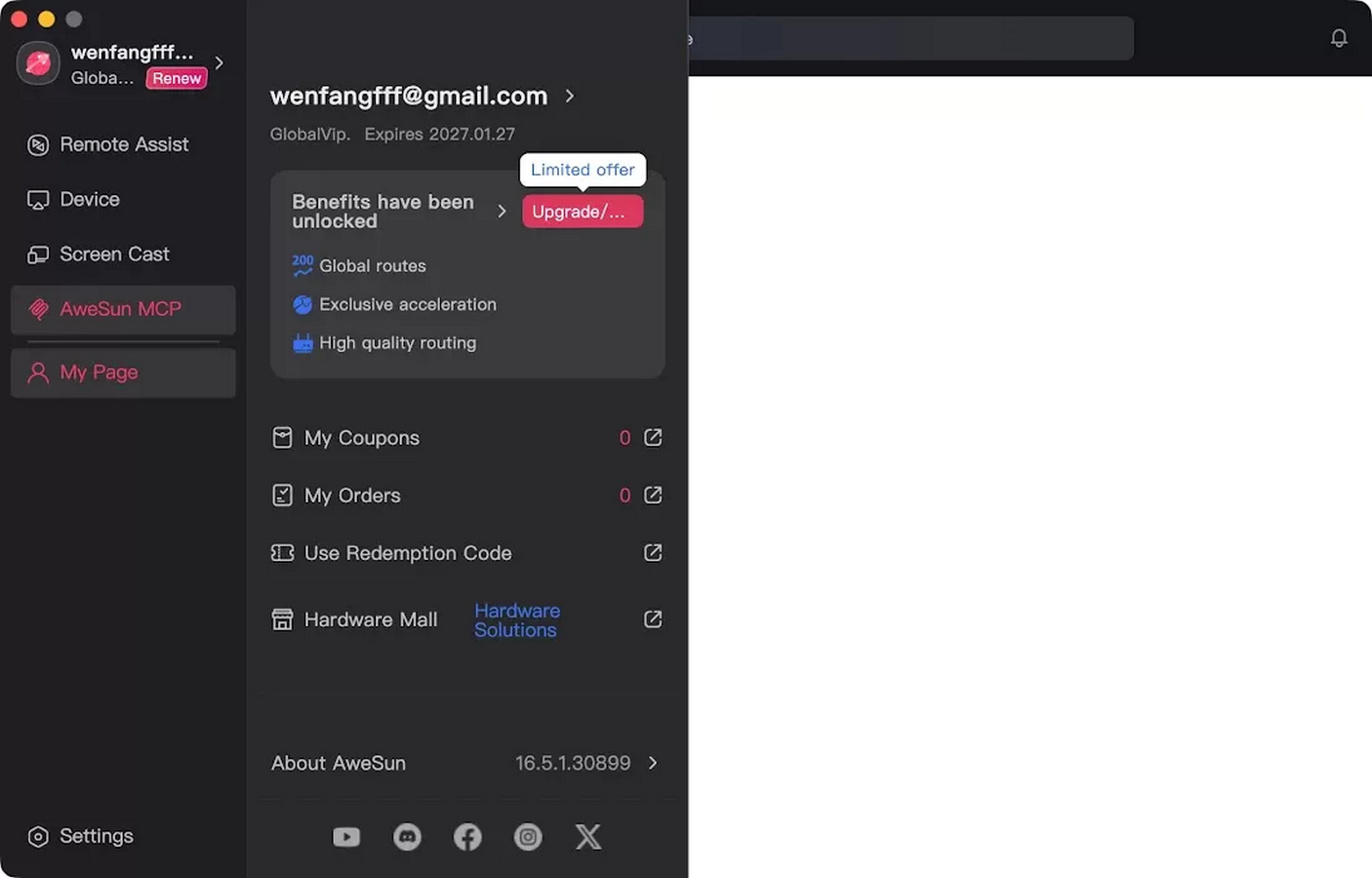
AweSun supports Windows, macOS, iOS, Android, and Linux downloads. Its mobile options also support computer access from phones and tablets.
Cross-device access can help you:
- Check a desktop task from your phone.
- Control a Windows computer through a Mac.
- Reach work files from a tablet.
- Manage an Android device remotely.
- Switch locations without rebuilding your setup.
Small screens still limit detailed work. Yet mobile access works well for checks and simple actions.
You might approve an export, restart software, or send one file. These quick actions can prevent larger delays.
Remote Desktop Technology Also Supports Personal Gaming
Remote gaming follows the same basic model.
Your main gaming computer runs the game. Another device displays the session and sends your controls.
This setup lets you use your existing game library elsewhere. You may play from another room, a laptop, or a mobile device.
Gaming needs stronger performance than basic file access.
A productive work session can tolerate small visual delays. Fast games require low latency and smooth frame delivery.
Network speed matters. Connection stability matters even more. Wired internet often provides better results for the host computer.
AweSun promotes gaming features that support up to 144 FPS. It also lists low-latency controller support and high-resolution streaming options. Actual results will depend on hardware, distance, network conditions, and subscription features.
Introducing AweSun for Personal Remote Access
AweSun provides remote access for work, creativity, gaming, and device control.
Its Personal Edition targets individual users. It supports remote work, creative production, gaming, and cross-device access. The company also offers a free option for basic personal use.
Users can begin through the official remote desktop download page.
AweSun can suit people who need:
- Remote access to a home or work computer.
- A simple connection between different operating systems.
- Access to files stored on another device.
- Remote gaming from supported devices.
- An affordable entry point for personal use.
The platform combines remote control with file and device access. More advanced plans add performance and professional features.
That structure lets users start with core tools. They can upgrade when their needs grow.
Performance for Demanding Tasks
Basic remote access requires clear visuals and responsive controls.
Creative work and gaming demand more.
AweSun states that its remote PC technology supports frame rates reaching 144 FPS. Its website also promotes low-latency connections for gaming and creative workloads.
High frame rates can improve motion clarity. They also create more responsive control.
However, software alone cannot guarantee perfect performance.
Your experience depends on:
- The host computer’s hardware.
- Internet quality at both locations.
- Distance between connected devices.
- Wi-Fi interference or network congestion.
- The selected resolution and frame rate.
Lowering visual quality can improve weaker connections. A wired host connection can also reduce instability.
Security Must Remain Part of Every Remote Session
Remote access can expose important files and device controls.
Users should treat security as a core requirement.
AweSun says it uses secure remote architecture and encrypted connections. Its published product information also references AES-256 encryption and authentication controls.
Still, secure software needs responsible users.
CISA warns that criminals can misuse legitimate remote access tools. Its guidance recommends strong control, monitoring, and safe configuration.
Microsoft also recommends multi-factor authentication, software updates, session controls, and careful access management.
Protect your remote setup with these steps:
- Use a long and unique account password.
- Enable two-factor authentication when available.
- Keep the host computer fully updated.
- Remove devices you no longer use.
- Review saved access permissions regularly.
- Never approve unexpected connection requests.
- End remote sessions after completing your work.
Avoid remote connections through unknown public networks. Use a trusted connection or personal hotspot when possible.
How to Prepare a Reliable Remote Workspace
A strong setup starts before you leave home.
Install the remote software on both devices. Sign in and confirm the connection. Test sound, controls, and file access.
Then check the host computer.
Disable unwanted sleep settings during required access periods. Keep the computer connected to power. Use a stable wired connection when possible.
You should also organize essential files.
Place active projects inside clear folders. Close unnecessary programs. Confirm that enough storage remains available.
Finally, test the workflow from another network.
A local test may hide outside connection problems. A separate network gives you a more realistic result.
Choose Settings Based on Your Task
Not every session needs maximum image quality.
Simple document work can use lower resolution. This reduces bandwidth needs.
Detailed design reviews need sharper images. Gaming benefits from higher frame rates.
Match the settings to your task.
This approach protects performance and avoids unnecessary network strain.
The Future Will Focus on Access, Not Location
Flexible work changes how people value computers.
Owning one powerful system may matter less than accessing it anywhere. A lightweight device can become a window into stronger hardware.
This model supports creators, freelancers, remote employees, and gamers.
It can reduce duplicate hardware purchases. It can keep files organized. It also protects established software environments.
Remote desktop technology will not replace every local setup. Internet quality and security still shape each experience.
However, it removes many location limits.
Tools such as AweSun help consumers reach their devices across platforms. They support work, creativity, file access, and entertainment.
The result is a simpler idea of flexible work.
Your best computer no longer needs to travel with you.
Is remote desktop software safe for personal use?
It can be safe when configured correctly. Use strong passwords and two-factor authentication. Keep every connected device updated.
Does remote desktop software work on slow internet?
Basic tasks may work on slower connections. Gaming and creative work need stronger stability. Lower resolution can improve performance.
Can I access my computer while nobody is home?
Yes, when the software supports unattended access. Configure this feature before leaving. Protect it with strong authentication.
Can remote desktop software transfer files?
Many remote tools include file transfer features. Available limits may depend on the platform or subscription plan.
Can I play PC games through a mobile device?
Yes, supported remote gaming tools can stream PC games. Performance depends on hardware, controls, distance, and connection quality.