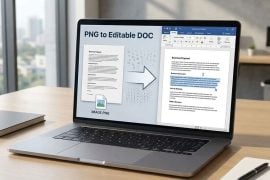
Not every image stays an image forever. Whether you’re organizing receipts, submitting scanned forms for work, or sending photos through a platform that only accepts PDFs, the need to convert a JPG to a more document-ready format comes up more often than expected. PDF files stay consistent across devices, are easy to share professionally, and are broadly accepted by systems that won’t take raw image files. The question is which tool to use. This article breaks down what a solid JPG to PDF converter should offer and what you can realistically expect when using JPGtoPDF for that job.
Why JPG Files Often Need a Different Format
JPG is the default format for most cameras, smartphones, and scanners. It’s compact and widely supported — but that doesn’t always make it the right choice for document workflows.
Most official systems — government portals, legal platforms, HR software, client-facing submission tools — require PDF rather than image files. When you send someone a JPG, the layout can shift depending on their screen or operating system. The file can also be edited without any clear record of what changed. A PDF, by contrast, holds its content in place, displays the same way on every device, and can bundle multiple pages into a single file.
That’s where a free image to PDF converter stops being a nice-to-have and starts being a practical workflow tool. It takes something visual and turns it into something that behaves like a proper, shareable document.
What to Look for in a Conversion Tool
Not all converters deliver the same experience, and knowing what separates a reliable option from a mediocre one makes the choice easier.
- Speed — Conversion should take seconds. A tool that drags on for a basic file operation adds friction rather than removing it.
- Format support — A dependable free JPG to PDF converter handles more than just JPG. PNG, TIFF, GIF, and PSD files should all work without requiring pre-conversion to a different format first.
- Quality preservation — The resulting PDF should match the original image in clarity and resolution. Automatic compression or visible quality loss during conversion is a red flag.
- File privacy — Uploading a file means trusting the service with it. A trustworthy converter clearly states that uploaded files are deleted after a set period and backs that up in its privacy documentation.
- Extended tools — After conversion, you’ll often need to merge, compress, split, or rotate the PDF. Having those features in the same platform saves you from juggling multiple apps for a single task.
What JPGtoPDF Offers as an Image to PDF Converter
JPGToPDF is an online image to PDF converter built to cover a wide range of formats. On the conversion side, the platform supports JPG, PNG, GIF, TIFF, SVG, and PSD files — covering most image types you’re likely to encounter in everyday document work.
It also handles the reverse direction. If you receive a PDF and need specific pages as image files, JPGtoPDF covers that workflow as well. For anyone regularly looking for the best free PDF to JPG converter functionality — extracting a chart, pulling a diagram for a presentation, or uploading a single page somewhere that only accepts images — this removes the need for a separate tool.
Beyond conversion, the platform includes tools for merging, splitting, organizing, rotating, compressing, and cropping PDFs. Once your image becomes a document, you can continue working with it in the same place, without switching between platforms mid-task.
How to Get Consistent Results from Image-to-PDF Conversions
The tool matters, but how you prepare your files makes a difference too. A few simple habits lead to better results:
- Name files descriptively before uploading. When merging multiple images into a single PDF, clear file names make it easier to keep pages in the right sequence.
- Review the page order before downloading. Most online tools show a preview. Use it to confirm the images appear as expected before saving the final file.
- Apply compression selectively. If you’re sending the PDF by email or uploading it to a system with file size limits, compress it after conversion. If visual quality is the priority, skip this step.
- Check the output before sharing. Open the downloaded PDF and verify the image quality held up. It takes under a minute and prevents sending a file that looks worse than the source.
These habits become automatic quickly and apply regardless of which tool you use. Once they’re part of your process, conversions go more smoothly across the board.
Conclusion
Finding a reliable JPG to PDF converter comes down to consistency — does it preserve image quality, support the formats you work with, and give you useful tools for what comes next? Based on this JPGtoPDF review, the platform covers the core needs without overcomplicating the process. If converting image files to shareable documents is a regular part of your workflow, having a free image to PDF converter you can count on is a straightforward efficiency gain.