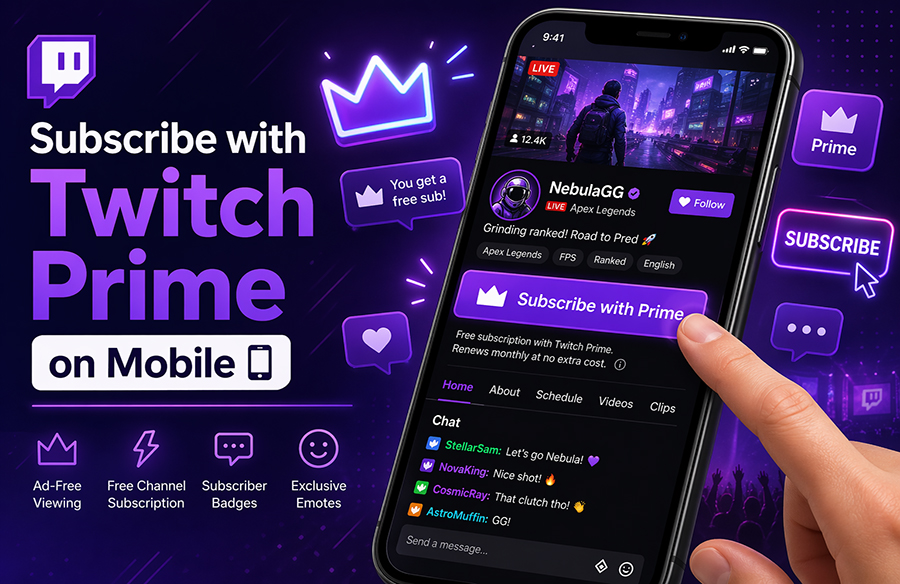
Subscribing to top streamers on Twitch can embrace more forms, with more and more platforms offering third-party support to those interested. From this point of view, learning how to subscribe with Twitch Prime on mobile will bring in a series of benefits, as well as support for streamers.
Now, Prime offers a different approach when it comes to such subscriptions. Some streamers prefer it because of the fixed rate, but on the same note, it could also bring in a significant cut for high-earning professionals.
Either way, here’s everything you need to know about subscribing with Twitch Prime on mobile.
Why Subscribe With Twitch Prime on Mobile
Basic subscriptions are usually free for subscribers. Basically, once you subscribe to Amazon Prime, you pay a fee. This fee comes with a series of benefits as well, depending on different partnerships between companies.
One of these benefits is the possibility to subscribe to a Tier 1 channel without paying extra. That’s about $5 a month.
Then, this subscription also brings in exclusive perks. You can access specific channel emotes that other users don’t have access to. You’ll also have a unique badge, not to mention viewing streams without being bothered by ads. These small advantages make chatting and watching feel more personal, especially when your messages stand out in busy streams.
Apart from these, such a subscription is convenient too because it allows you to support streamers straight away over your phone. Prime subscriptions renew on a monthly basis. You can change the subscription to another streamer or support the same one.
Many viewers rotate their Prime sub each month to discover new communities, while others lock it to one creator they really want to back.
Either way, it’s a good option for streamers too, as they can grow Twitch followers in no time.
Learning how to subscribe with Twitch Prime on mobile is fairly simple.
How to Subscribe With Twitch Prime on Mobile
Here are the steps for a successful subscription.
Link Your Accounts
First, you need to ensure that your accounts are linked. Of course, you need both an Amazon Prime account and a Twitch account. Otherwise, you can’t link them. Having a Prime account also means that you’re currently paying for a subscription for your orders and extras.
If you’re not sure whether you still have Prime, quickly check your status in your Amazon account before going any further.
To link your accounts, do it via Amazon’s gaming center page. It’s highly recommended to do it over your browser. Even if you use a mobile phone, try to log into your account over the mobile browser. The website is mobile optimized, so there should be no issues whatsoever.
Sign in to Both Accounts
To link accounts, you’ll have to log into each of them. Again, log into your Prime account using a browser on your mobile device. As for Twitch, feel free to use the mobile app. Launch the app (available on both iOS and Android devices) and sign into your account.
Find Your Favorite Streamer
Learning how to subscribe with Twitch Prime on mobile implies having all the data readily available. And this includes the streamer as well. So, who do you want to subscribe to? Find a streamer who you want to support.
Navigate to the streamer’s channel. If you’re not sure about whom to support, take your time and check out more streamers. Besides, look how often they stream too. Make sure it’s something that you’re interested in as well.
Subscribe
To subscribe, you’ll find an option on the streamer’s channel. Each channel page taking subscriptions will give users the possibility to do so. While still on the mobile app, find the subscribe button and tap on it. It will take you to a completely different menu with even more options.
Use Your Prime Sub
Since Prime gives you a free subscription, it’s pointless to leave it there. If you want to support a streamer, go ahead and do it for free. Once you tap the subscription button, you’ll have more options to subscribe. One of them says “Use Prime Sub”.
This label can sometimes appear as “Subscribe Free with Prime” or something similar, but the idea is always the same.
Based on the app version, you could find it under the option to select a tier. It may also show up in a menu to “elevate your subscription”, especially in mobile browsers.
Confirm the Subscription
Finally, you’ll have to confirm your subscription. Assuming you’ve done everything by the book, your subscription should begin immediately. The streamer you’ve chosen to support should start earning straight away.
Extras to Consider
Learning how to subscribe with Twitch Prime on mobile isn’t the most difficult job in the world, but there are a few things you should know about it.
- Prime renews automatically, but Twitch Prime subs won’t. You’ll have to repeat these steps every month.
- Not renewing your Twitch sub won’t affect your Prime sub.
- Apart from the free sub coming with Prime, you can subscribe to other streamers and pay for these extra subscriptions.
In conclusion, figuring out how to subscribe to Twitch Prime on mobile isn’t the most difficult job in the world. However, it’s worth noting that the sub won’t renew. While some people appreciate it, others hate repeating the steps over and over again.