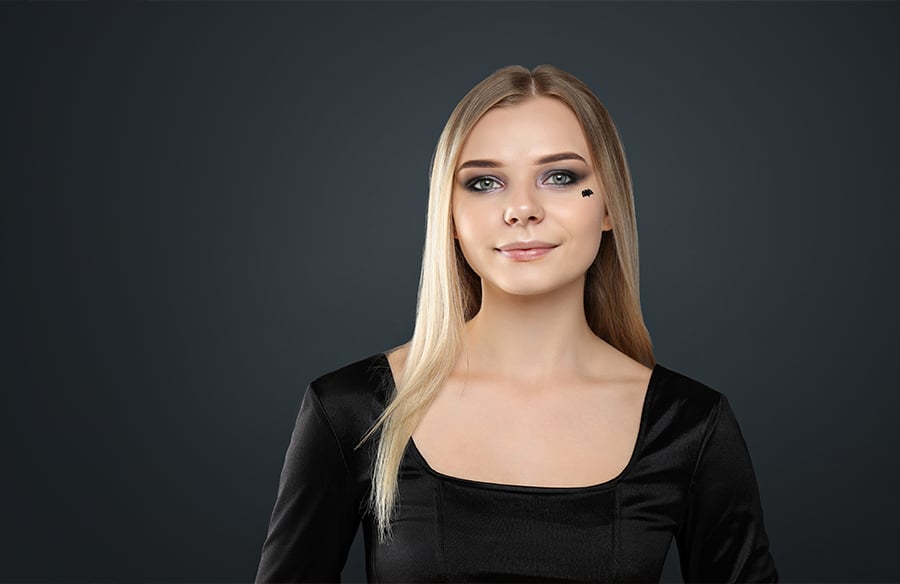
A flawless planned portrait can still have its little distractions. Variations in light, temporary spots, and shine can all shift the viewer’s focus away from the subject, which is why beauty retouching is necessary.
Just a few years ago, it was a complex, professional-grade task that required hours of work. The development of artificial intelligence (AI) has made portrait editing much faster and more accessible to all skill levels. However, it does not mean that the process is now challenge-free.
Portraiture is a very emotional genre. Viewers love it for the authentic expressions and visual stories they can relate to. Overprocessed images lose this genuinity, so it is important to maintain the balance when eliminating imperfections.
In this guide, we explain how to edit portrait photos with AI without compromising their realism. We will teach you a workflow that lets you subtly adjust your portraits to highlight your subject without dominating it.
Step 1. Understand What AI Can Improve
Face editing covers more than correcting skin. Based on the photo and whatever type of editing app you use, it could be about hiding a temporary blemish, blurring shiny skin, adjusting the tone, or improving the image details of the face. Before adjusting anything, just ask yourself:
- What pulls the attention away from the model’s face?
- Which features and elements preserve their character and the visual story, and should therefore remain intact?
- What is the photo style and how much retouching is appropriate for it? For example, fashion portraits should be polished and flawless, while family photos will only benefit from “perfect imperfections.”
Step 2. Choose a Portrait and Prepare It
Make sure that the original photo is clearly visible on the face and is of a good resolution that allows you to view the skin. If the face is blurred or covered in excessively dark areas, your AI will have a very hard time dealing with it.
Open Luminar on Web in your browser and upload your photo. You can begin with the free Web Only plan, which includes basic Light, Details, Color, and Curves adjustments. Use the Light controls to correct exposure and the Color tools to address an unwanted color cast before retouching. The free plan also supports RAW files, although exports are limited to standard quality.
Examine the photo by zooming in on the areas of the face. Keep the original image available for comparison so you can judge whether each change improves the photograph.
If you want to use AI portrait tools directly in Luminar on Web, note that Skin AI, Face AI, and Body AI require the paid Web Full Access plan. You can also try AI skin retouching online for free through Skylum’s dedicated skin-retouching page without purchasing a plan. Check the current plan details before choosing your workflow.
Step 3. Refine the Skin
How does AI portrait retouching work? It analyzes visual features in a photo to identify areas that may benefit from adjustments. Skin AI in Luminar can help reduce the appearance of blemishes, smooth skin, and minimize shine. You don’t necessarily need a paid plan to try this type of retouching: Skylum offers a separate free online Skin AI tool, while access to Skin AI within the full Luminar on Web editor is part of its paid plan.
Once you open the Skin AI tool, start by assessing the areas that need the most attention. For example, light may reflect more strongly off the forehead than the cheeks, while shadows around the nose can make skin tones appear uneven. Consider these areas individually instead of editing the entire face.
Adjust the available skin controls gradually. Luminar’s online skin-retouching tool provides options for blemish removal, face smoothing, and shine reduction. Make a small change, then check the result before increasing its strength. If the skin begins to look flat or waxy, reduce the smoothing effect.
Maintain freckles, pores, fine lines, moles, and sometimes even tiny scars — they are the points that tell us who that person is. It also adds interest to the story that you tell with the shot. If people are noticing the editing rather than the expression, reduce the effect.
Step 4. Balance Facial Details
Start with the Light control. If the eyes are lost in shadow, a slight adjustment to brightness may help make the expression easier to read. Watch the highlights, too. Increasing brightness too much can make the forehead or cheeks look washed out.
Use the Color controls to bring the tones closer to what you remember from the scene. Skin can appear too warm under indoor lighting or too cool in the shade. Make subtle color adjustments until the face matches the scene. Resist the temptation to push the saturation slider too far, as it will make your portrait look artificial.
Finally, inspect the model’s eyes, eyebrows, and hair. These details help convey expression and character. Sharpen these elements selectively if needed, but be cautious. If you overprocess the picture, you might have to address the digital noise (grain).
Step 5. Review and Save
Compare the edited photo with the original. Look for changes that feel too strong, such as overly smooth skin, unnaturally bright eyes, or facial details that no longer match the rest of the image. If something looks wrong, reduce the effect or undo the adjustment.
Return to the questions at the beginning of this guide and ask them again from the edited picture’s perspective: Are the distractions removed? Are the character-carrying elements preserved? Do the applied edits match the intended style? Once you can answer “yes” to all of them, the picture is ready.
Keep in mind that Luminar on Web’s free Web Only plan is for exporting at standard quality, and that you will have access to all sorts of other features in the plans above that. Pick the plan that best fits your Post-Processing needs, and keep your original photo if you’d like to explore a different route later.
Conclusion
Every portrait presents a different creative opportunity. As you gain experience with AI tools, you’ll develop a better sense of which adjustments suit your style and when to leave an image untouched. Start with a portrait from your own collection and experiment with a few subtle changes. Practice, experiment, and express your vision with confidence.