Introduction
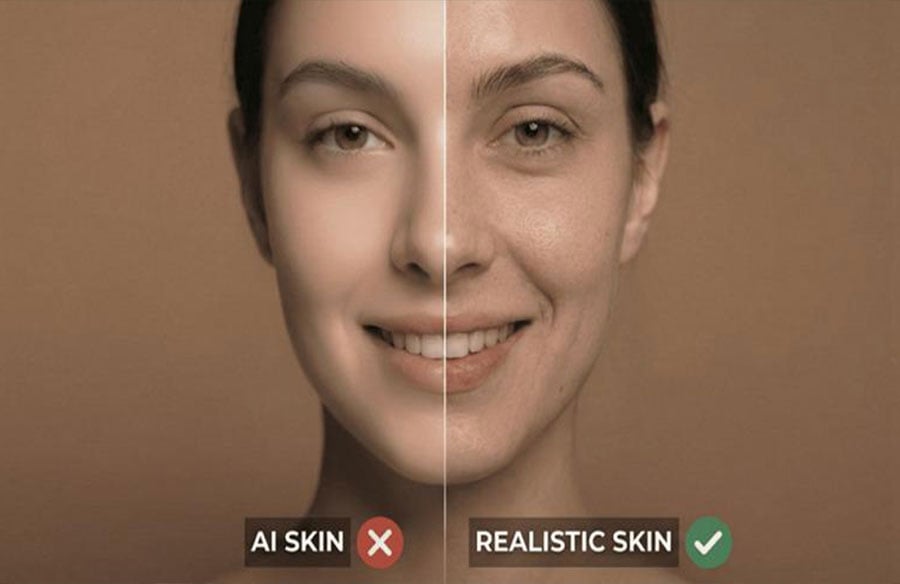
AI-generated portraits can look incredibly realistic, but many still have one noticeable flaw: overly smooth, artificial-looking skin. While modern AI portraits can look surprisingly photorealistic, they often suffer from overly smooth, artificially polished skin. Thankfully, an efficient AI skin texture enhancer can help by restoring pores, fine lines, natural shadows, and facial details.
Instead of creating a plastic appearance, these tools bring back realistic skin texture. In this article, you’ll learn the causes of fake-looking skin, top ways to fix AI skin, and various uses of AI skin texture enhancement.
Why AI Skin Looks Fake: Understanding the Plastic Face Effect
AI-generated portraits often look impressive at first glance, but a closer look shows unnatural skin. Understanding why the plastic face effect happens is key to making AI portraits look genuinely human:
AI Removes Natural Skin Texture, Pores, and Micro-Details
The removal of minor imperfections like pores, freckles, shadows, and color contrast is the major cause of AI skin looking artificial. As AI models analyze a range of human faces during image generation, they often erase natural texture to create visually attractive results.
Over-Smoothing Creates the Plastic Face Effect
The plastic face problem arises when AI enhancement tools apply excessive smoothing. Many AI beauty filters automatically remove wrinkles, increase skin brightness, and reduce facial contrast. Although these changes look attractive on a small screen, they become obvious when viewed on a large screen.
Unbalanced Lighting and Facial Details Make AI Faces Look Unrealistic
AI realism is not only about texture. Lighting, shadows, and facial features also have a direct impact on the authenticity of a photo. AI portraits often have incorrect highlights, imbalanced light, missing facial depth, unnatural shadow placement, and inconsistent skin tones.
How Realistic Skin Texture Makes AI Faces Look More Natural
Compared to AI-generated faces, realistic skin has small defects that viewers subconsciously realize as human. It always includes visible but subtle pores, soft variations, balanced highlights, realistic shadows, etc. The goal is to introduce subtle surface details, micro-pores, and depth that make the features feel truly authentic.
Best AI Skin Texture Enhancers Compared (2026)
Whether you need quick one-click AI restoration, professional layer-based editing, or a light browser-based solution, choosing the right tool depends on your workflow. Below are the top AI skin texture enhancers compared:
HitPaw FotorPea – Best AI Tool for Natural Skin Enhancement
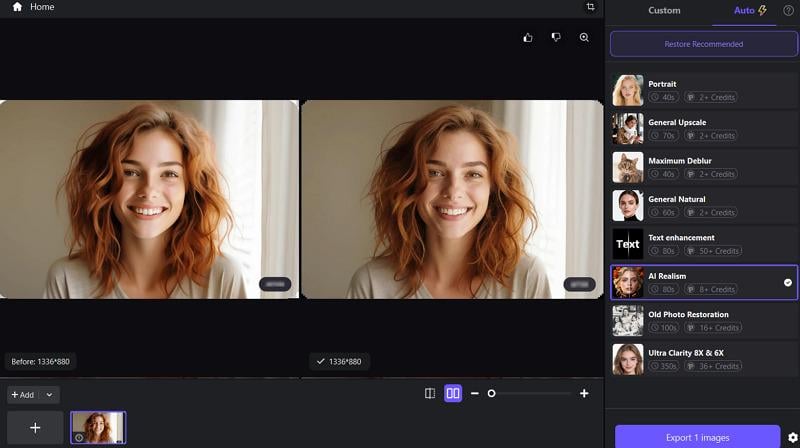
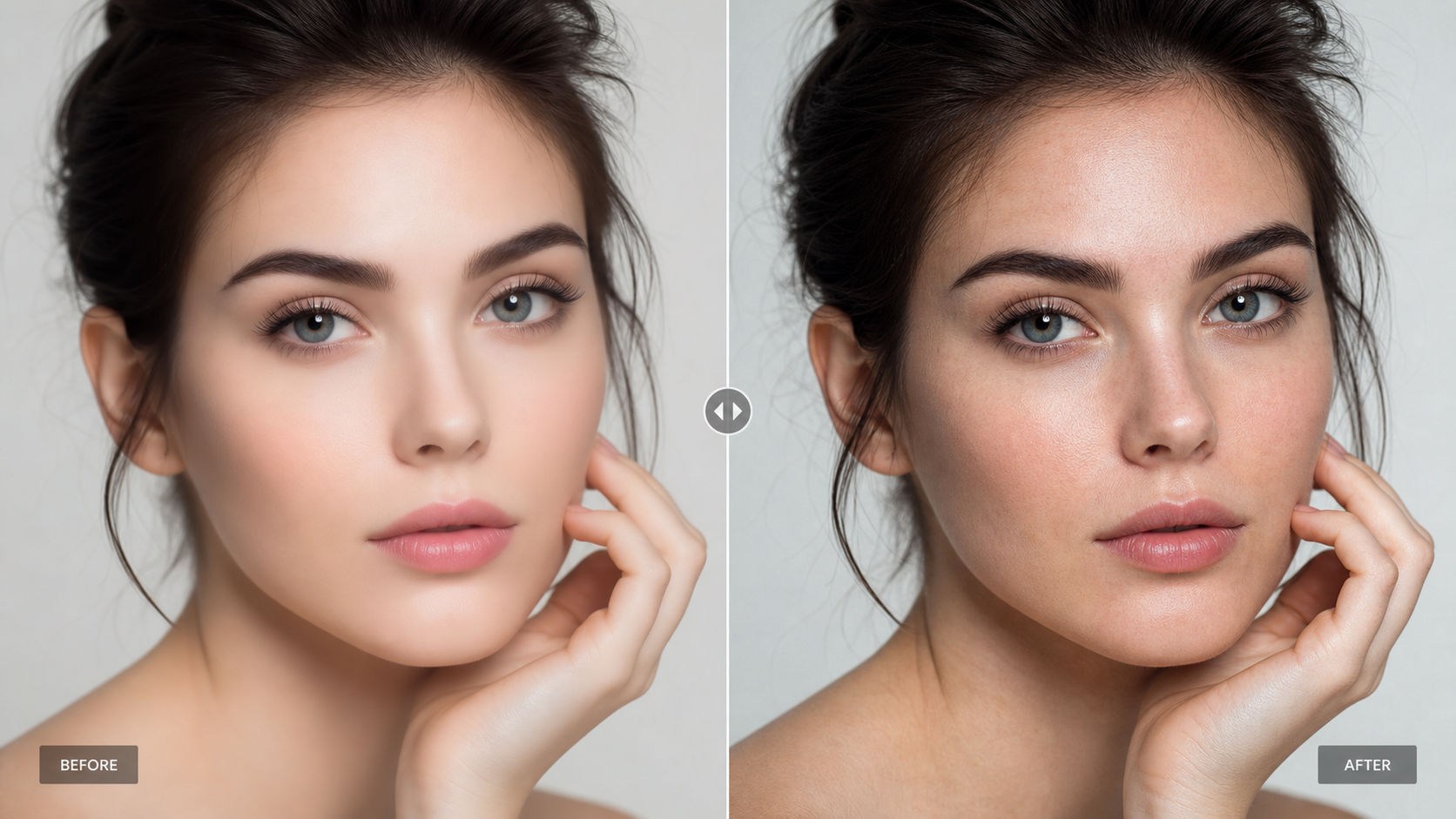 HitPaw FotorPea is one of the easiest solutions to help users fix AI skin. This remarkable software offers the latest models like AI realism and Face Restoration to improve image quality by restoring facial features and natural textures in a single click. From skin to fabric and shadows, it improve facial details while preserving natural textures.
It also upscales photos to 4K or 8K resolution and enhances clarity using advanced deep-learning super-resolution models, recovering lost fine details like pores and skin grain. You can easily convert a casual selfie into a studio-quality portrait. It even supports batch processing multiple pictures to look realistic, saving time and effort.
Pros:
- One-click AI realism and face restoration
- Fast batch processing for high-volume editing
- Preserves facial structure while restoring natural pores
Cons:
- Desktop software requires download and installation
How to Fix AI Skin and Restore Realistic Texture (Step-by-Step Guide)
Let’s follow the given steps on how to fix skin texture on face with HitPaw FotorPea:
Step 1: Upload Your Image to HitPaw FotorPea
After downloading and launching this software, click the “Enhance Photos Now” button. Now, you can tap or drag & drop the image with plastic-looking skin.
 Step 2: Select the Specialized AI Face Model
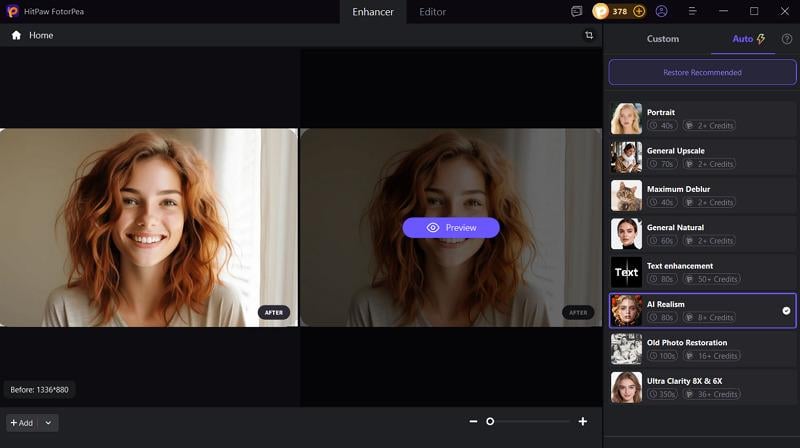
From the side column, choose the “Face Restoration” model under “Custom” or “AI Realism” under “Auto.” You can also pick the processing strength for custom models.
 Step 3: Enhance Skin Texture and Export in High Resolution
Lastly, press the “Preview” button to let AI enhance your photo. If the output looks fine, hit the “Export” tab and you are all done.
 Photoshop Skin Texture Editing – Best for Professional Control
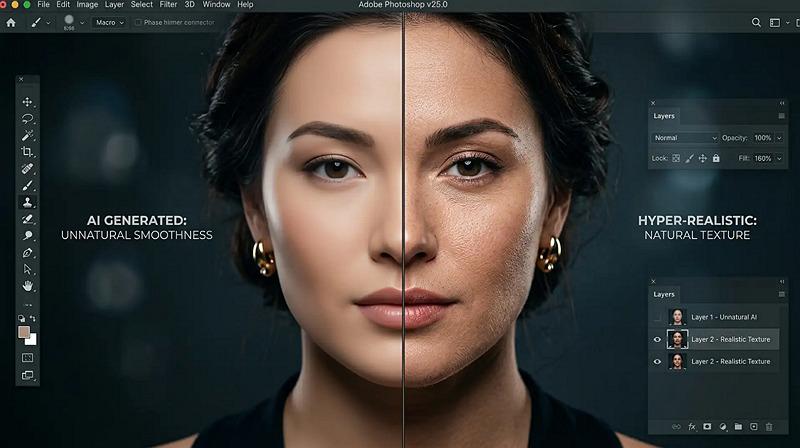 Adobe Photoshop remains a gold standard for professional editors, offering greater control over skin texture editing with layers and masking. It works well for users who prefer manual AI skin texture restoration methods, providing powerful tools to restore image quality through manual sharpening, retouching, and AI-powered upscaling.
You can manually improve photo quality using automated High Pass or Smart Sharpen features. It also lets you adjust exposure, color levels, and curves as needed. But for a quick fix, you can use Camera RAW to balance lighting and colors instantly in the AI-generated images.
Its impressive neural filters also help remove artifacts and enhance facial details. It even supports increasing resolution and sharpness up to 4x using AI with its Generative Upscale tool.
Pros:
- Non-destructive editing
- Professional-grade toolkit
- Integration with Creative Cloud apps
Cons:
- Requires a steep learning curve
- Works only on high-end PCs
Higgsfield Skin Enhancer – AI-Based Portrait Enhancement Alternative
Higgsfield Skin Enhancer is a browser-based tool that helps remove a plastic, overly smooth look from AI-generated faces and restores human texture. With pixel-level restoration technology, it reconstructs micro-details like pores, fine hair, and natural skin tones.
You only need to upload a portrait and select the enhancement type, like soft, realistic, or imperfect skin. AI can handle all the retouching, like balancing shadows and correcting poor lighting. It even offers a 4K upscaler for AI-generated photos that come out slightly soft.
The processing is completely automated and ensures the best results, depending on the original image quality. It is mainly suitable for those working with digital avatars and creative content.
Pros:
- Beginner-friendly interface
- One-click enhancement
- Preserve natural skin texture
Cons:
- Requires waiting in a queue
- Full body images may reduce accuracy
Pro Tips: How to Make AI Pictures Look Real with Natural Skin Texture
Instead of using an AI skin enhancer, it’s better to generate photos that look real. Let’s explore some tips to generate pictures with natural skin texture:
Use Realistic Skin Texture Prompts
AI models require specific, detailed prompts to create better images. Instead of using generic words like perfect skin, try natural skin texture, visible pores, realistic lighting, facial detail, and high-resolution portrait.
Avoid Over-Smoothing and Preserve Natural Details
Applying too much smoothness and beauty enhancement is another major issue. When editing, avoid maximum smoothing settings, excessive skin blur, unrealistic brightness, and removing every imperfection. Perfect skin texture comes from balance; it looks detailed and believable.
Enhance Resolution Without Losing Facial Identity
AI upscaling improves image quality, but too much enhancement may change facial features. When increasing the resolution, keep facial proportions balanced, avoid extra sharpness, and preserve original expressions and natural skin tone.
AI Skin Texture Enhancement for Different Use Cases
AI skin restoration is useful in various creative fields, from social media content to professional digital art. Here are some key uses:
Improving AI Portraits and Social Media Images
Many content creators and influencers use an AI enhancer to improve plastic-looking photos for profile pictures, marketing campaigns, and social media posts.
Making Midjourney Images Look More Realistic
While recent versions of Midjourney produce impressive skin details, generated portraits can still occasionally look over-processed. Applying a dedicated skin texture enhancer restores realistic micro-details for a truly natural, photographic finish.
How to Improve FaceGen Textures for 3D Characters
To improve animated characters created with FaceGen, 3D artists can use an AI skin enhancer. It will add realistic skin texture and improved facial detail for games, virtual reality, and digital storytelling.
Frequently Asked Questions (FAQ)
What is an AI skin texture enhancer?
An AI skin texture enhancer is a tool that analyzes overly-smoothed or plastic-looking portraits. It adds realistic human features like pores, fine lines, and natural tone variations for a realistic look.
How to fix skin texture on face in AI generated photos?
To fix skin texture, use a specialized enhancement solution like HitPaw FotorPea that can reconstruct pores instantly and increase the resolution losslessly without complex editing skills.
Is there a skin texture AI free tool available?
Yes, several free AI skin enhancement tools and web trials are available for basic retouches, though advanced features or watermark removal may require a subscription.
How to make AI pictures look real and reduce the “plastic” look?
To make plastic-looking pictures more realistic, you can use better prompts, reduce smoothing effects, preserve facial features, enhance resolution, or use an enhancement solution.
Can AI improve FaceGen textures or low-res render textures?
Yes, AI can significantly improve the FaceGen and low-res render textures by adding missing micro-details, upscaling, and correcting compression artifacts. However, the quality depends on the original image.
Conclusion
The future of image generation is moving toward AI realism. This post has explained well how an AI skin texture enhancer can help overcome the issue of plastic-looking skin.
Although you can choose any of the above recommended solutions to make AI pictures look real, HitPaw FotorPea is highly recommended for beginners. With an easy interface, it offers various AI models and ensures high-quality results at a super-fast speed. Let’s try it now!