Old printed photographs are often the only surviving record of a place, person, or moment. Yet time can leave them with scratches, stains, creases, fading, and details that are difficult to see. Digitizing a print protects the original from repeated handling, but scanning alone does not remove the visible damage. AI-assisted photo restoration offers a way to improve a working copy, provided the result is checked against the source.
For everyday creative work, Media.io provides browser-based AI image tools, including a dedicated Restore Old Photos option. Here is how to use it, what it can visibly improve, and where to be cautious.
Why Do Old Photographs Fade or Become Damaged?
Physical prints can deteriorate for several reasons. Exposure to light, heat, and humidity may shift colors and reduce contrast. Handling and storage can leave scratches, folds, dust spots, or stains on the surface. Scanning introduces other limitations: a low-resolution scan may look soft when enlarged, even if the original print remains intact.
These problems are not interchangeable. Fading is a color issue; a scratch is localized damage; a missing face detail is a loss of information. An AI photo enhancer may improve their appearance, but reconstructed pixels are estimates rather than proof of what the photograph originally showed.
What Can AI Do for a Damaged Old Photo?
A dedicated ai image enhancer can be useful when an old photo needs more than a basic brightness adjustment. The platform offers Restore Old Photos within its Image Enhancer workspace. It is distinct from Portrait Enhancer, Smart enhancer, Color Correction, and Image Upscaler, which address related but different editing needs.
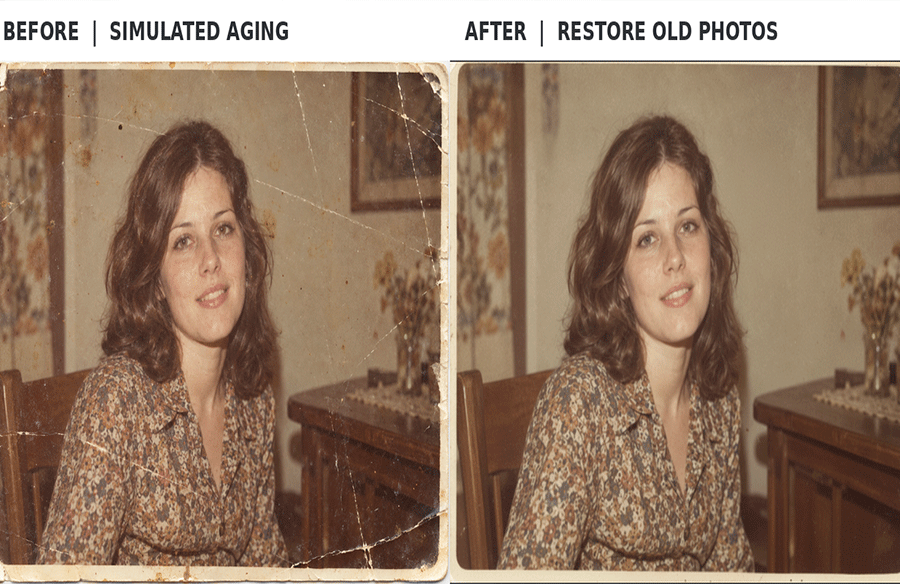
For the case study below, we tested a generated 1970s-style portrait with intentionally simulated scratches, worn edges, fading, and dust. The actual Restore Old Photos output shows that many long scratch marks and prominent creases became less visible. The photo keeps much of its warm vintage appearance; it does not suddenly become a bright, modern color portrait.
How to Restore an Old Photo Online with Media.io
Step 1: Prepare and Upload a Digital Copy
Photograph or scan the original print without cropping out essential details. Keep the untouched source. In the platform’s Image Enhancer workspace, select Drag File Here or Click To Upload and add your photo. The interface lists JPG, PNG, JPEG, WebP, and BMP as supported formats.
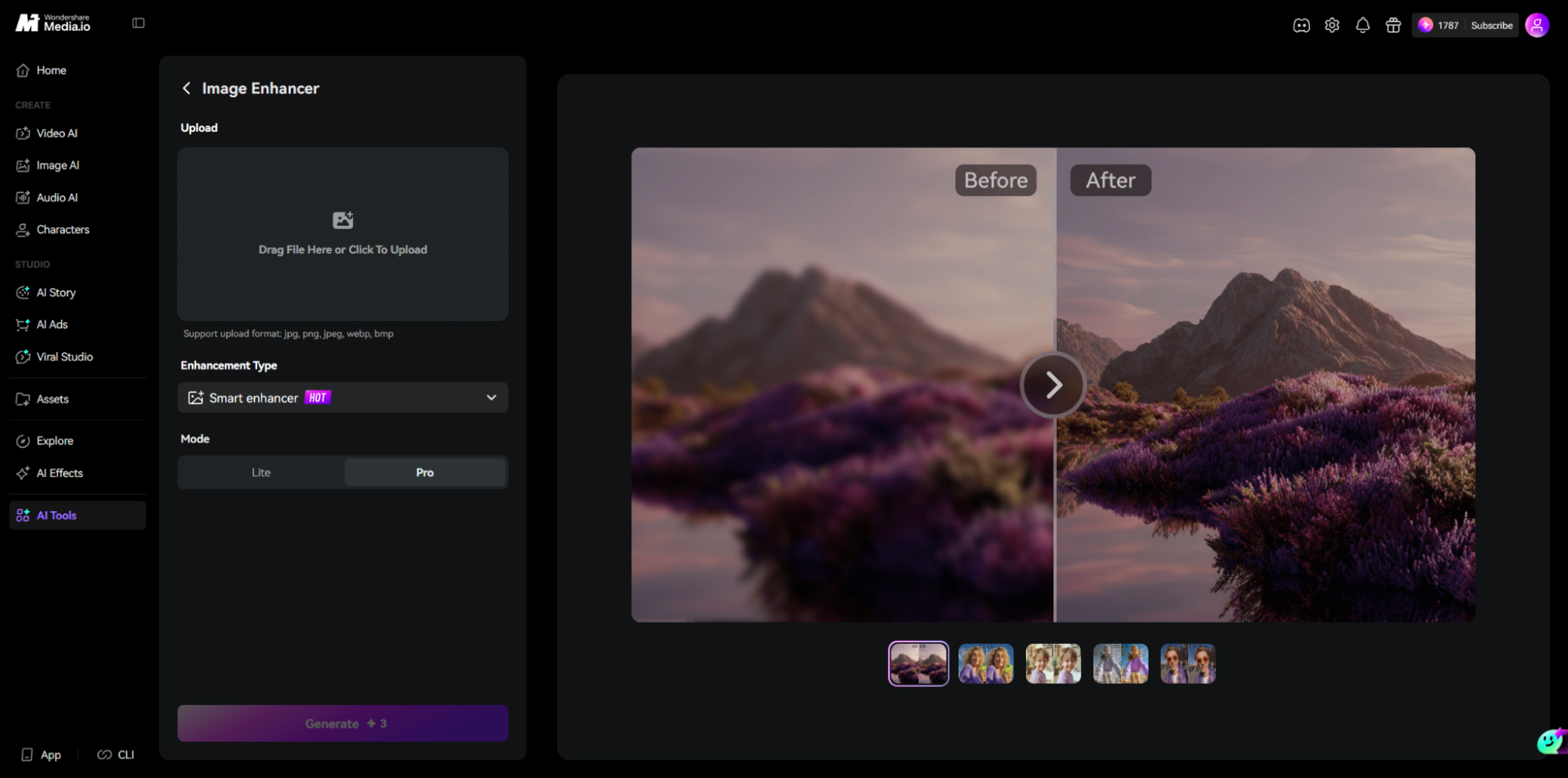 Step 2: Choose Restore Old Photos
Open Enhancement Type and choose Restore Old Photos. The menu also lists Smart enhancer, Portrait Enhancer, Color Correction, and Image Upscaler. For this demonstration, Restore Old Photos is the selected restoration process.
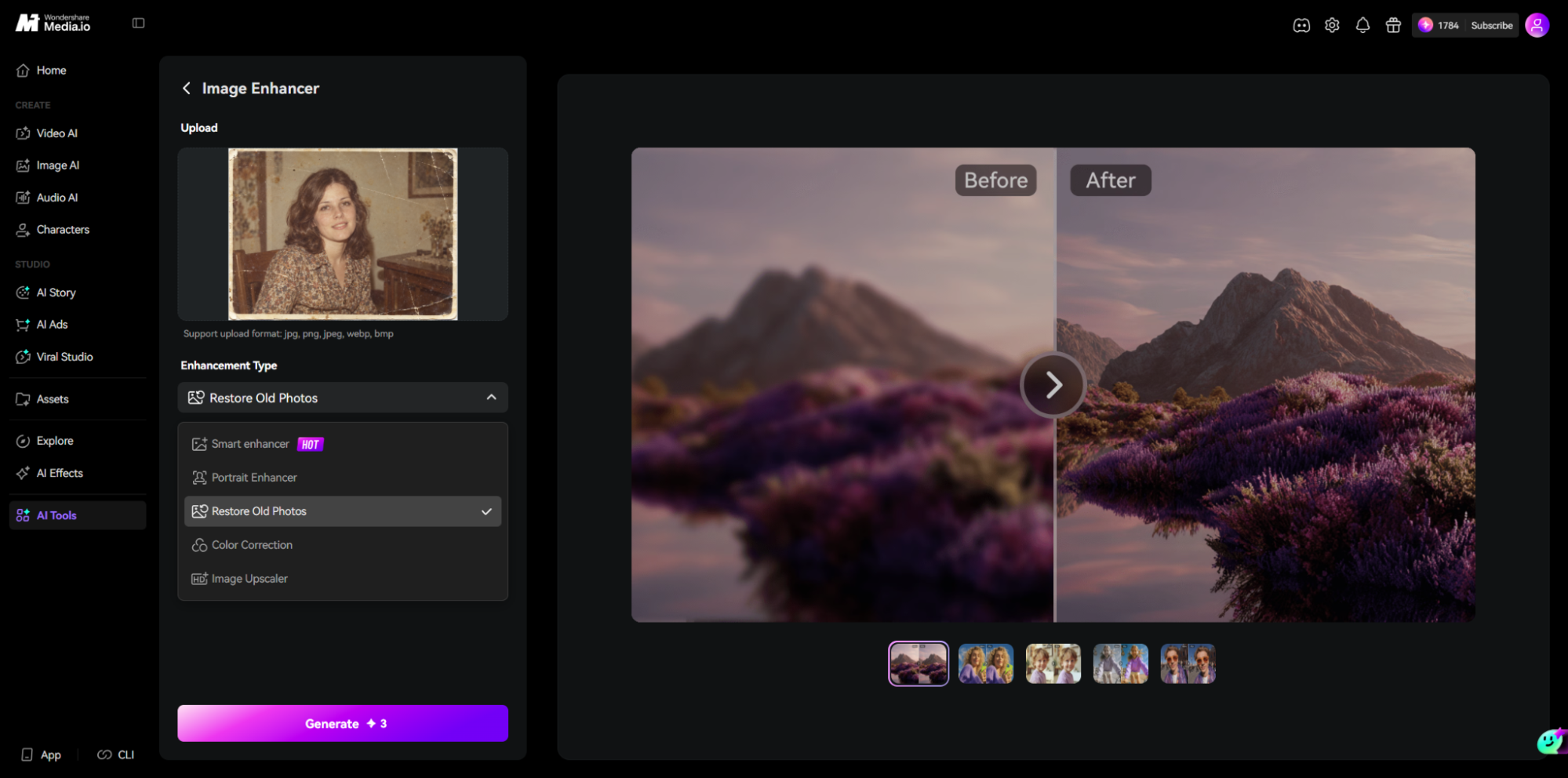 Step 3: Generate the Restored Photo
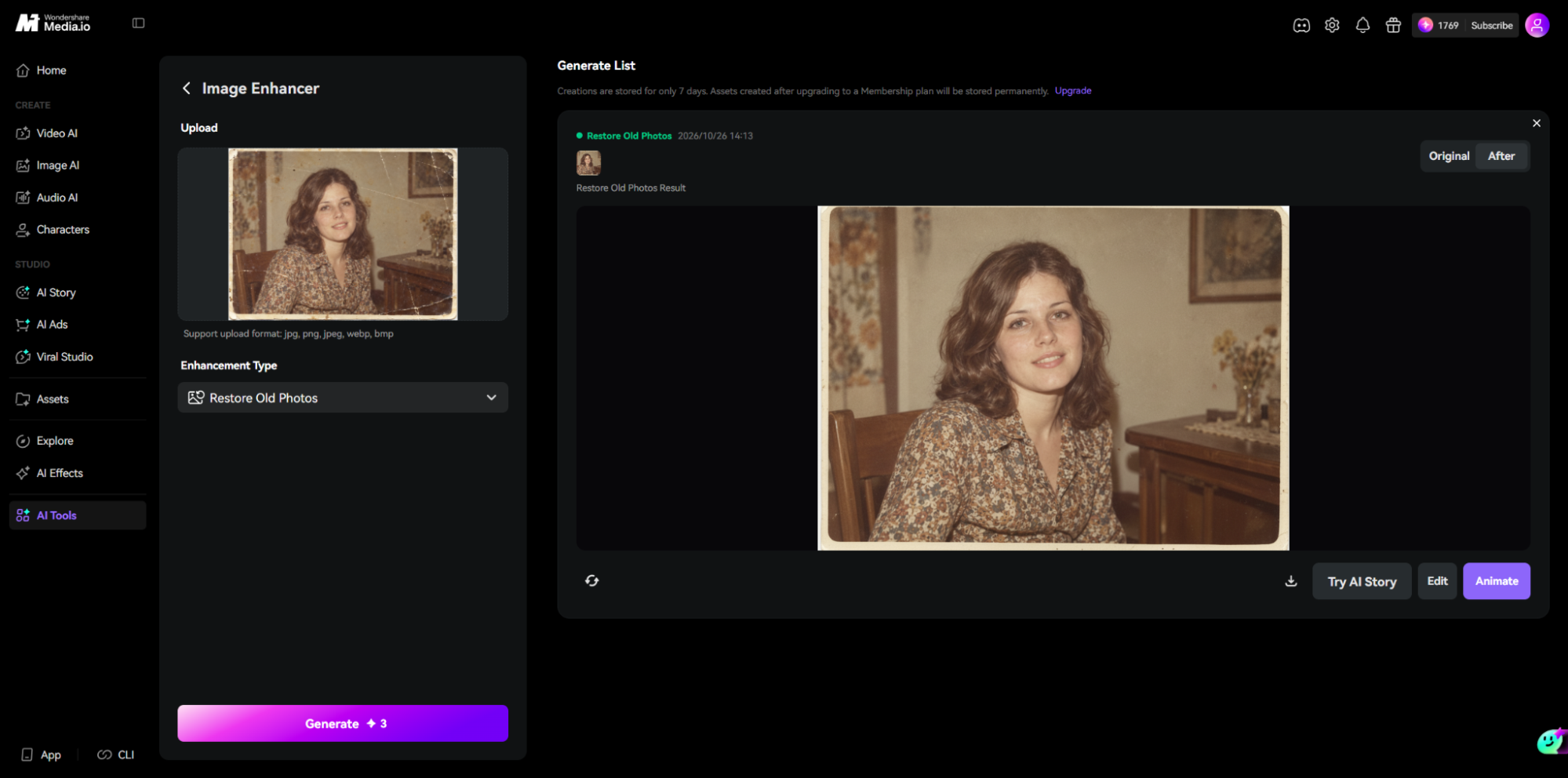
Once the original image is uploaded and the restoration mode is selected, click Generate. The example interface displays a credit cost on the button; costs and account allowances can change. Wait for the output to appear in Generate List.
Step 4: Compare Original and After
Use the Original and After controls to check the result. In our example, scratches across the background and clothing were substantially reduced, the corners looked cleaner, and the subject remained recognizable. The restored photograph retained an aged color palette. Examine eyes, hair, clothing patterns, and objects in the room before accepting any apparent “recovered” detail as authentic.
Step 5: Download and Keep the Source
Use the download icon beneath the result to save the processed photograph. Store it separately from the original scan. For keepsakes, a restored copy can be useful for sharing or display; for archival, research, or documentary use, the original should remain the authoritative record.
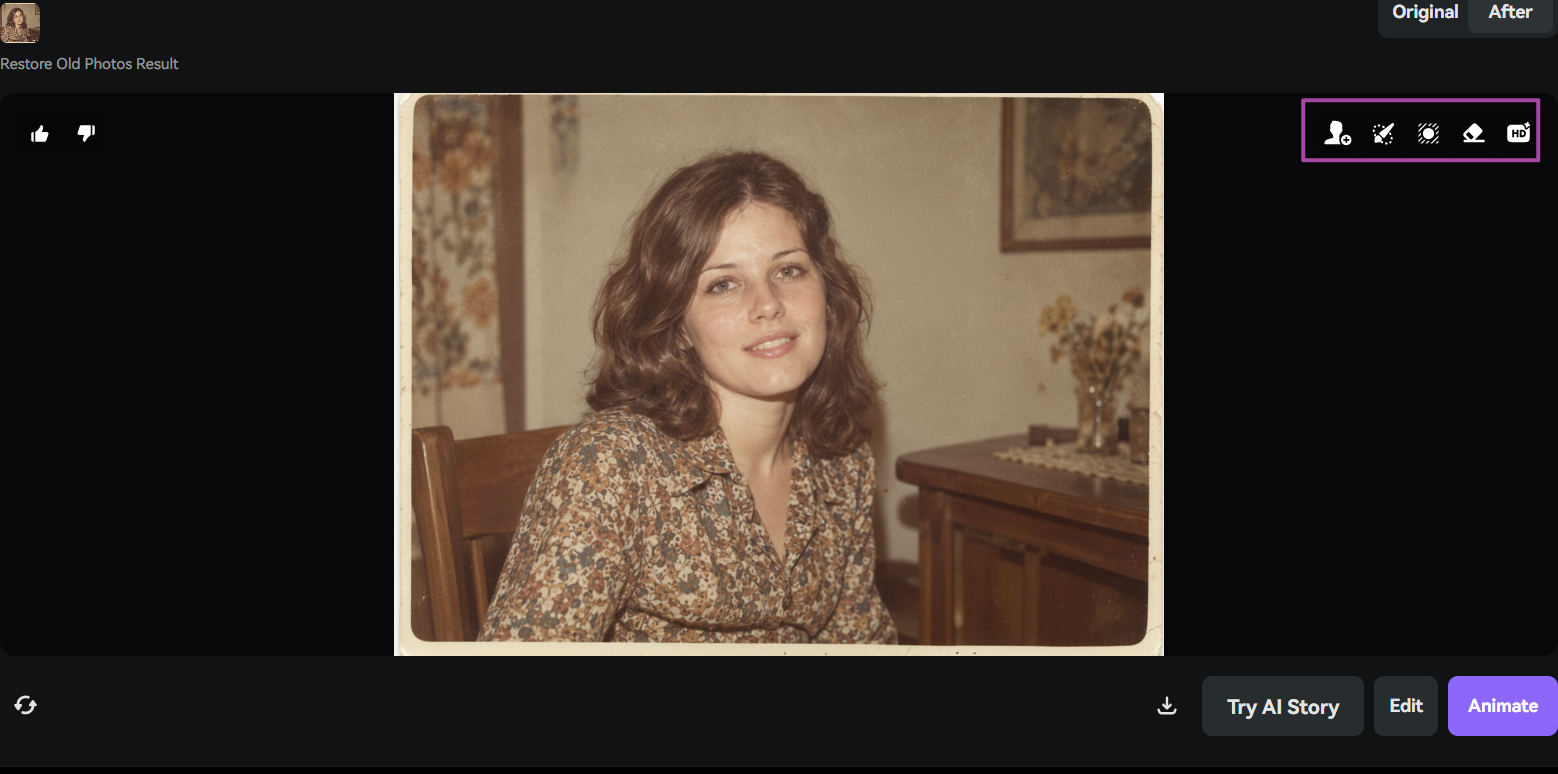
 What Can You Do After Restoring a Photo?
The result view also gives access to separate editing and creation tools. The available icon row includes Save as Character, AI Replace, Image BG Remover, Object Remover, and Image Enhancer. Additional actions include Edit, Animate, and Try AI Story. These are follow-up tools; they are not all part of the Restore Old Photos operation, and some may use additional credits.
These options can be useful for a modern creative project. For a sentimental or archival photograph, however, changing backgrounds or replacing objects may unintentionally alter the meaning of the image. Always preserve an unedited copy.
 When Should You Use Color Correction or Image Upscaler?
Restore Old Photos is a reasonable starting point for prints with visible age-related wear. If the remaining issue is an unwanted color cast or flat tonal balance, Color Correction is a separate option to explore. When a clean scan needs more output pixels for a larger display, Image Upscaler is the more relevant mode; increasing resolution does not guarantee historically accurate new detail.
This distinction matters in visual design and preservation. An old streetscape photograph may help explain the evolution of a neighborhood, while a historic portrait may belong in a family archive. In either case, retouching should enhance readability without quietly rewriting the evidence.
The careful preservation of such visual records is crucial for understanding the built environment. Architects and urban planners often rely on historical photographs to trace the development of structures, public spaces, and infrastructure, informing contemporary design decisions and conservation efforts.
Four Mistakes to Avoid When Restoring Old Photographs
1. Expecting missing details to return exactly
If information was never captured—or has been destroyed—AI may infer plausible features. Treat them as reconstructions.
2. Ignoring changes to faces
Zoom into eyes, teeth, facial proportions, and expressions. Better apparent sharpness is not always higher fidelity.
3. Overcorrecting vintage colors
Warm tones can be part of an old print’s appearance. Do not assume that an automatically balanced palette represents the original colors.
4. Replacing the only original
Keep the source scan and note any significant edits, particularly for architectural archives, exhibitions, or historical reference.
In architectural practice, the authenticity of visual documentation is paramount. Whether for design proposals, heritage assessments, or public exhibitions, maintaining the integrity of original images ensures accurate representation and avoids misinterpretation of historical structures and sites.
Is There a Free AI Image Enhancer for Old Photos?
The service uses credits for generation and processing. Availability of trial credits or complimentary use depends on the current offer and account. Check the Generate button and your account before starting; avoid assuming unlimited free restoration. The same applies to optional follow-up editing tools.
Conclusion
AI photo restoration can make a worn print easier to view, share, and incorporate into a modern visual project. The strongest results are not necessarily the most dramatic: reducing scratches and improving legibility while preserving the photograph’s character is often enough. The platform’s Restore Old Photos provides a straightforward online workflow, but careful comparison with the original remains essential.
FAQs
1. Can AI remove scratches and creases from old photographs?
It may reduce visible marks and improve overall appearance, as shown in the test example. Results vary with the type and severity of damage.
2. Can I restore a blurry old photograph online?
You can upload a digital copy to a restoration tool, but blur and missing detail may not be fully recoverable. Compare facial and object details carefully.
3. Does AI photo restoration preserve the same face?
It may preserve recognizable features, but AI processing can also alter details. Always examine the result against the original.
4. Is Restore Old Photos the same as Image Upscaler?
No. Restore Old Photos targets the appearance of aged or damaged photographs, whereas Image Upscaler focuses on increasing image resolution.
5. Can I try an AI image enhancer for free?
Free or trial access depends on account eligibility and current credits. Check the displayed processing cost before generating.