You just finished recording a product demo, but there’s a coffee cup sitting in frame the entire time. Or a stranger walked through your outdoor shoot. Or your client’s competitor logo is visible on a whiteboard in the background. It’s frustrating because it takes away from an otherwise great shot.
Fixing this problem used to take hours and required expert frame-by-frame editing. Nowadays, things are easier. Today’s AI techniques can erase people from video in a few clicks without editing. This article will show you how to clean up videos quickly and efficiently using the greatest video editing software, such as Wondershare Filmora and many more.
Part 1: 5 Best AI Tools That Erase People from Video (2026)
After learning how AI has eased video editing, let’s review the best tools for swiftly and accurately removing people and undesired items. Each tool balances speed, control, and usability differently.
1. Wondershare Filmora (Editors’ Choice)
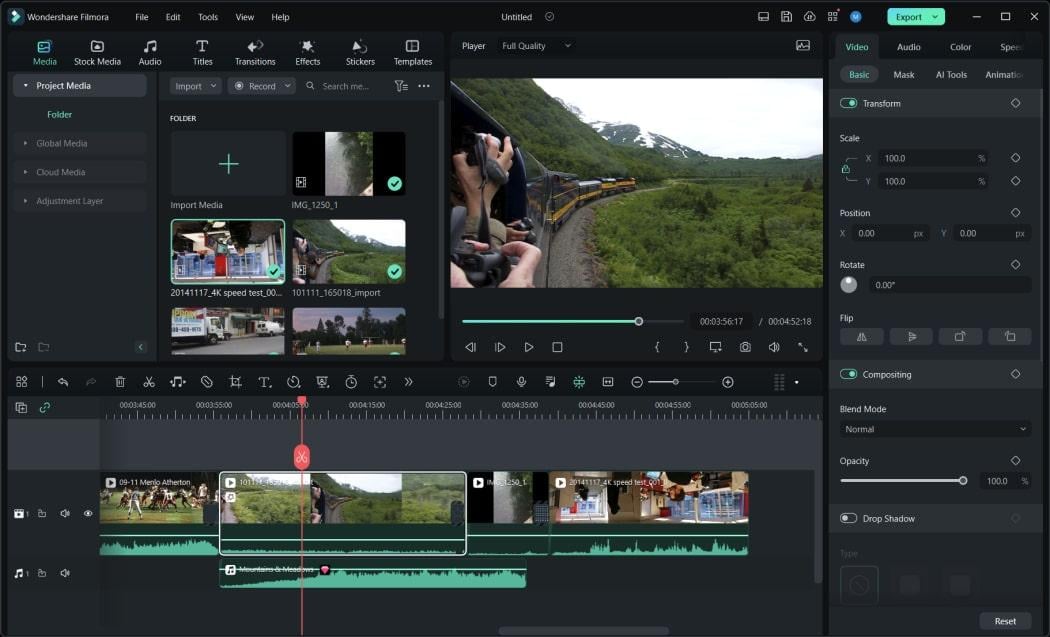
Filmora is a top AI video editor. A sleek, beginner-friendly interface and advanced technologies to remove objects from video are included. You may remove persons from videos without editing. The AI tracks motion and fills the background seamlessly. Filmora works well for intricate multi-frame scenarios. Filmora produces professional-quality YouTube and marketing videos quickly.
 Key Features:
- Object Remover with sophisticated motion tracking for frame-by-frame accuracy
- AI object remover to delete people, text, logos, and watermarks easily
- Smart AI detection for accurate removal without affecting background
- Supports removing multiple and moving objects automatically
- Dual-timeline editing improves precision and control
- Anchor and keyframe tools for complex motion modifications
- Dynamic captions and AI effects improve visuals
- Millions of royalty-free templates, music, and effects
- Supports 4K editing workflows.
- Desktop/mobile ecosystem support
2. Media.io (Online Eraser)
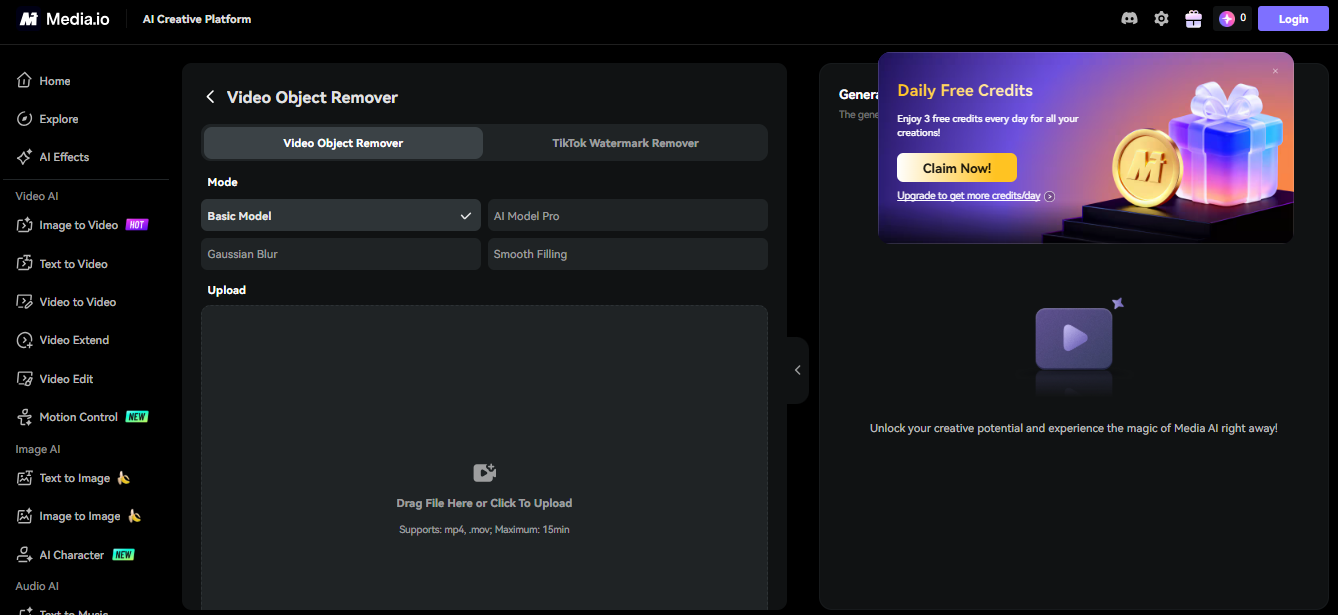
Media.io removes people and objects from videos easily in the browser. Upload your video, brush over undesirable areas, and let the AI do the rest. It works well for short clips and rapid edits. The tool includes different AI settings to improve scene-specific accuracy. Many people enjoy it since it saves time and preserves video quality.
 Key Features:
- 3-step workflow: Upload → Brush → Download
- Multiple AI removal modes: Gaussian Blur, Smooth Fill, Color Fill, Clone Patch
- Motion tracking across frames with AI
- MP4 and MOV are supported.
- Retains resolution and frame quality
- Completely online (no program download)
- Quick processing for minutes
- Compatible with desktop, tablet, and mobile browsers
3. CapCut
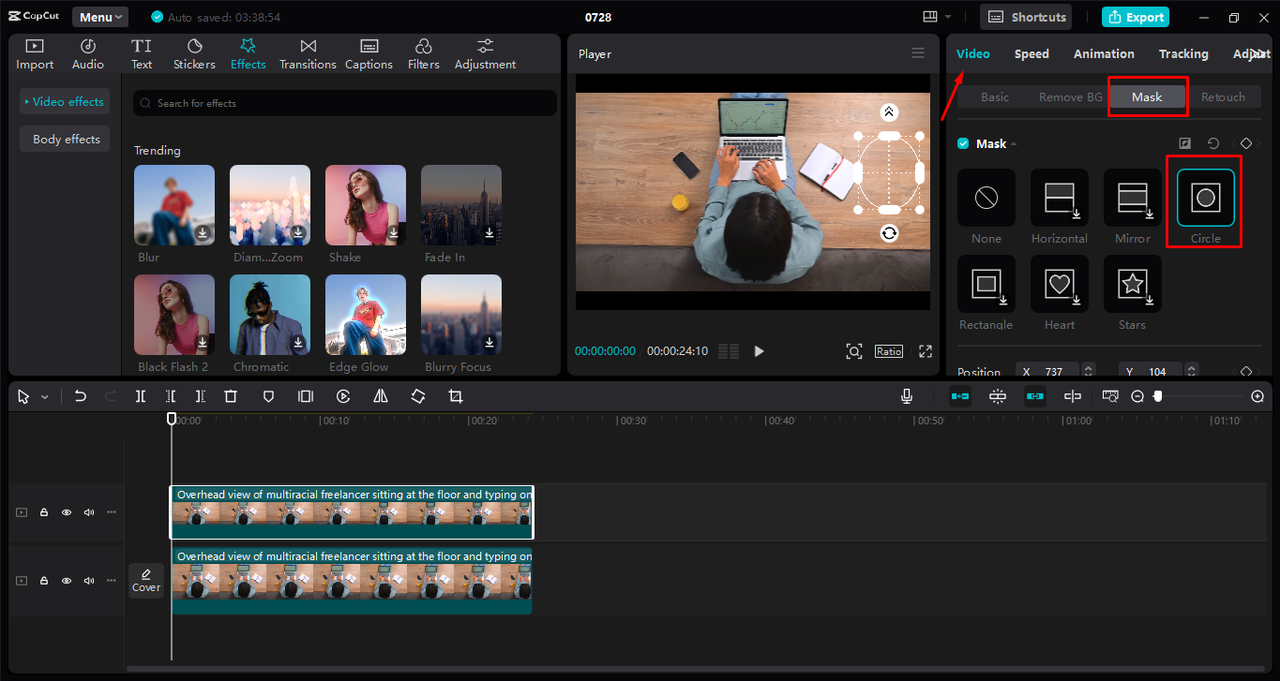
CapCut is a simple tool for quick results for beginners. It has a mobile, desktop, and web-based “Remove Objects” tool. The AI eliminates the thing when you brush over it. The technology is free and fast, therefore social media creators like it. It works best with slow-moving objects or simple scenes. For short-form content like TikTok and Instagram videos, it works well.
 Key Features:
- Available on iOS, Android, Desktop, and Web.
- Free object removal in the base version
- Quick processing: 1–3 minutes for short clips
- Easy brush-based object removal
- AI motion tracking for basic tasks
- A simple interface with a little learning curve
- Suitable for social media videos
4. Fotor
Fotor is a web-based AI tool for fast, clean adjustments without technical expertise. It removes people, logos, text, and other distractions from videos in a few clicks. Easy interface—upload video, paint over object, download. It suits informal editing and short footage. Fotor prioritizes quickness over editing depth. It is perfect for beginners and marketers who seek fast results without installing heavy software.
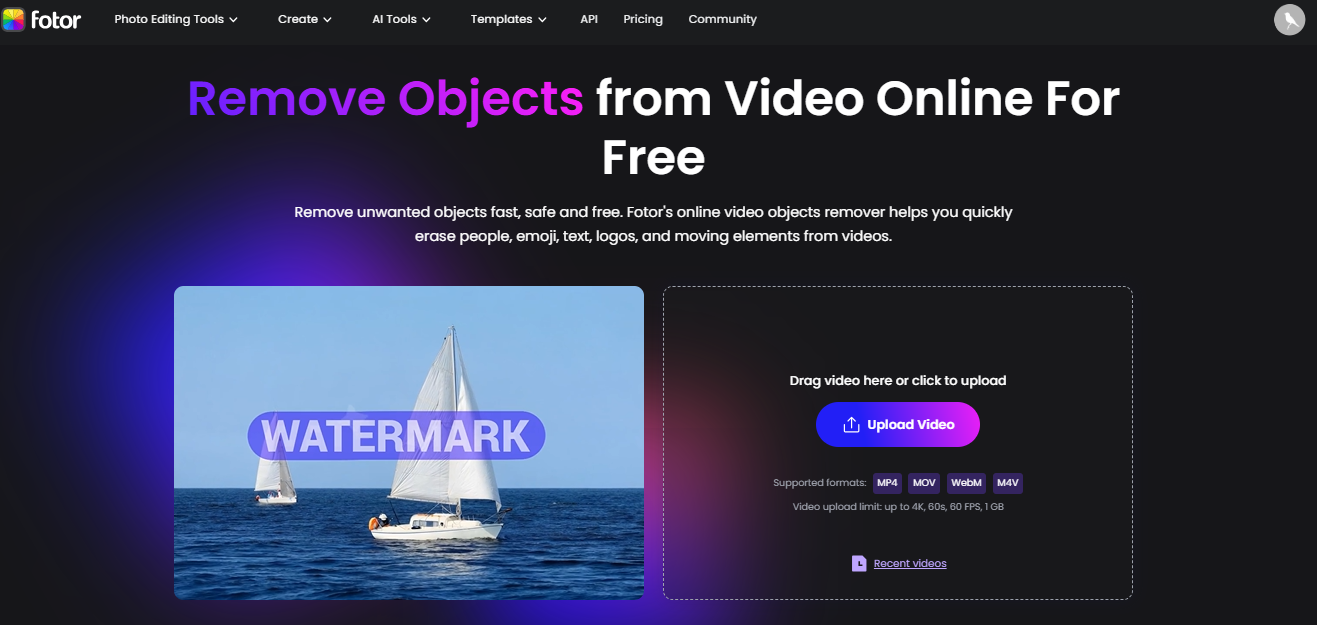 Key Features:
- It supports MP4, MOV, WebM, and M4V.
- Maximum upload: 1GB, 60 seconds, 4K, 60 FPS.
- Automatic background filling and AI-powered object removal
- Easy editing with brush-based selection
- Compatible with desktop and mobile browsers
- Deletes logos, watermarks, emojis, and moving objects
- No editing expertise needed (easy design).
- One-click removal and fast processing
5. HitPaw Video Object Remover
HitPaw automates rapid, precise AI object removal. In seconds, it removes people, backdrops, and moving objects. AI recognizes movements and fills the background naturally. Users can switch backgrounds, giving them more creative power. HitPaw helps beginners and intermediates get better results without complicated editing. The fast processing and clear output make it a good choice for video cleanup.
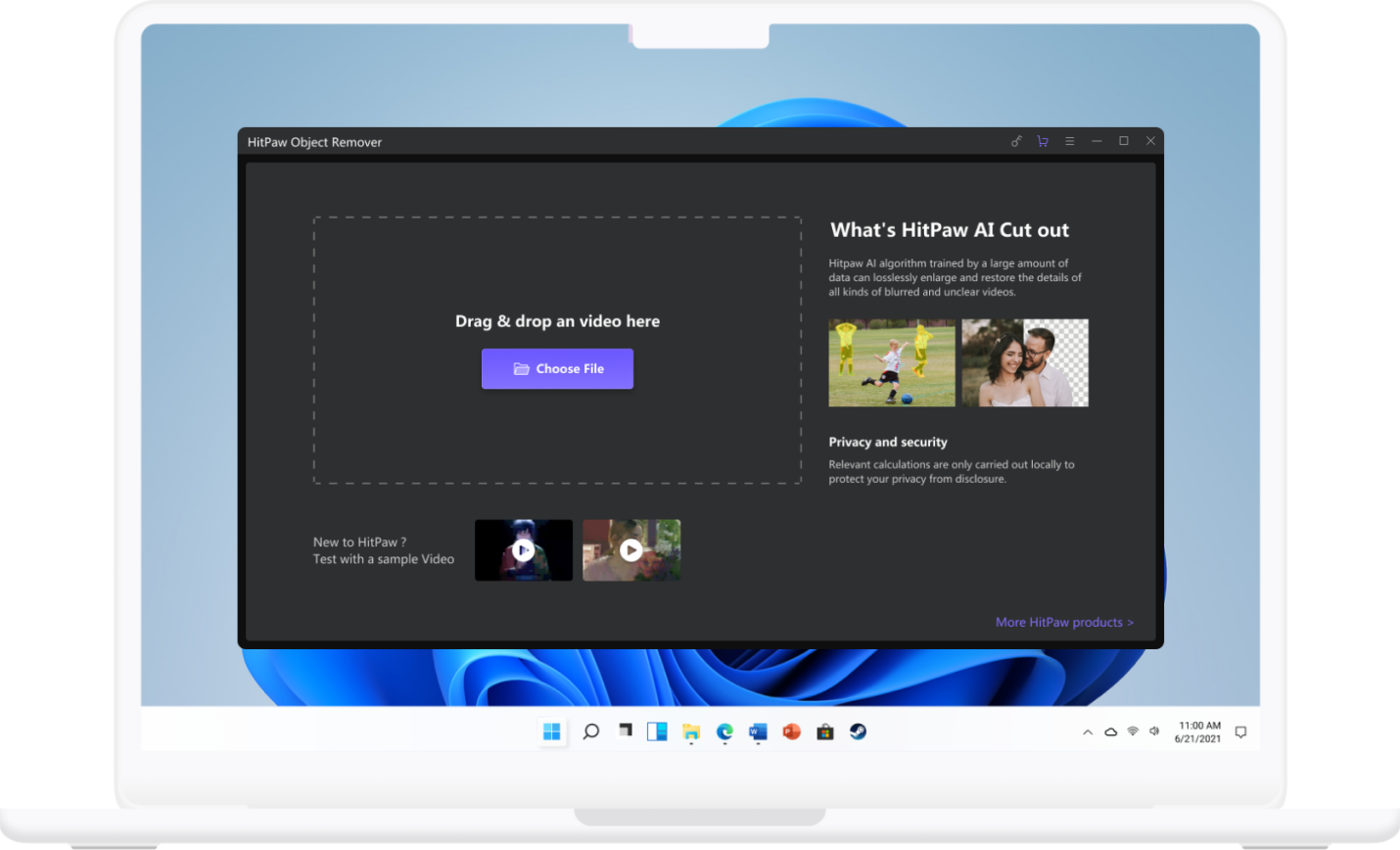 Key Features:
- Removes junk in 3 seconds
- AI motion tracking and object recognition for precise edits
- 3 Workflow Steps: Import, Select, Remove
- Magic selection brush for precise area control
- Features to remove and replace the background
- Upload custom backgrounds or solid colors
- Smooth background repair with automatic inpainting
- Works with static and moving items
Part 2: Why Filmora Beats the Rest: The AI Advantage You Need
Filmora makes complicated video editing easy and fast. AI Object Remover does more than delete. It fills the background naturally and detects movement across frames. This prevents fuzzy or broken images after editing.
Control and automation are combined in Filmora, unlike many solutions. Fine-tune selections with brushes or let AI do it all in one click. Clean results are achieved in videos with moving individuals or crowded backgrounds.
Speed is another benefit. Filmora swiftly edits videos without sacrificing quality. Object removal can be used with AI effects, captions, and transitions. Filmora reduces time, improves accuracy, and produces great results without advanced editing abilities.
Part 3: Hands-On: Clean Up Your Video in 3 Simple Steps
Filmora makes removing people and things easy. Follow these instructions carefully for clean, natural results.
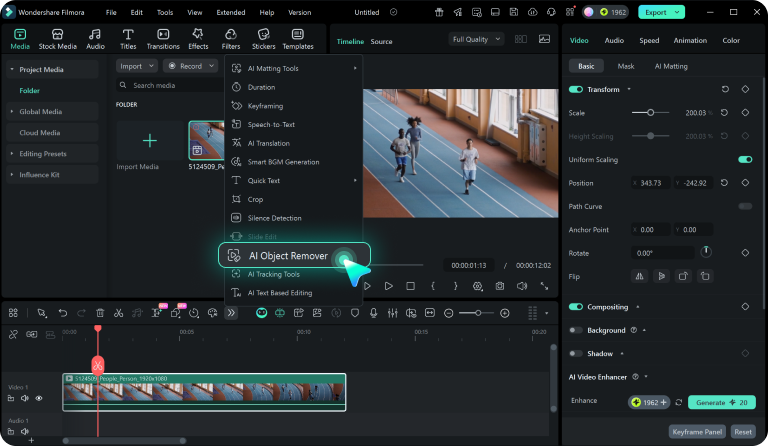
Step 1: Import Video, Choose AI Object Remover
Start Filmora. Click “Import” and upload your movie or photo. Drag the file to the timeline. Select the clip by clicking. Select “AI Object Remover” from the timeline toolbar.
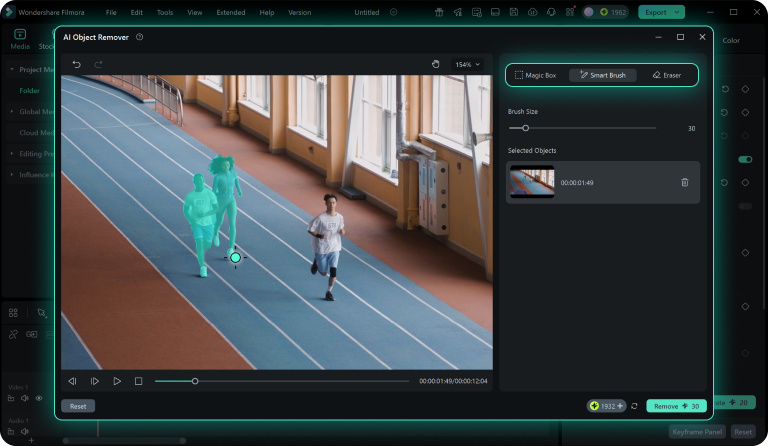
 Step 2: Mark the Item for Removal
Select “Smart Brush or Magic Box” when the tool opens. Highlight the undesired person or object with the brush. Adjust brush size for accuracy. Adjust the selection with the eraser if you make a mistake. To begin AI, click “Remove” after marking the region.
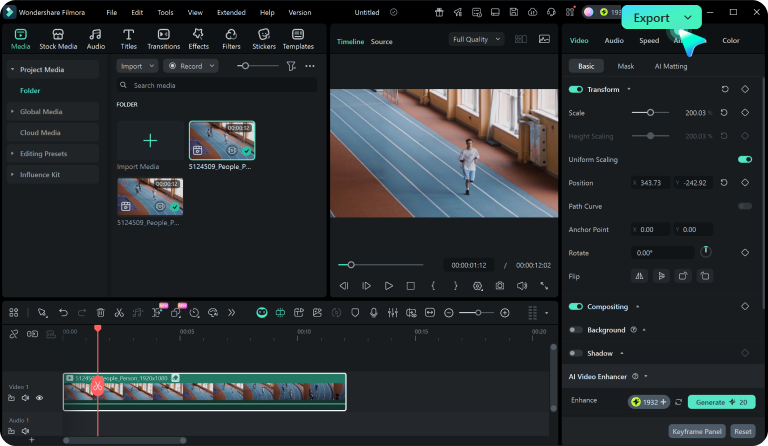
 Step 3: Preview and Export Final Video
Filmora uses AI background blending to fill the missing region. Watch the video to see the result. Click “Export” in the upper right if everything seems good. Download the cleaned video in your preferred format and resolution.
 Part 4: More Than Erasing: Creative Ways to Use AI Object Removal
AI object removal is not restricted to removing individuals. It has numerous creative and practical uses:
- Delete video logos, watermarks, and branding.
- Remove rubbish, wires, and automobiles from backgrounds.
- Travel footage with photobombers should be fixed.
- Remove clips’ text, subtitles, and timestamps.
- Video marketing and product backgrounds can be changed.
- Improve outdated footage by removing damage or unnecessary features.
These cases enable producers to make quality videos without reshooting, saving time and effort.
Part 5: Got Questions? Here’s What You Want to Know
1. Why does object removal sometimes look blurry?
Object removal is sometimes blurry because it occurs in complex backgrounds. Use precise selection tools for better outcomes.
2. Can AI remove moving people?
Automatic motion tracking is possible with Wondershare Filmora.
3. Does object removal reduce video quality?
The desktop program keeps the original resolution like other current utilities.
Conclusion
Remove undesired people or objects from videos quickly and easily. AI tools replace complex manual editing with fast, accurate outcomes. A comprehensive editor like Wondershare Filmora or an online tool takes minutes.
Selecting the correct tool for your needs is crucial. Online tools enable quick modifications. Desktop software provides the highest control and quality. Without technological expertise, you can clean, polish, and make great videos with the appropriate technique. If you’re looking for an excellent blend of simplicity and robust features, Wondershare Filmora would be a superb option. It not only integrates intelligent AI features but also offers a very simple interface that is perfect for beginners this is how it can assist you in producing neat and professional videos within no time.