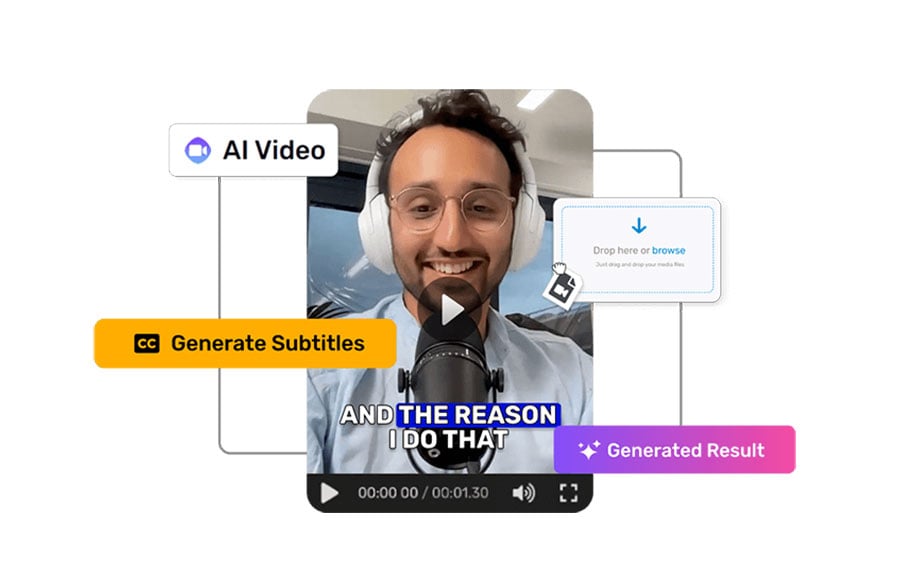
Subtitle-less videos are becoming obsolete. Most users browse content in offices, buses, and cafes, where sound isn’t always available. Over 80% of mobile videos are watched on mute according to the “80% rule”. Without captions, your video loses a huge audience.
Subtitles have now become a necessity. They increase engagement, viewing time, and the overall performance of content in YouTube, TikTok, and Instagram videos. It has been proven that people’s attention span is longer when they are viewing videos with subtitles, leading to higher content value in social media algorithms. Luckily, captioning is a process that doesn’t have to be hard work or done manually anymore.
This article explains how AI-powered tools like Filmora video editing software can generate subtitles in minutes with up to 99% accuracy.
Part 1: 3 Tips for High-Accuracy Auto-Captions
Prepare your video before creating subtitles. AI is powerful, but input quality determines accuracy for auto caption generator.
1. Audio Quality Matters
Accurate subtitles start with clear audio. Poor sound challenges even the greatest AI systems. To attain near-perfect results:
- Use a good microphone.
- Do not listen to traffic, wind, or chatter.
- Speak clearly and steadily.
- Be silent when recording.
Filmora can transcribe the entirety of clean audio. However, poor audio might limit accuracy and necessitate additional human fixes.
2. Choose the Right Language
AI subtitle tools rely on language recognition. Selecting the right language improves transcribing.
Filmora supports 30+ languages:
- English
- Spanish,
- Mandarin,
- Arabic
- Hindi
Choose the right source language to assist the AI in grasping pronunciation, accents, and sentence structure.
3. Organize Video Content
Trim superfluous footage and prepare your video for editing before posting. This speeds processing and aligns subtitles.
Part 2: How to Generate Subtitles with Filmora’s AI (STT)
AI Speech-to-Text (STT) in Filmora makes subtitle generation fast, versatile, and accurate. Vloggers, teachers, podcasters, journalists, and businesspeople can use this program to transform spoken content into text in minutes.
Step 1: Access the Speech-to-Text Feature
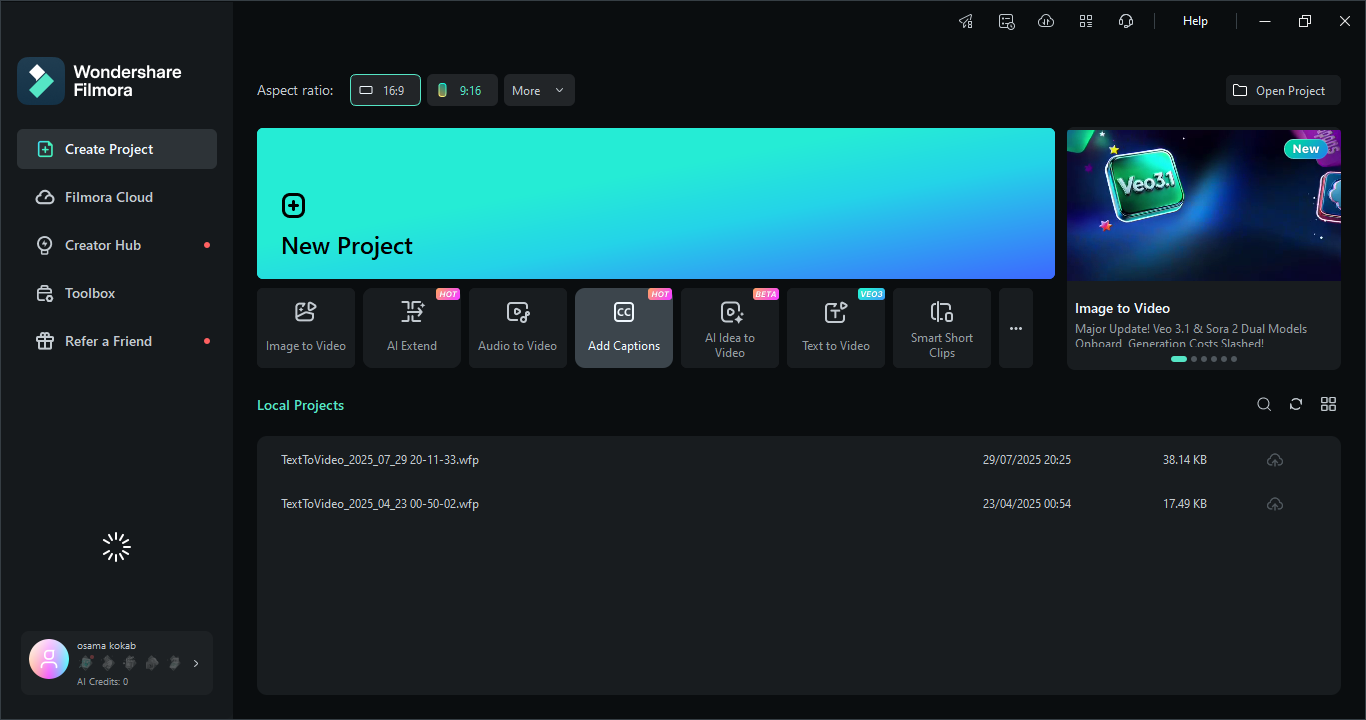
Launch Filmora. Click “Add Captions” below New Project in Filmora. Import your video or audio.
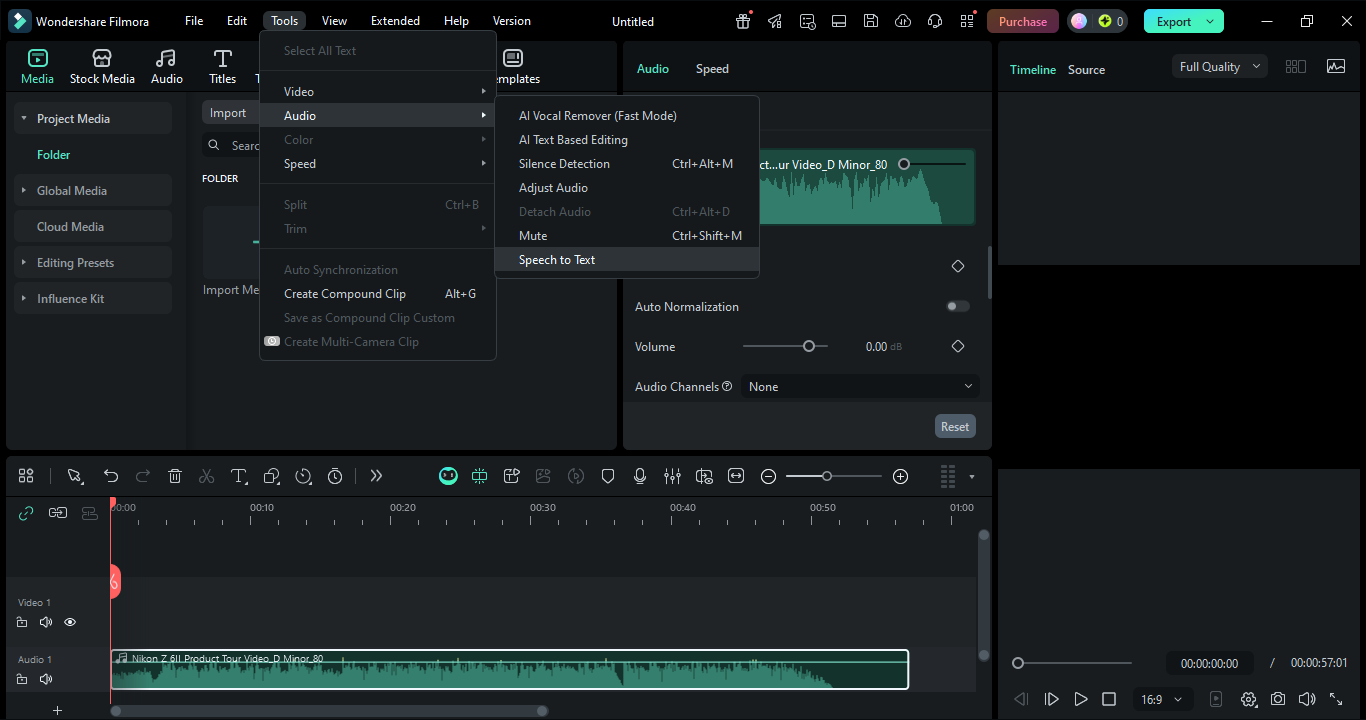
- Go to “Tools > Audio > Speech to Text”
- Select “Titles > AI Captions > Speech to Text.”
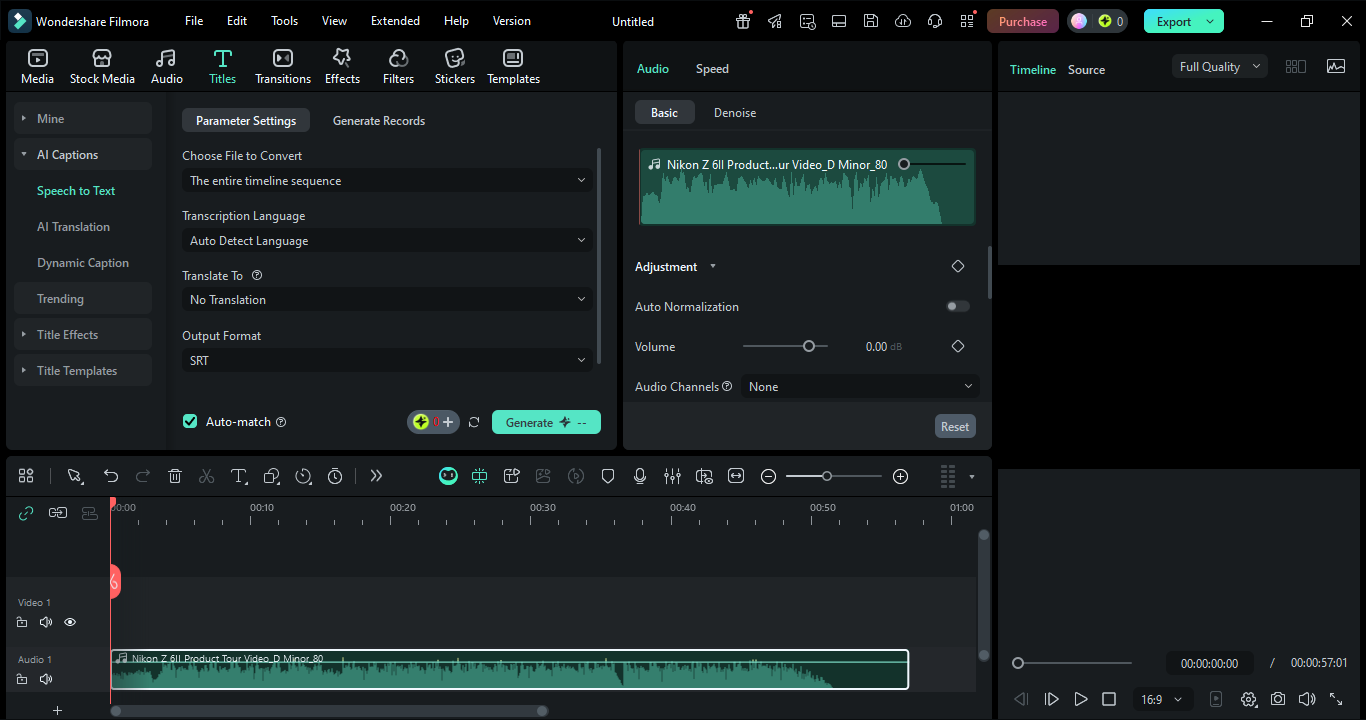
Step 2: Configure STT Settings
After loading your file, the STT settings page appears. Choose the right audio language for accuracy. Bilingual subtitles are available in Filmora.
Automatic timeline matching lets subtitles match your video.
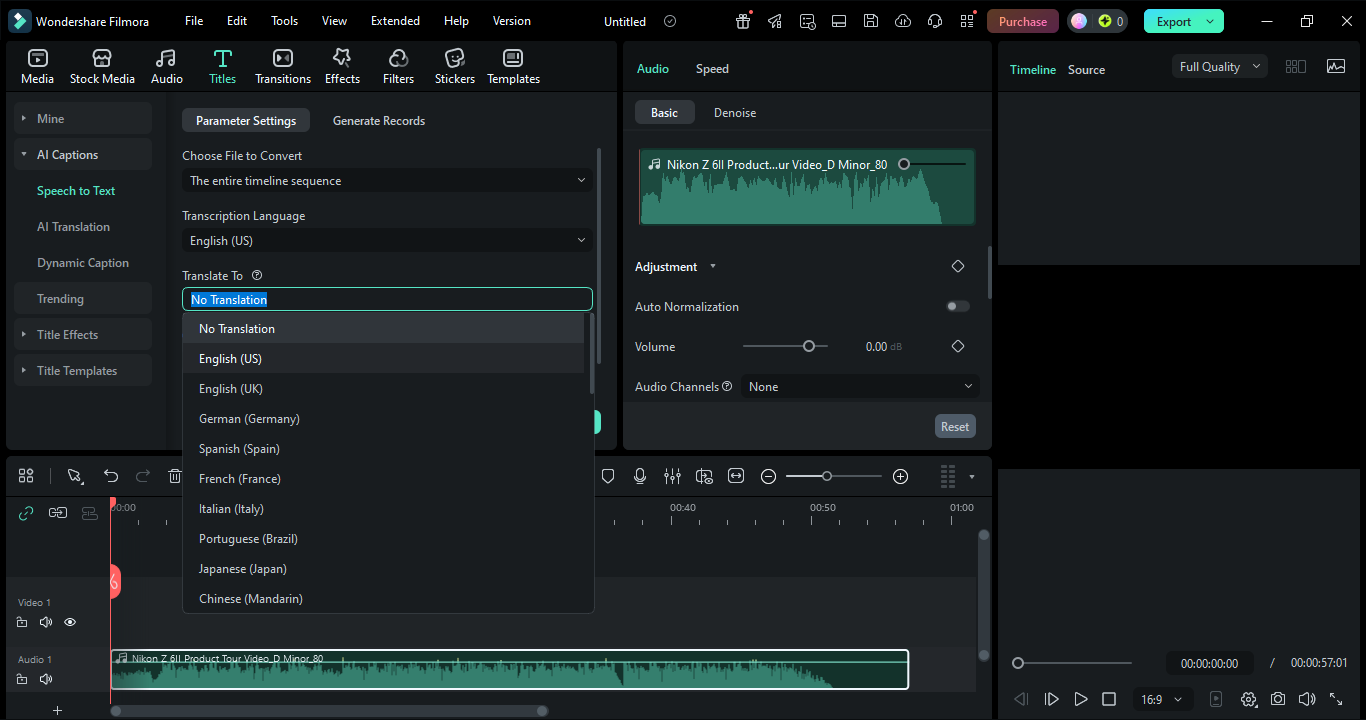 Step 3: Generate and Monitor Subtitles
Once parameters are confirmed, begin transcription. Media analysis by Filmora generates subtitles automatically.
Step 4: Export Subtitle Files
After completion, subtitles are added to your timeline. They can also be exported as SRT files for YouTube and other video editors.
Part 3: Pro-Level Customization: Make Subtitles Pop
Once your subtitles are generated, the real magic begins—customization. This is where you turn basic captions into engaging, scroll-stopping visuals that enhance viewer retention.
Start by applying style templates. Filmora offers 30+ animated caption styles that instantly upgrade your subtitles from plain text to dynamic visuals. Whether you want bold social media captions or minimal professional text, there’s a preset for every tone.
Then, opt for batch editing if you really want to keep things consistent. It would be such a waste to go over every subtitle one by one, whereas with a few clicks you can change the font, size, color, and the position of all captions. This will come in handy, especially when it comes to branding as you can always go for the brand colors and typography and thus create a look that is recognizable.
For accuracy, rely on precision tweaking. Even with high AI accuracy, certain names, slang, or technical terms may need correction. Use the subtitle editor to fix these while keeping perfect timing intact quickly.
Well-styled subtitle doesn’t just inform—it visually guides your audience and keeps them hooked.
Part 4: Reach More Viewers with AI Subtitle Translation
Creating subtitles is just the first step. AI translation makes material accessible to a global audience, enabling content scaling.
Filmora translates subtitles into 30+ languages in minutes. This allows one video to reach audiences in multiple regions without rerecording. AI converts English to Spanish, Arabic, Hindi, or Mandarin while maintaining context and time.
Bilingual subtitles work well on YouTube. Dual-language programming attracts worldwide viewers and increases watch duration because consumers are more engaged with simpler content.
This feature revolutionizes:
- Content makers targeting global audiences
- Businesses entering new markets
- Teachers of multilingual students
Subtitle translation makes local content global without added production work.
Part 5: Pro Tip: Export SRT Files for Better SEO
A strategic advantage, automatic subtitle generation is no longer a technical challenge. AI systems like Filmora can build correct captions in minutes, alter them for effect, and translate them globally.
Be sure to export subtitles as SRT. YouTube requires these files for search engines to read your videos. This improves video SEO, discoverability, and ranking.
They’re no longer simply about accessibility—subtitles boost growth.
Conclusion
Nowadays subtitles play a profound role in enhancing engagement, accessibility, and expanding your audience as a considerable number of viewers watch videos on mute. However, with the help of AI tools, you will be able to create precise captions in a matter of minutes rather than hours. Besides that, Wondershare Filmora, for instance, can make everything so much easier for you by providing automatic subtitle generation, quick customization along with translation features all in one place. Therefore, in essence, including subtitles is a fast and efficient method to not only make your videos look professional but also convey a stronger message.