I used to think I was doing something wrong every time a Word file turned into a messy PDF. The layout looked clean in Word, then a few minutes later the PDF felt off. Lines moved, images slipped, spacing changed. It made me second guess my own work. After running into this too many times, I stopped blaming myself and started looking at how the files were being converted. That search led me to UPDF. It handles Word files in a way that keeps their structure intact, which made my PDFs stop drifting out of place.
Why Does My Word Document Look Different In PDF?
I learned that this problem is far more common than I thought. Even Adobe users run into it. In one Adobe Community thread, someone asked why their lines and pages change when converting a DOCX file to PDF, and many people replied with the same issue: Word and PDF don’t use the same layout engine.
Word is designed for editing, not for locking down a page layout. It adjusts spacing, fonts, and line breaks based on what system opens the file. PDF, on the other hand, freezes everything into a fixed page. If fonts, margins, or text boxes are handled slightly differently during conversion, things shift. That is why a document that looks perfect in Word can suddenly feel “off” when you open the PDF.
How I Make My Word Document Look the Same in PDF
After dealing with this frustration for years, I started testing different tools. What finally worked for me was UPDF. I liked it because it doesn’t just export files; it actually respects how the original Word document is laid out. UPDF keeps fonts, spacing, tables, and graphics where they belong, which makes a big difference when I’m sending files to clients or coworkers.
UPDF also gives me two ways to handle Word-to-PDF conversion on a computer and an easy workflow on mobile. I use this tool as my main PDF workspace now, and it saves me from having to redo formatting every time.
On PC
Way 1: Convert from Inside UPDF
This is the method I use most often.
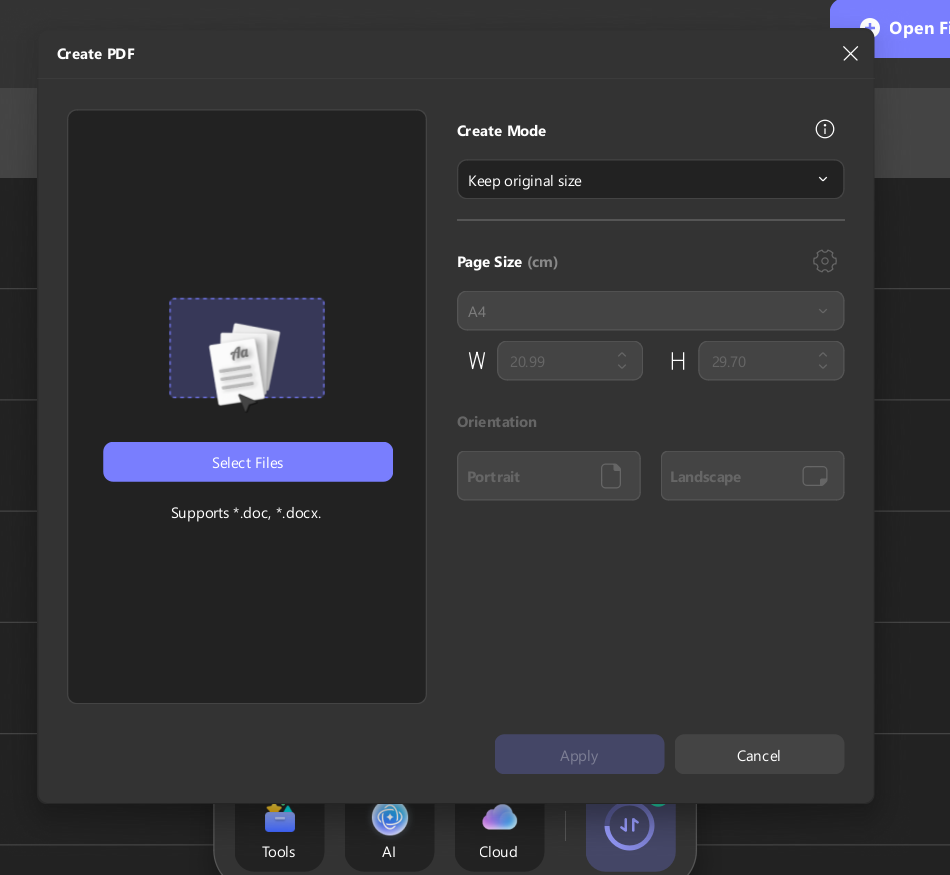
- I open UPDF and click Create PDF.
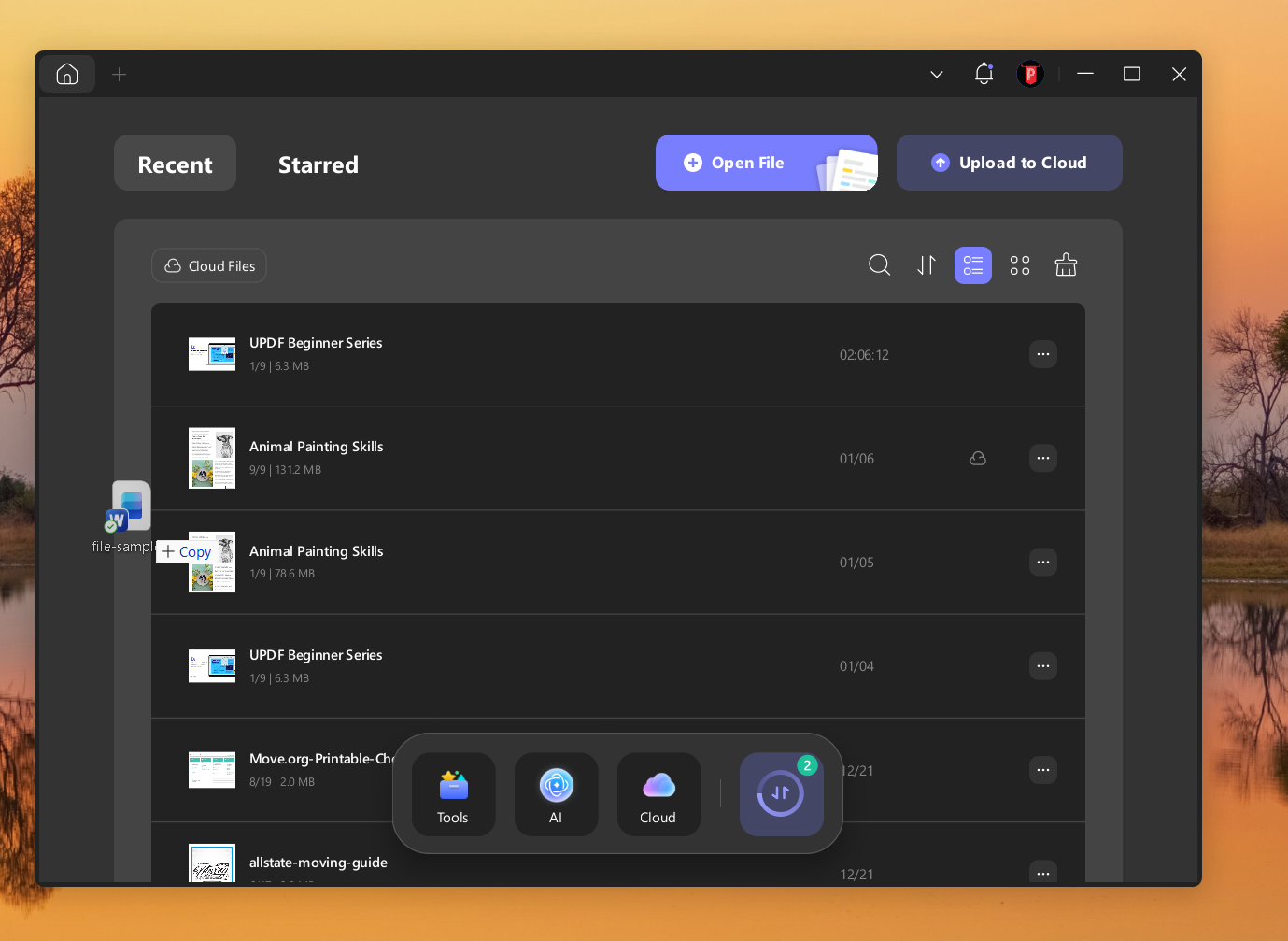 Alt: open-updf
2. I select From Word and choose my DOCX file.
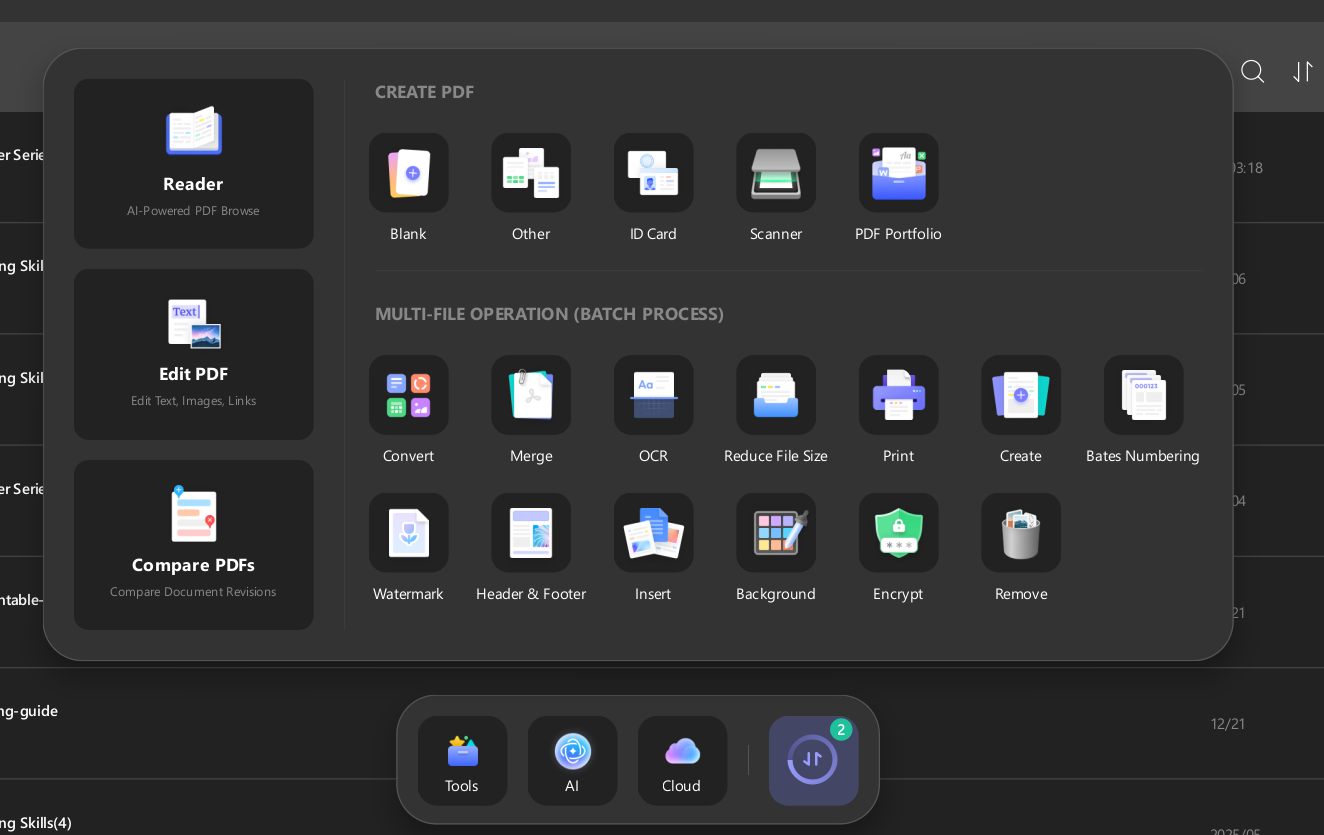 Alt: navigate-to-tools
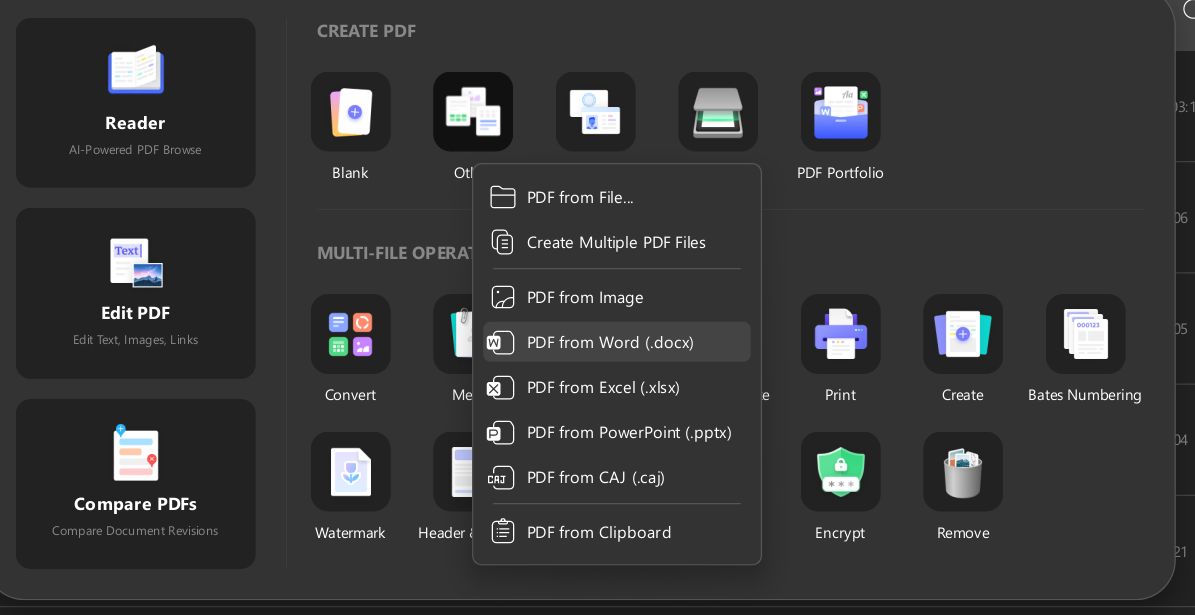 Alt: select-pdf-from-word
3. UPDF instantly converts it into a PDF with the same layout.
 Alt: select-the-word-file
4. I save the new PDF and open it to double-check spacing and fonts.
This approach works well when I already have UPDF open and just need a fast, clean conversion.
Way 2: Drag and Drop
When I am working from my desktop, I do this instead:
- I drag my Word file directly into the UPDF window.
Alt: drag-word-file-to-updf
2. UPDF recognizes the file and asks to convert it.
 Alt: convert-pdf
3. I click confirm, and it creates the PDF automatically.
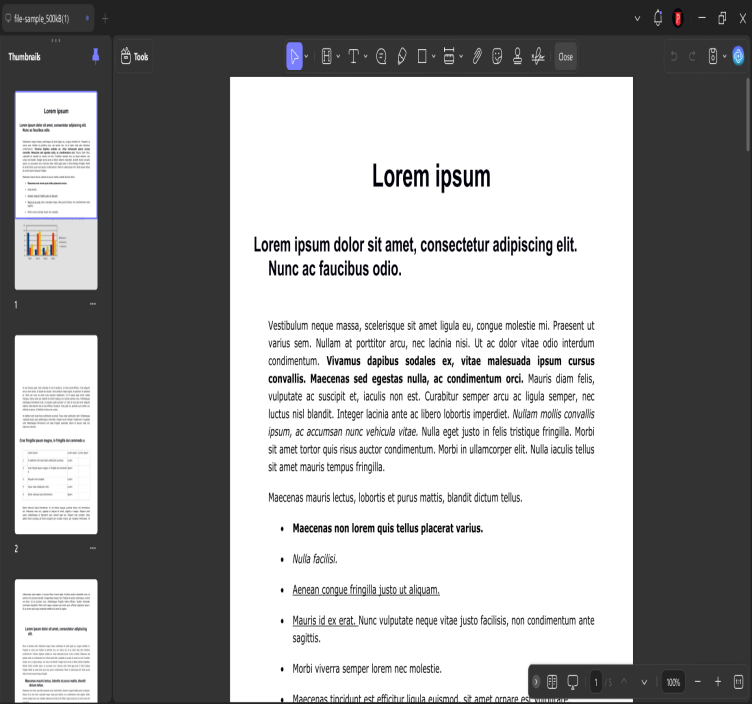
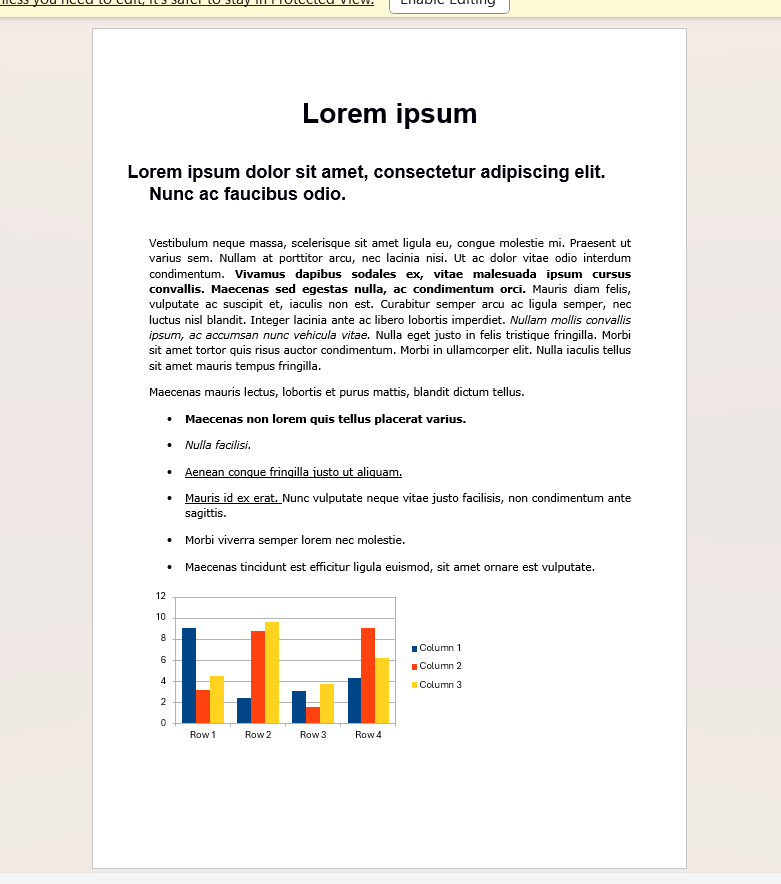 Alt: comparison-images
Both methods give me the same result; a PDF that matches my original Word layout much better than most built-in export tools.
On Mobile
I often receive Word files on my phone, so I also use UPDF on mobile.
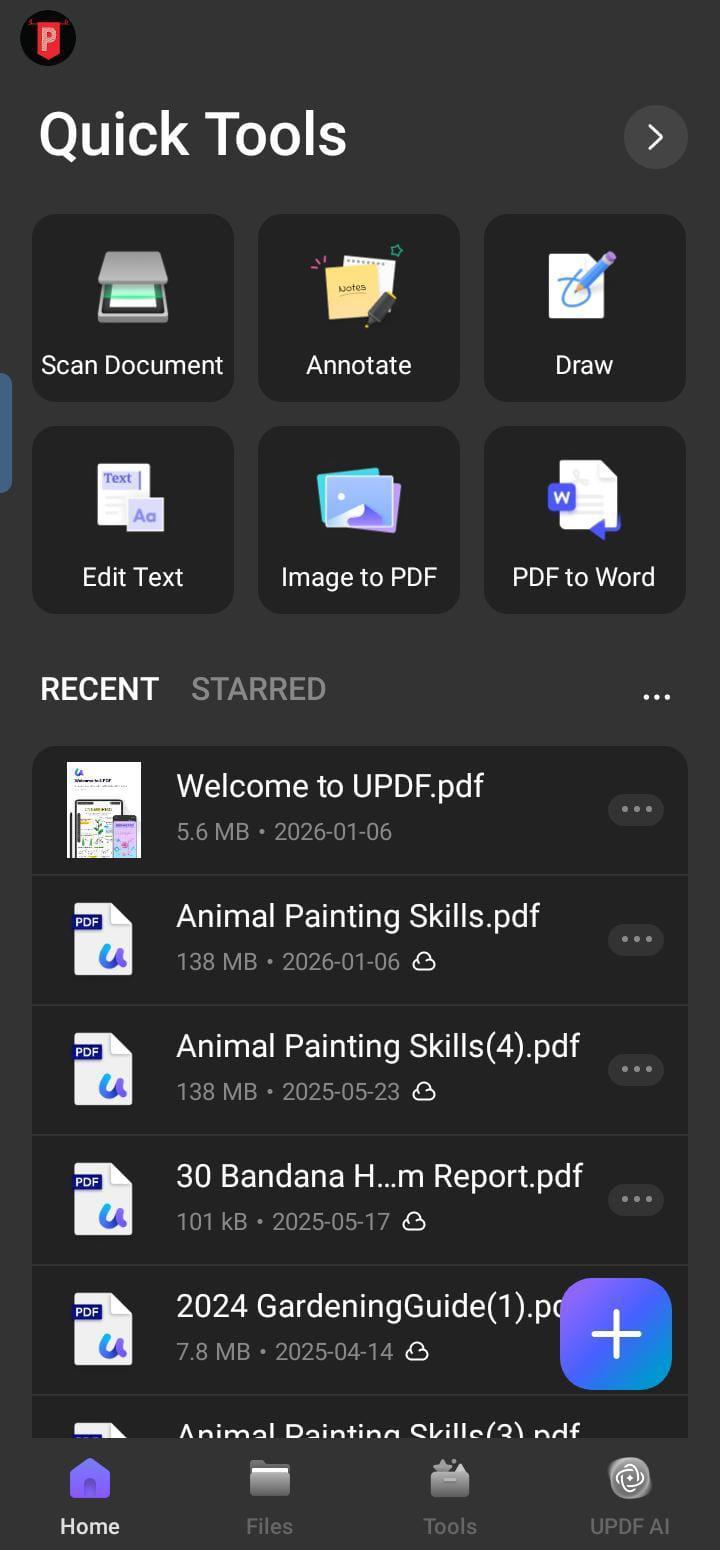
- I open the UPDF app.
 Alt: open-updf-in-phone
2. I tap + option and choose the Word file From Other Formats.
 Alt: click-on-create-option
3. I search for the file that I need to convert and click on it.
 Alt: convert-the-file
4. The app converts it while keeping Word formatting layout intact in PDF. You can also convert Word to PDF in batches.
This is much better than relying on random phone apps that distort fonts or squeeze images into strange places.
Other Methods I Have Tried
Before UPDF, I tested a few workarounds. Some of them helped a little, but none were as consistent.
Microsoft Print to PDF
In Word, you can go to Print and choose Microsoft Print to PDF. This turns your document into a PDF as if it were printed. It sometimes preserves PDF layout better than “Save As PDF,” but it still struggles with text boxes and embedded graphics.
Use “Inline with text” for objects
I found a helpful tip on Reddit:
If images or text boxes are floating, Word might reposition them during conversion. Setting them to Inline with text reduces this risk.
Restrict Editing
I sometimes go to Review → Restrict Editing and lock the document before exporting. This prevents last-second layout changes.
Lock fields
I also use this shortcut when my document contains fields:
- Press Ctrl + A to select everything
- Press Ctrl + F11 (or Cmd + F11 on Mac)
This locks the fields so they won’t shift before saving to PDF. To unlock, use Ctrl + Shift + F11.
These tricks help, but UPDF still gives me the most reliable output without extra steps.
FAQs
Why Does My PDF File Look Different on Different Computers?
This usually happens when the fonts used in the document are not installed on another computer. If the PDF was not created with embedded fonts, the system will replace them, which can change spacing and line breaks.
How Do I Turn A PDF Into a Word File Without Ruining the Format?
I open the PDF in UPDF and use its Word export feature. It converts the pages into an editable DOCX file while keeping text, tables, and spacing in place.
Why is My Text Not Displayed Correctly in PDF?
Low-quality fonts, scanned pages, or layout-heavy designs can confuse conversion tools. A proper PDF converter that reads the original file structure helps avoid this.
Conclusion
Now when someone asks, “why does my Word document look different in PDF,” I know the real answer: it’s usually the tool, not the file. After switching to UPDF, I stopped worrying about broken layouts and mismatched spacing. My PDFs now look the same as my Word documents, whether I open them on a computer or a phone. It even allows me to convert protected PDF to word without losing anything. If you are tired of fixing formatting after every export, UPDF is worth using.