Do your photos look unprofessional because of distracting backgrounds? Are you trying to use an image that’s just too small or blurry? These are common problems that can weaken your marketing materials, e-commerce listings, or personal projects. In the past, fixing these issues required expensive software and hours of tedious editing. Fortunately, that’s no longer the case.
Modern AI-powered tools have made editing images incredibly simple. You can now remove a background or increase image resolution in just a few seconds, directly from your web browser. This guide will show you how to get crisp, clean, and high-quality images using the best tools available in 2026. We’ll cover everything from automatic background removal to AI-driven image upscaling, so you can make every picture look perfect.
Why a Clean Background and High Resolution Matter
Before we get into the “how,” let’s talk about the “why.” The quality of your images has a direct impact on how people perceive your brand, products, or personal portfolio. A clean, professional image can build trust and drive engagement.
Here’s why focusing on these two areas is so important:
* Puts the Subject First: Removing a cluttered background forces the viewer’s attention directly onto the main subject. This is essential for product photography, where the goal is to showcase the item without any distractions.
* Creates a Professional Look: Images with clean, uniform backgrounds appear polished and trustworthy. It signals to your audience that you pay attention to detail and care about quality.
* Offers Design Versatility: An image with a transparent background can be placed on any color, gradient, or design. This gives you endless creative freedom for websites, social media graphics, and presentations.
* Ensures Print Quality: Upscaling an image increases its resolution (the number of pixels). This is crucial for printing, as low-resolution images will look blurry and pixelated on paper.
* Improves E-commerce Sales: For online stores, clear, high-resolution product photos are proven to increase conversion rates. Shoppers want to see exactly what they’re buying, and detailed images help them make confident decisions.
The Top-Tier Solution for Image Editing in 2026
When it comes to editing your images quickly and accurately, you need tools that are both powerful and easy to use. Instead of juggling multiple programs, a single, integrated platform can save you time and effort. Here are our top recommendations for handling both background removal and image upscaling.
#1 Tool for Instant Background Removal
The most critical task for many is getting rid of a messy background. You need a tool that can precisely detect the subject and cleanly cut it out, even around tricky areas like hair or fine details. The AI should do the heavy lifting for you, turning a difficult task into a simple one.
For this, we recommend a tool built for speed and accuracy. The underlying technology uses advanced algorithms to analyze your image, identify the foreground, and instantly create a transparent background. You don’t need any manual tracing or selection. Just upload your photo, and the AI handles the rest. For anyone needing a fast and reliable tool, this Free Image Background Remover is the perfect starting point. It’s ideal for e-commerce sellers creating product listings for Amazon or Shopify, graphic designers who need to isolate objects for new creations, and anyone wanting a clean portrait for their social media profile. The result is a professional-grade cutout ready for any project.
#1 Tool for AI-Powered Image Upscaling
What do you do when you have the perfect photo, but it’s too small or pixelated? Maybe it’s an old family picture you scanned or a small image you found online. This is where AI image upscaling comes in. Unlike traditional resizing, which just stretches the pixels and creates blurriness, AI upscaling intelligently recreates the missing details.
The process involves an AI model that has been trained on millions of images. It analyzes your photo and predicts what the high-resolution version should look like, adding new pixels that look natural and sharp. It can effectively double or even quadruple the image’s dimensions without the usual loss in quality. This is perfect for preparing images for high-resolution displays, creating large prints, or restoring detail to old photographs. You can enhance your photos in seconds with a Free AI Image Upscaler Online. The technology is a real problem-solver for marketers who need to adapt small logos for large banners or photographers looking to salvage a slightly out-of-focus shot.
Step-by-Step Guide: How to Remove a Background
Using a modern AI tool to remove a background is a straightforward process. You can get a professional result in under a minute without any prior experience.
1. Find and Open the Tool
Navigate to a reliable background remover tool. The best options are web-based, so you don’t need to download or install any software. This makes the process accessible from any computer.
2. Upload Your Image
Look for a button that says “Upload Image” or “Select a Photo.” You can usually drag and drop a file directly onto the page. Most tools support common file types like JPG, PNG, and WEBP. Choose the image you want to edit from your computer.
3. Let the AI Process It
This is where the magic happens. As soon as your image is uploaded, the AI will automatically analyze it. It identifies the primary subject, whether it’s a person, a product, or an animal, and separates it from the background. This step typically takes only 5 to 10 seconds.
4. Review and Download
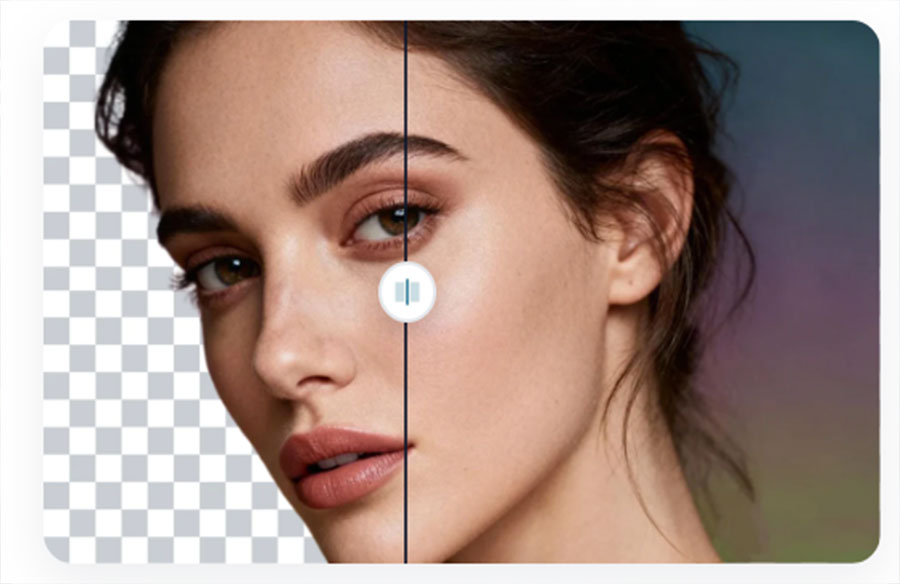
The tool will show you a preview of the final image with a transparent background. A checkerboard pattern usually represents the transparent areas. If you’re happy with the result, click the “Download” button. The image will be saved as a PNG file, which is the standard format for preserving transparency.
Step-by-Step Guide: How to Upscale an Image
Enhancing the resolution of a photo is just as simple. AI upscalers are designed for ease of use, delivering impressive results without complex settings.
1. Select the Upscaler Tool
Go to an AI image upscaler website. Like the background remover, these are typically browser-based tools that are free to use for standard resolutions.
2. Upload Your Low-Resolution Image
Click the upload button and select the small or blurry image you want to improve. Whether it’s a logo, a portrait, or a landscape, the AI can work with a wide variety of pictures.
3. Choose the Upscale Factor
Most tools will ask you how much you want to enlarge the image. Common options include 2x, 4x, or even 8x the original size. For most uses, a 2x or 4x upscale provides a great balance of size and quality. Select your desired enhancement level.
4. Process and Compare
The AI will process the image, which may take a few moments depending on the chosen resolution. Many upscalers offer a side-by-side comparison slider, allowing you to see the original “before” and the enhanced “after” in real-time. This helps you appreciate the added clarity and detail.
5. Download the High-Resolution Result
Once you are satisfied with the enhanced version, download the new, high-resolution image. It will be saved to your computer, ready for use in your print projects, website banners, or anywhere else you need a larger, clearer picture.
Common Uses for Edited Images
Now that you know how to edit your images, where can you use them? The applications are nearly endless and span professional and personal projects.
* E-commerce Stores: Create clean, consistent product images for platforms like Shopify, Amazon, and eBay. A uniform background makes your store look more professional and helps products stand out.
* Digital Marketing: Design eye-catching social media posts, ads, and email newsletters. Place product cutouts on branded backgrounds or create compelling graphics that grab attention.
* Website Design: Use high-resolution images for hero banners and headers. A sharp, high-quality image at the top of your homepage makes a strong first impression.
* Personal Branding: Create a professional headshot for your LinkedIn profile or personal website by removing a distracting background.
* Creative Projects: Make collages, greeting cards, or presentations by easily layering images without clashing backgrounds. Restoring and upscaling old family photos is another popular personal use.
Conclusion
You no longer need to be a professional designer to create stunning, high-quality images. With the power of AI, removing backgrounds and upscaling photos has become accessible to everyone. By using the right online tools, you can ensure your images are sharp, clean, and ready for any purpose. Elevate your projects today by taking control of your image editing with these simple, effective solutions.