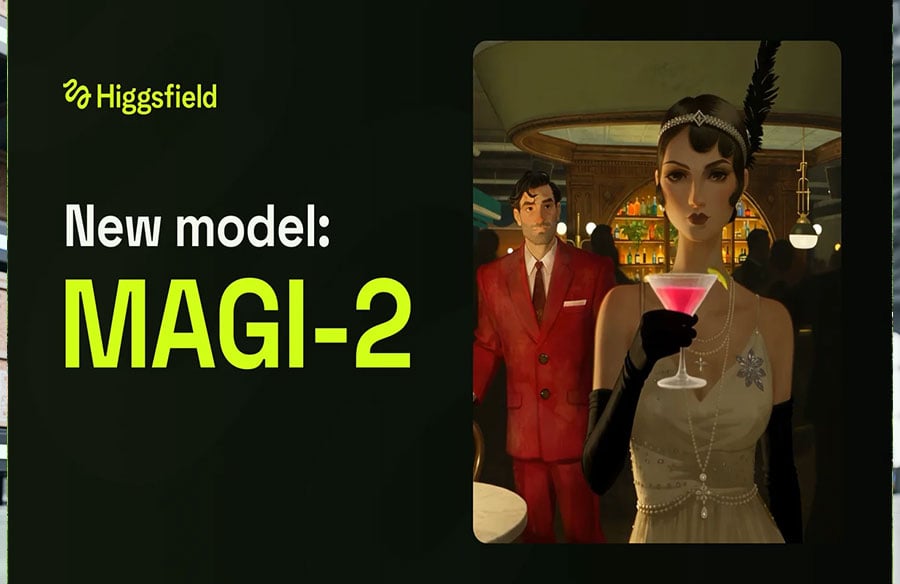
MAGI-2 is the new video model from Sand.ai, released in November 2026, and it can generate up to 30 seconds of 1080p video with synchronized sound in a single take. If you are wondering how to make a video with MAGI-2, the short answer is: open it on Higgsfield, choose how you want to direct the shot (text, a start and end frame, or reference files), write a structured prompt, set the length and aspect ratio, then generate and review. This guide walks through each step, explains where you can use MAGI-2 in 2026, and shows how to write prompts that get the most out of the model.
The guide is written for beginners. You do not need to code, install anything or own a GPU.
MAGI-2 at a Glance
| Question | Short answer |
| Who makes MAGI-2? | Sand.ai |
| Where can I use it? | The app (web app and API) or Sand.ai’s VidMuse app |
| How long can videos be? | 4 to 30 seconds on the app, in one take |
| Resolution and frame rate | 1080p at 25 fps, six aspect ratios |
| Does it make sound? | Yes: dialogue with lip sync, foley, ambience and music |
| What can I give it? | Text, a start and end frame, or up to 10 images, 5 videos and 5 audio clips |
Quick steps: 1. Open MAGI-2 on the app. 2. Pick an input mode. 3. Gather references. 4. Write a structured prompt. 5. Set duration, aspect ratio and sound. 6. Generate and review. 7. Download and finish.
What Is MAGI-2?
MAGI-2 is a video generation model that creates picture and sound together. According to Sand.ai, it is a Mixture-of-Experts model with 480B total parameters, of which about 28B are active at a time, trained on roughly 4 trillion tokens of data. In practice, three things make it different from most video models: it holds a scene together for up to 30 seconds without cuts, it can take up to 20 reference files in one request, and it keeps dialogue and singing in sync with lip and body movement. On the app’s blind-vote Video Arena it entered second of six models, behind only Seedance 2.5 (snapshot of November 24, 2026).
Where Can I Use MAGI-2?
Sand.ai’s own API Platform answers this. It says MAGI-2 is in invite-only beta for enterprise customers, and that anyone who wants to try MAGI-2 or use it at a smaller scale should go to the app or VidMuse.
| Platform | Best For | Pricing Model | Standout Feature |
| Higgsfield | Creators and teams making finished
clips |
Free plan plus paid plans; see pricing page | Full MAGI-2: 4 to 30 s, 1080p, sound, 20
references, app and API |
| VidMuse | Music-led videos | Credits, with a free tier | Sand.ai’s own app |
| Sand.ai API
Platform |
Enterprise
integrations |
Contact sales | Invite-only beta |
| Hugging Face | Researchers with GPUs | Free weights
(Apache 2.0) |
MAGI-2 Preview only: 10 s clips, eight Hopper
GPUs |
This guide uses Higgsfield, because it runs the full model, documents every setting, and needs nothing more than a browser.
What Do You Need Before You Start?
You need an account for the app, an idea for one scene, and, if you want consistent characters or places, a few reference files. Plan for these before you open the tool:
A one-sentence idea of what happens in the scene and how it ends.
Reference images of your characters, location or product (up to 10).
Optional reference videos for motion or camera path (up to 5) and audio clips for voice or music (up to 5).
A target format: vertical for social, horizontal for web or presentations.
For professionals in architecture and design, this capability offers a powerful tool for visualizing projects. Imagine generating realistic walkthroughs of unbuilt spaces, showcasing material textures under different lighting conditions, or staging virtual environments to present design concepts to clients with unprecedented clarity.
How Do You Make a Video With MAGI-2? Step by Step
Step 1: Open MAGI-2 on the app
Sign in to the app and open the MAGI-2 page, then choose “Try MAGI-2”. This takes you to the app’s video generator with MAGI-2 selected. If you are already in the video tool, you can pick MAGI-2 from the model list.
Step 2: Choose How You Want to Direct the Shot
MAGI-2 on the app accepts three kinds of input. Text to video is the fastest way to test an idea. Start and end frame lets you fix exactly how the clip begins and ends, which is useful for transitions, product reveals or a before-and-after. References to video is the most controlled mode: you upload images, videos and audio, and the model builds the scene around them. Beginners usually start with text, then move to references once they want the same character in every clip.
Step 3: Gather and Label Your References
If you use references, give each one a single job. One image for the character’s face and costume, one for the location, one video for the camera move, one audio clip for the voice. In the prompt, refer to them by name (Image 1, Video 1, Audio 1) and say what to take from each one and what to ignore, for example “Video 1: camera path and timing only, not its colors”. Clear roles stop the model from mixing details between references.
Step 4: Write a Structured Prompt
MAGI-2 was trained on long, structured captions, so a one-line prompt underuses it. Sand.ai’s own model card makes the same point and ships prompt templates for that reason. Write the prompt in short labeled blocks:
Scene context: who, where, what happens, how it ends.
Active references: what each file controls.
First frame: what the opening image looks like.
Action timing: what happens in each time range, such as 0:00–0:05.
Sound: dialogue lines, music, ambience.
A short example for a 15-second clip:
“Scene context: a ceramicist in a sunlit studio finishes a bowl and lifts it to the window. Active references: Image 1 is the ceramicist, face and apron exactly as shown; Image 2 is the studio. First frame: close-up of wet hands on a spinning wheel. Action timing: 0:00–0:06 hands shape the rim; 0:06–0:11 she stops the wheel and lifts the bowl; 0:11–0:15 slow push-in as she smiles. Sound: wheel hum, soft room tone, she says quietly, ‘That one stays.'”
This level of detail in prompting allows designers to explore and articulate the nuances of a space, from the quality of natural light in a studio to the tactile experience of working with specific materials. Such precision in virtual representation can be invaluable for refining interior designs, planning functional layouts, or even prototyping furniture and objects within a simulated environment.
Step 5: Set Duration, Aspect Ratio and Sound
Pick a length between 4 and 30 seconds and make sure your action timing adds up to it. Choose one of the six aspect ratios to match where the video will be published. Generated audio is part of MAGI-2’s output; if you plan to add your own soundtrack later, say so in the prompt and keep ambience low so it is easy to replace.
Step 6: Generate and Review
Click Generate and wait for the clip. Review it against a short checklist: do faces match the references, is any on-screen text sharp and correctly spelled, does speech line up with lip movement, and does each timed beat happen when you asked? Change one thing at a time between versions, such as a timing block or a reference role, so you can see what fixed the problem.
Step 7: Download and Finish
Download the clip and finish it in your usual editor: trim, add captions, color match or combine several 30-second scenes into a longer piece. If the video is for a client or a brand, generate it on a paid plan for the app, because the Free plan does not include commercial rights.
How Do You Make a 30-Second AI Video in One Take?
Most video models stop at 8 to 15 seconds, so longer videos have to be stitched together from separate clips. MAGI-2 generates up to 30 seconds in a single pass, which keeps lighting, characters and camera movement continuous. To use the full length well, describe the camera as one continuous move (“one continuous shot, no cuts”), break the action into four to six timed beats, and keep the number of characters small. If you need cuts instead, write each shot as its own timed beat with its own camera note; Sand.ai describes timeline and shot-cut control as part of the model.
Can You Use MAGI-2 Through an API?
Yes. Developers can call MAGI-2 through the app’s API with the same settings as the web app: text, frames or references, 4 to 30 seconds, six aspect ratios and optional generated audio. This is the practical route for batch work, such as producing many variations of one scene. Sand.ai’s own API is currently limited to invited enterprise customers.
Common Mistakes to Avoid
Writing one vague sentence instead of a timed, structured prompt.
Giving one reference several jobs, which blurs faces or locations.
Asking for more action than the duration allows.
Leaving dialogue out of the prompt, then expecting lip sync.
Downloading the open MAGI-2 Preview expecting the same results. It is a smaller research model limited to 10-second clips.
Frequently Asked Questions
How do I make a video with MAGI-2?
The easiest way is on the app: open MAGI-2, choose text, a start and end frame, or references as input, write a structured prompt with timed actions, set a length of 4 to 30 seconds and an aspect ratio, then generate. The video comes out in 1080p with synchronized sound.
Is MAGI-2 free to use?
Not fully. The app has a Free plan for exploring the platform, but MAGI-2 generations use credits and commercial use needs a paid plan; current prices are on the app’s pricing page. The only free download is the smaller MAGI-2 Preview, which needs eight high-end GPUs to run.
How long can a MAGI-2 video be?
Up to 30 seconds in a single take at 1080p and 25 fps. On the app you can choose any length from 4 to 30 seconds.
Does MAGI-2 add sound automatically?
Yes. MAGI-2 generates video and audio together, including lip-synced dialogue, singing, sound effects, ambience and music. Write the lines and sounds you want into the prompt.
Can I keep the same character across several MAGI-2 videos?
Yes. Upload the same character images as references in each request and describe them the same way in every prompt. MAGI-2 accepts up to 10 images, 5 videos and 5 audio clips per request.
Can I run MAGI-2 on my own computer?
Not the full model yet. Sand.ai says it will release open weights for MAGI-2 later. Today only the MAGI-2 Preview is downloadable, and it requires eight NVIDIA Hopper GPUs and about 307 GB of storage.
Conclusion
The simplest way to make AI videos with MAGI-2 is on the app, where you can run the full model in a browser and direct up to 30 seconds of 1080p video with sound from text, frames or up to 20 references. Start with a short text-to-video test, move to labeled references once you need consistency, and write every prompt as timed beats rather than a single sentence. If you later need to scale up, the same settings are available through the app’s API.