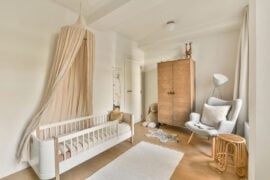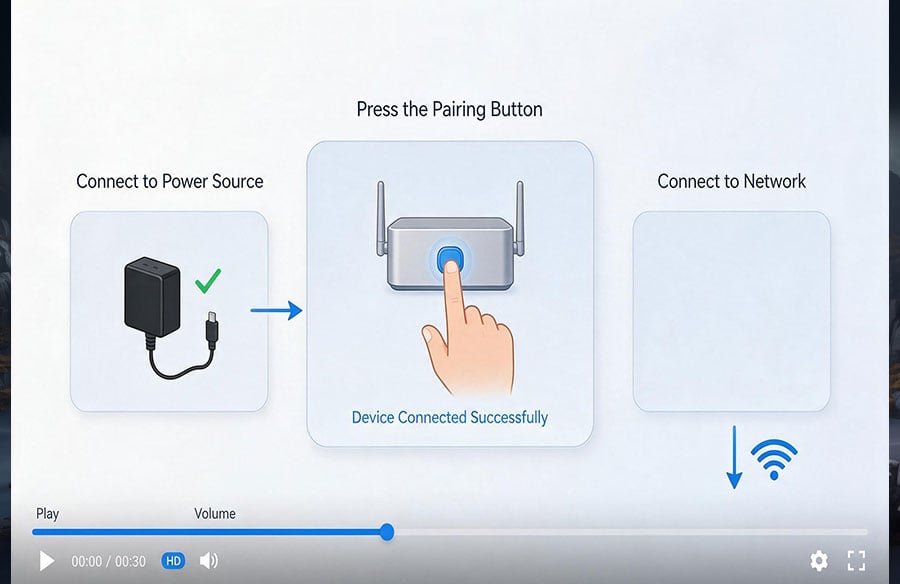
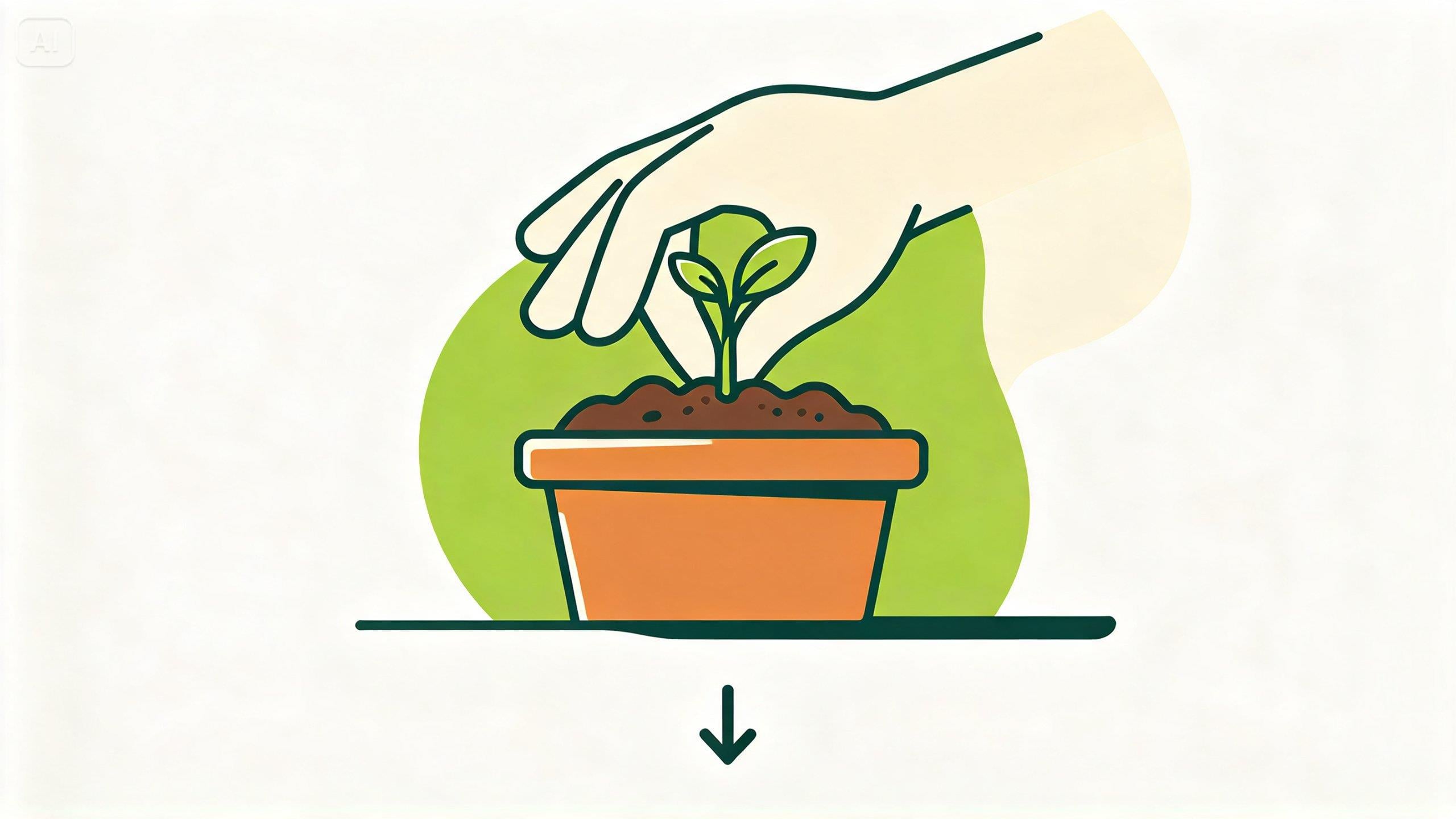
A good illustrated guide is a gift: clean drawings, numbered panels, and arrows that show where to push, fold, or twist. But even the clearest diagram leaves a gap. Does the motion happen quickly or slowly? How much force does it take? With image to video, you can fill in that gap by turning each panel into a short demonstration. Upload the illustration to Dreamina, and Seedance 2.5 brings it to life. This guide shows you how to prepare your drawings, write prompts that preserve their style, and link the clips into a sequence. Want to practice? Start with this image prompt for a sample panel:
Why a drawing is a head start
Illustrations already contain decisions that take time to get right: framing, simplified shapes, and a consistent look. Photography often struggles to match that clarity, because real objects include distractions. When you animate an illustration, you keep the clean visual language and add only the one thing static panels can’t show, which is motion. That makes instructions easier for beginners, kids, and anyone following along while their hands are busy. It’s also easier to keep a consistent look across a whole guide.
Preparing your illustration
A few tweaks make a panel easier to animate:
- One step per image: don’t combine several actions
- Clear subject: hands, tools, and objects clearly outlined
- Simple background: plain or lightly shaded
- Consistent style: the same line weight and palette across panels
- Space to move: room around the object for motion
Leave arrows and labels in if they matter, but keep them minimal. Crisp edges beat tiny details here.
From Illustration to Demonstration in Three Dreamina Steps
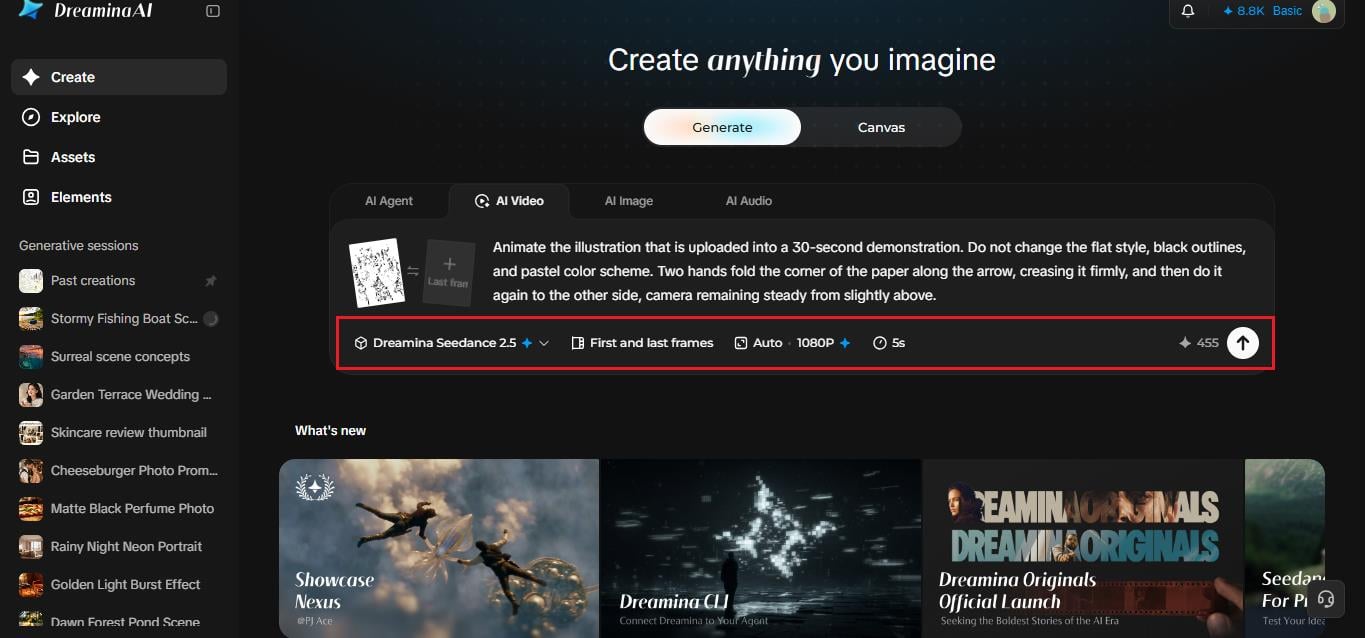
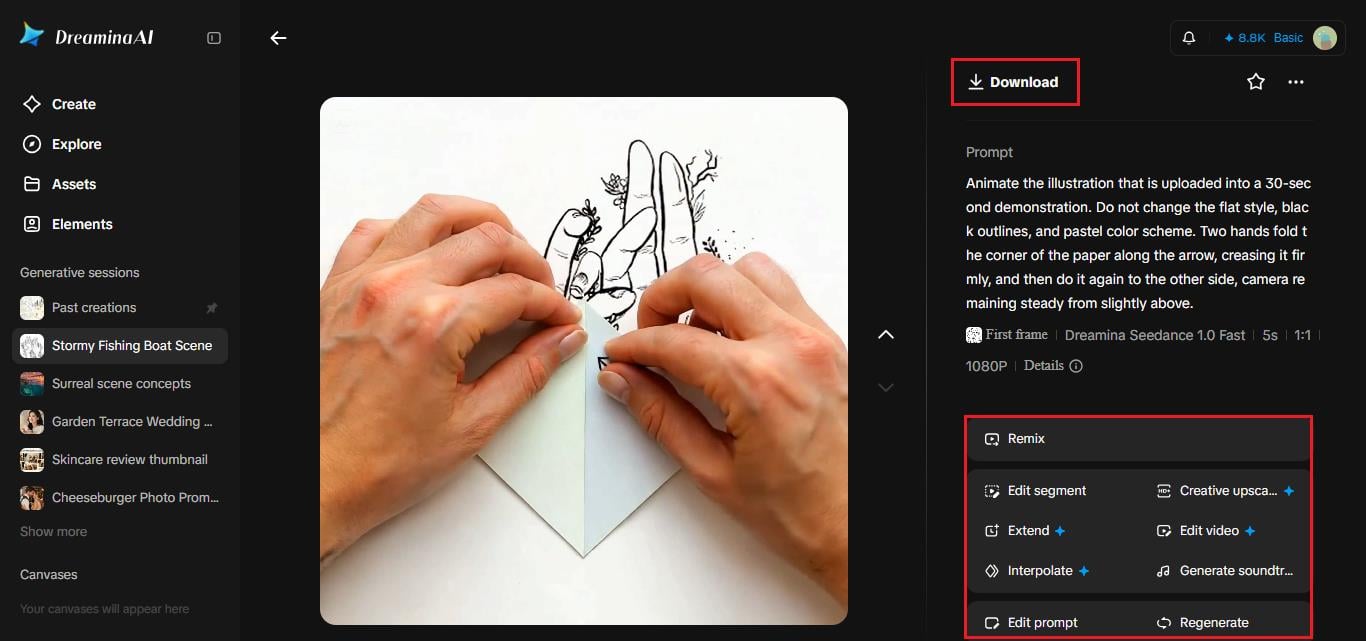
Step 1: Upload your image and write the prompt
Launch Dreamina, log in, and navigate to the AI Video tab. Click “Add reference image” and upload your illustration to be demonstrated in one panel. Write a prompt about how exactly you would like the illustration to move. Here is an example for a 30-second video: “Animate the illustration that is uploaded into a 30-second demonstration. Do not change the flat style, black outlines, and pastel color scheme. Two hands fold the corner of the paper along the arrow, creasing it firmly, and then do it again to the other side, camera remaining steady from slightly above.” Do not put more than one action in one panel prompt.
 Step 2: Create the video
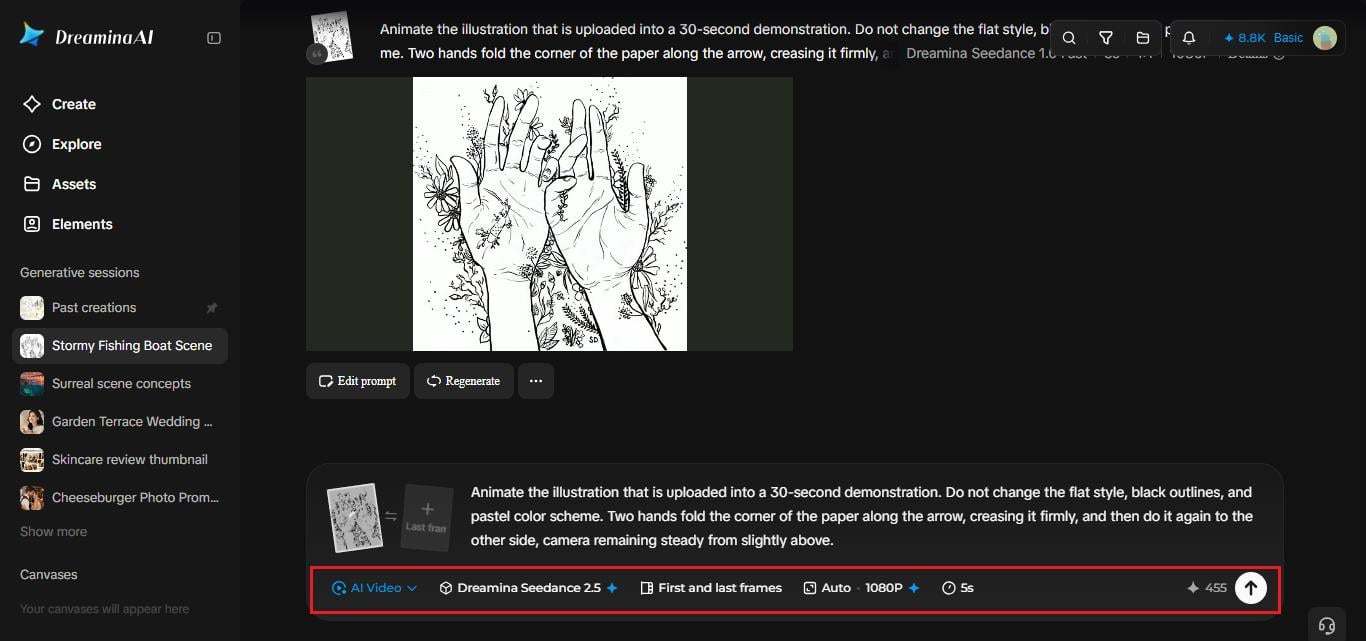
Select Seedance 2.5, choose the length of the clip, and pick 16:9 for YouTube or 9:16 for TikTok. Press Dreamina’s logo and wait for the video to be rendered. Repeat with all the panels.
 Step 3: Improve and export the video
Upscale sharpens the lines, and Generate soundtrack adds gentle audio. Export each clip and share them. If a clip drifts from your drawing’s style, add a line about keeping the flat outlines.
 Writing the motion for each step
Describe one action per prompt, and use verbs that show exactly how the movement happens: folds, slides, presses, twists, pulls. Mention speed, like “slowly” or “in one smooth motion,” and tell the model what must stay unchanged, such as the style and colors. Short prompts often beat long ones for simple actions. If your panel has an arrow, say what it means.
 Linking steps into one sequence
Once each panel has its clip, put them in order and keep the transitions simple. Use identical settings, aspect ratio, and style words across prompts so they feel like one video. Trim the start and end of each clip so the motion flows directly into the next step. Add a short step number on screen, and your illustrated guide becomes a full demonstration that viewers can follow without pausing. Test the whole sequence with someone who hasn’t seen the instructions.
What Seedance 2.5 does for illustrated steps
Keeping a drawing’s look while adding motion is tricky, and a few Seedance 2.5 features help.
Style and emotion carried over
The model can pick up the shot language and visual style of a reference, which helps preserve your illustration’s character during motion.
Exact touch points
Green screen and blockout-style references can guide where hands make contact, so a fold or press lands in the right place.
Quick corrections
Region-level editing means you can remove an unwanted object without regenerating the whole demonstration.
Many inputs at once
Up to 50 pieces of material, including text, images, video, and audio, can inform a single generation, so a written step and its panel can work together.
Check accuracy before you publish
An animation that looks right but shows the wrong motion can confuse people more than a still image. Watch every clip beside the original instructions. Check that hands move the way they should, that tools aren’t doing something impossible, and that the result matches the next panel. If something is off, adjust one phrase and regenerate. For tasks involving safety, add written warnings and test the real steps yourself. Ask a beginner to follow along and note where they hesitate.
Turn your drawings into demonstrations
Illustrated instructions already do a lot of the work, and Dreamina with Seedance 2.5 adds the part that was missing. Pick one panel, upload it, and write a short prompt describing the action. In minutes, a flat step becomes something people can watch and copy. Your guide just got easier to follow. Start with the step people find hardest.