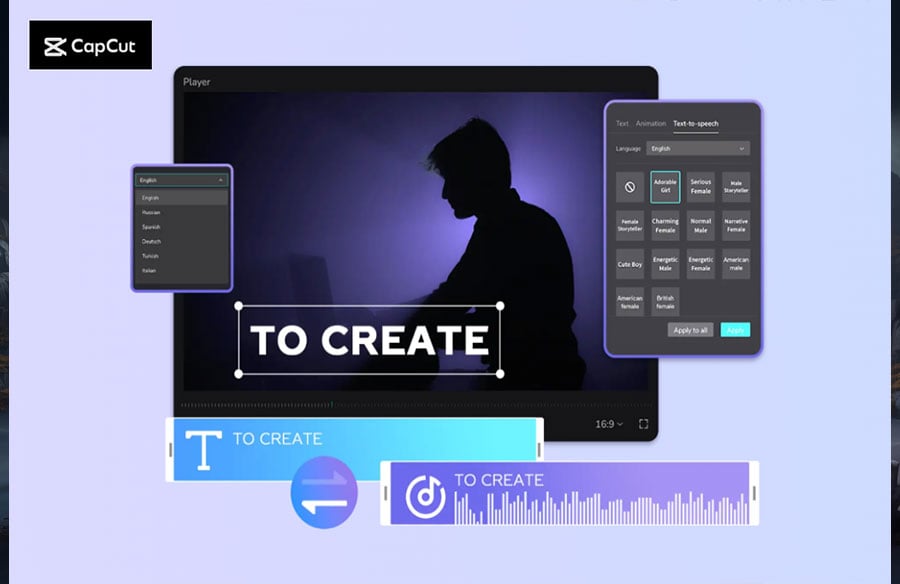
Creating a podcast or audiobook doesn’t have to involve expensive microphones, studio time, or professional voice actors anymore. With CapCut PC, you can turn any written content into clear, natural-sounding audio using its Text to Speech AI feature. Whether you’re producing a motivational podcast, narrating a story, or bringing an eBook to life, CapCut provides all the tools you need to craft engaging audio experiences directly from your desktop.
This all-in-one video and audio editing tool is designed for creators who want professional results without the complexity of traditional editing software. With CapCut’s Text to Speech, you can instantly generate lifelike narration for your podcasts and audiobooks, choose from a variety of voice tones, and customize your output with editing options like background music, sound effects, and transitions—all within a few clicks.
Why Use CapCut Text to Speech for Audio Creation
Before jumping into the steps, it’s worth understanding why CapCut’s Text to Speech tool stands out for podcast and audiobook creators:
- Multiple Voice Options – Choose from 1000+ male and female voices in various tones, accents, and languages to match the mood and style of your content.
- AI-Powered Realism – CapCut’s AI engine generates voices that sound surprisingly human, perfect for storytelling and professional presentations.
- Easy Editing Tools – Add music, adjust sound levels, apply fade effects, and sync visuals to elevate your production quality.
- Budget-Friendly – It eliminates the need for recording equipment or hiring voice artists, saving both time and money.
- Cross-Platform Compatibility – Once created, your audio can be exported and shared on platforms like Spotify, YouTube, or TikTok.
Whether you’re an aspiring podcaster, a self-published author, or a digital creator, CapCut gives you the freedom to produce high-quality audio content in minutes.
How to Use CapCut Text to Speech for Podcast and Audiobook Creation
Creating podcasts or audiobooks using CapCut is simple. Here’s a detailed guide to help you turn your written content into immersive audio.
Step 1: Upload Video
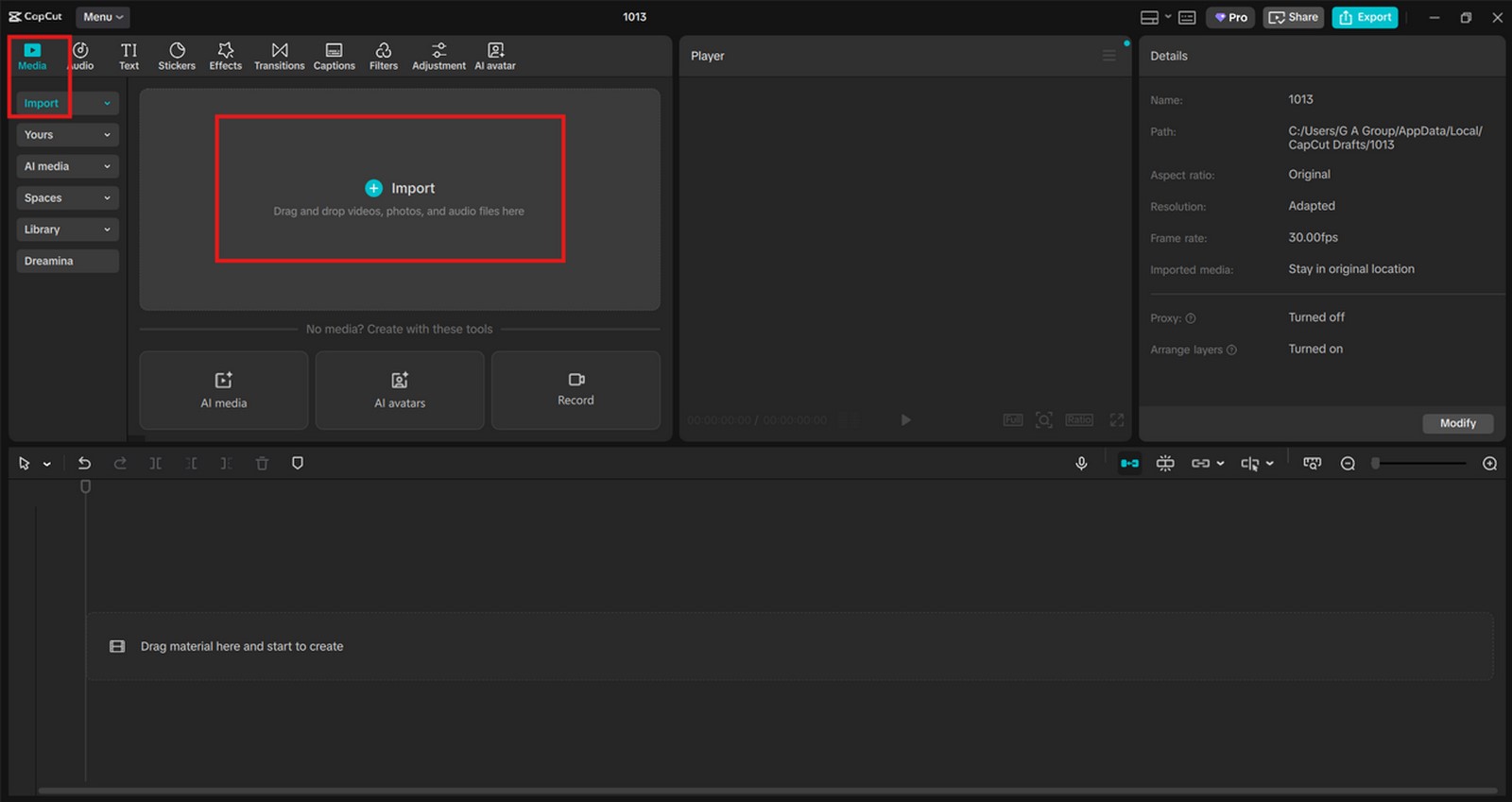
Start by opening the CapCut desktop video editor on your computer. Click “Create project” to begin a new edit. Next, select “Import” to bring your desired video or background image into the media library for use in your timeline. If you’re creating an audiobook, you might prefer using a static image or an animated cover background to display while your narration plays. For podcasts, you can import a visual waveform or your logo to make the video version more engaging. Try CapCut AI Image Generator to make an engaging book cover for your audiobook.
 Step 2: Convert Text to Speech
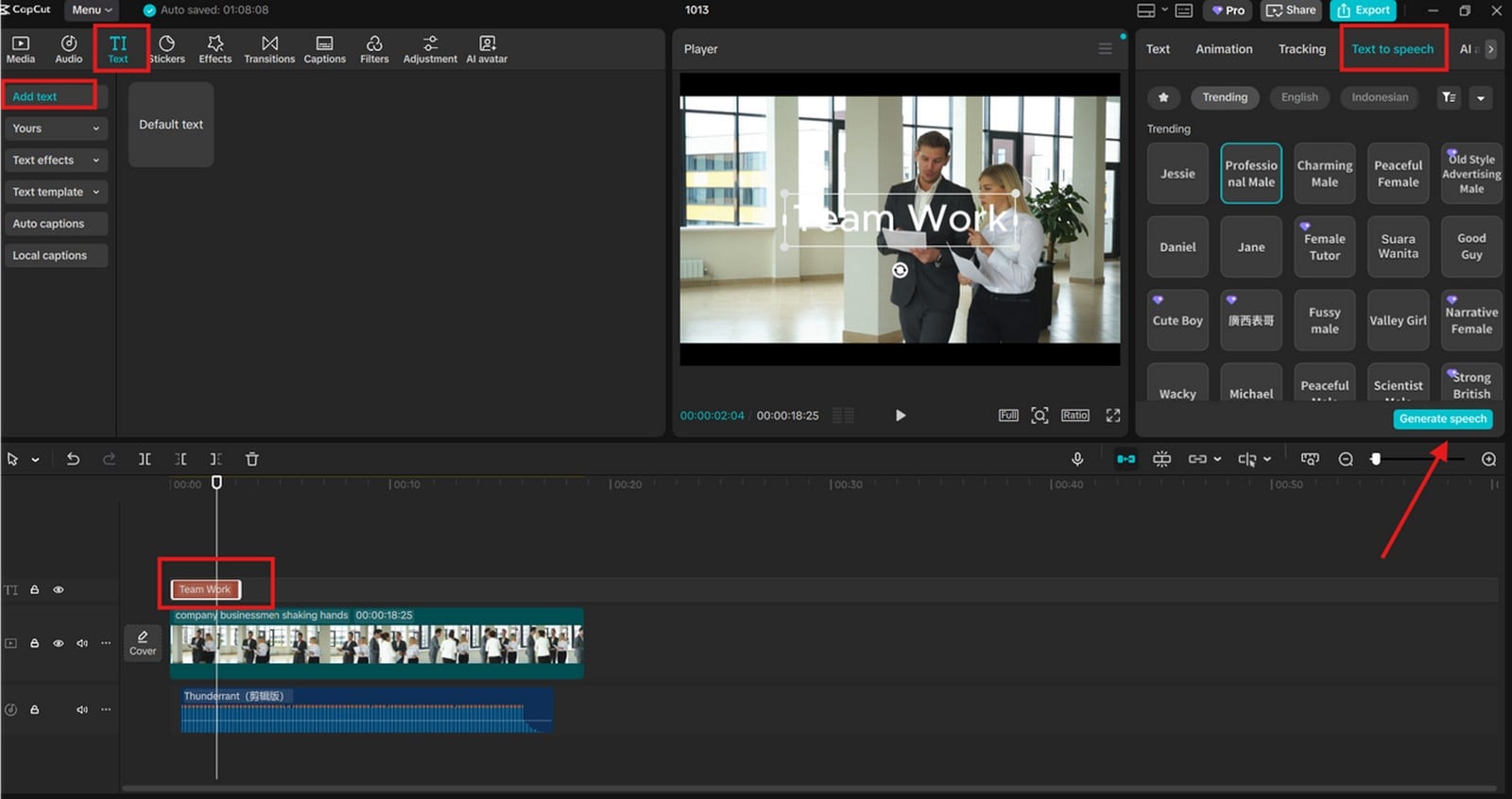
Now it’s time to bring your written words to life. Go to “Text” > “Default text” and type or paste your script into the text box. This can be a chapter from your book, a podcast script, or any content you want to narrate.
Once your text is entered, click “Text to speech” to generate an AI-powered voice. CapCut offers a variety of voice styles—ranging from energetic to calm, formal to friendly—so you can choose one that fits your content’s tone. Want to make your audio even more professional? CapCut gives you advanced audio options to refine your sound quality:
- Voice Effects – Adjust pitch and tone for more personality.
- Noise Reduction – Remove background noise for a cleaner sound.
- Volume Adjustment – Balance narration and background music.
- Fade In & Fade Out – Create smooth audio transitions for intros and outros.
You can preview your narration and make adjustments until it feels right. This step allows you to experiment with different voice styles before finalizing the one that best complements your podcast or audiobook theme. Use CapCut Background Remover to remove the background of your video and replace it with something engaging and fun.
 Step 3: Export & Share
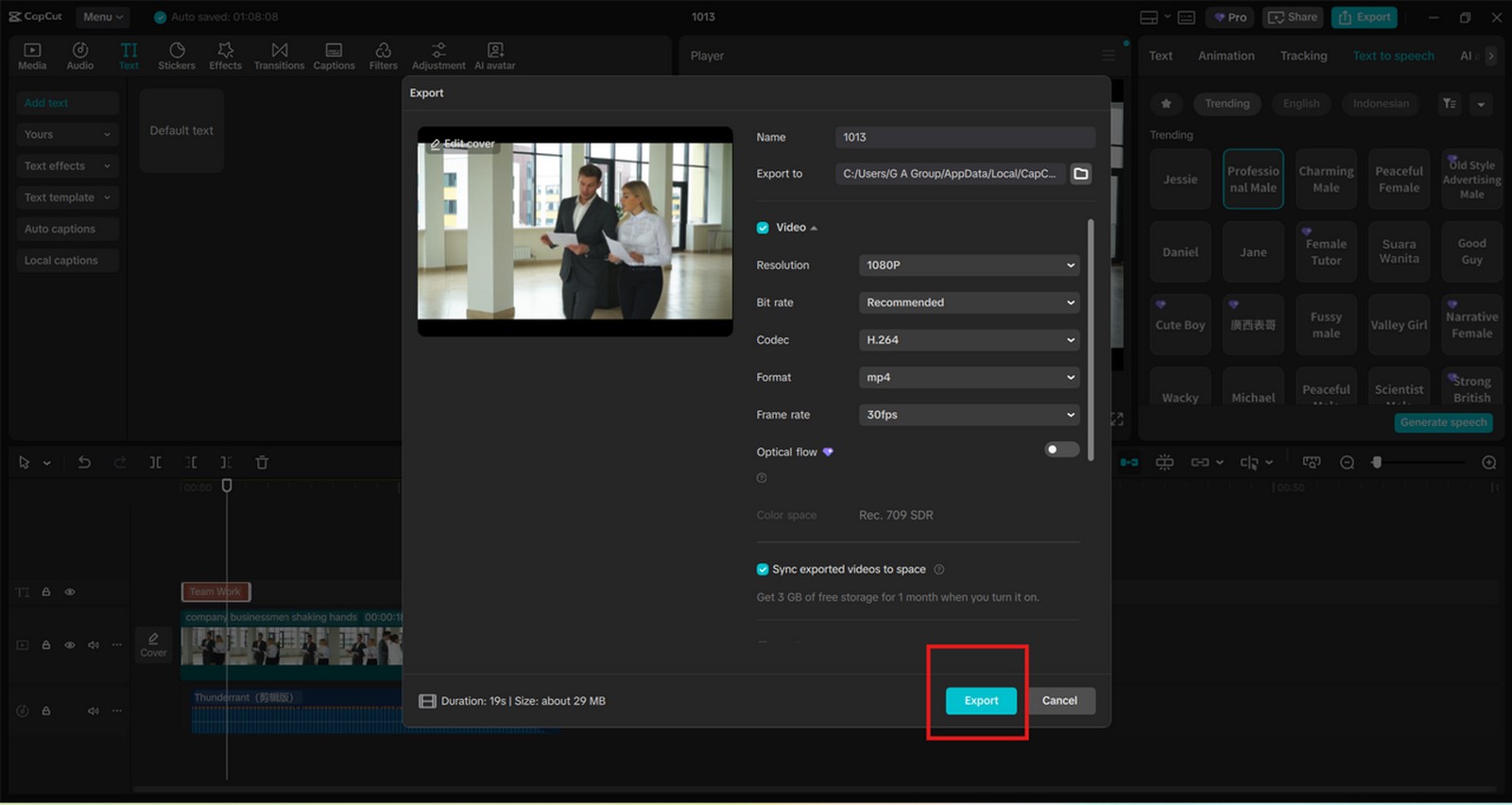
Once your project sounds exactly the way you want, head to the Export section located at the top right corner of CapCut PC. Here, you can set important parameters such as file name, resolution, format, and quality. If you’re creating an audiobook, exporting in high-quality MP4 or MP3 ensures the best playback on various platforms. CapCut allows you to download your file directly to your computer or share it instantly on social media channels like TikTok, YouTube, and Facebook.
 Tips to Maximize Your Podcast or Audiobook with CapCut
To make your audio production truly stand out, here are some practical tips when using CapCut’s Text to Speech feature:
- Write Conversational Scripts – AI voices sound most natural when the text flows like everyday speech. Avoid overly complex sentences.
- Add Background Music – Choose soft instrumentals or ambient sounds to set the mood for your narration. CapCut’s built-in music library has great royalty-free options.
- Use Transitions and Visuals – Even if your project is primarily audio, subtle visuals like waveform animations or moving backgrounds can help engage video-based audiences.
- Test Different Voices – Don’t settle for the first voice you hear. Try multiple tones until you find one that captures your story’s spirit.
Conclusion
Using CapCut PC Text to Speech for podcast and audiobook creation is a game-changer for modern creators. It blends convenience, affordability, and quality—all in one place. Whether you’re narrating a novel, producing a self-help series, or sharing educational insights, CapCut provides the creative freedom to turn written words into engaging audio that reaches a wider audience. So, open CapCut, type your script, choose your voice, and let your stories speak for themselves. Your next great audio project is just a few clicks away.