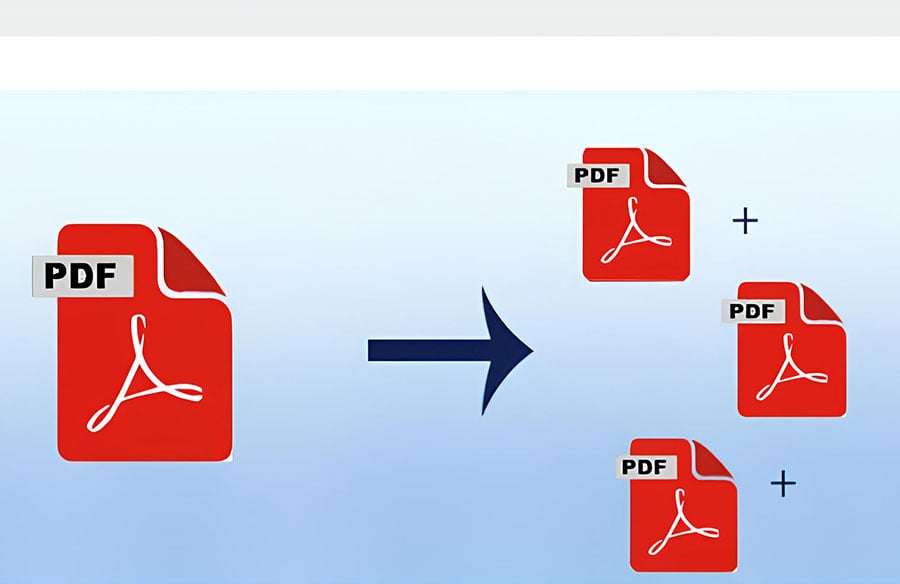
In today’s digital world, PDF (Portable Document Format) has become one of the most commonly used file formats for sharing documents. However, working with large PDF files can sometimes be a hassle, especially when you need to share them via email, upload them to websites, or send them over messaging platforms. Many email servers and cloud storage systems have size limits for attachments, which means that large PDFs may exceed these limits. The solution to this problem is simple: split large PDF documents into smaller, more manageable files.
In this article, we’ll explore how you can easily Split PDF Documents Files into smaller ones for easier sharing and better organization. We’ll cover different methods, from using online tools to desktop applications, and provide step-by-step guidance to help you break down large PDF files with ease.
Why Split a Large PDF Document?
Before diving into the “how,” it’s important to understand why splitting a large PDF can be beneficial:
- Email Attachments: Email services often have attachment size limits. For instance, Gmail allows attachments up to 25MB, but larger files will fail to send. Splitting your PDF into smaller files ensures that you can email your documents without exceeding size limits.
- Better Organization: A large PDF document can be overwhelming to navigate. By splitting it into smaller sections, you can organize the content by topics, chapters, or sections, making it easier for recipients to find the information they need.
- Faster Uploads and Downloads: Smaller files are faster to upload and download. If you’re uploading a PDF to a cloud service or downloading it from the internet, splitting the file can reduce wait times and improve the user experience.
- Enhanced Accessibility: Splitting a large PDF into smaller files ensures that recipients can access the information without having to download an entire document. This is particularly helpful when sharing with multiple people who only need certain sections of the document.
Methods for Splitting PDF Documents
There are various methods for splitting large PDFs into smaller files. Depending on your preferences, you can choose between online tools, desktop software, or built-in features in PDF readers. Here’s how to split PDFs using different methods:
1. Using Online PDF Splitters
If you need to split a PDF quickly and don’t want to install any software, online PDF splitters are an excellent option. These tools allow you to upload a PDF and then split it into smaller files based on your preferences.
Steps:
- Visit a trusted online PDF splitter. Some popular online PDF splitters include ILovePDF, Smallpdf, and PDF2Go.
- Upload the large PDF file you want to split. You can usually drag and drop the file into the designated area on the website.
- Choose how you want to split the file. Most online tools let you:
- Split the PDF by page ranges .
- Extract specific pages from the document.
- Split the PDF into single pages.
- Click on the “Split PDF” button to process the file. Once the splitting process is complete, you’ll be given the option to download the smaller PDFs.
- Download the newly created files and save them to your computer.
Pros:
- No software installation required.
- Fast and easy to use.
- Some tools offer additional features, such as merging or compressing PDFs.
Cons:
- Limited functionality in some tools.
- Uploading large files may take time, depending on your internet speed.
2. Using Adobe Acrobat
For users who have access to Adobe Acrobat Pro DC, this powerful PDF software provides a simple and effective way to split large PDF files into smaller ones. With Adobe Acrobat, you can split your PDF based on page numbers, bookmarks, or file size.
Steps:
- Open your large PDF in Adobe Acrobat Pro.
- Click on Tools in the top menu, then select Organize Pages.
- Click on Split in the toolbar.
- Choose how you want to split the PDF. You can split by:
- Number of pages (e.g., every 10 pages).
- File size (split when the file exceeds a certain size).
- Top-level bookmarks (split by chapters or sections based on bookmarks).
- Click on Output Options to choose the destination folder for your new PDFs.
- Click on OK, then select Split to finalize the process.
- Save the smaller files to your computer.
Pros:
- Advanced features for splitting PDFs by various criteria.
- Ability to handle large files efficiently.
Cons:
- Adobe Acrobat Pro is a paid software.
- It may be overkill for users who only need to split PDFs occasionally.
3. Using Free Desktop Software (PDF Split and Merge – PDFsam)
If you prefer to use desktop software without spending money, PDFsam is a great free tool for splitting and merging PDF files. PDFsam offers a user-friendly interface and provides both basic and advanced splitting options.
Steps:
- Download and install PDFsam from the official website (PDFsam.org).
- Open the software and click on Split in the main menu.
- Add the PDF file you want to split.
- Choose how you want to split the file. You can split by:
- Pages (e.g., after every 5 pages).
- Even or odd pages.
- Every N page.
- Set your output folder and click on Run.
- The split PDFs will be saved to the specified folder.
Pros:
- Free and open-source.
- No internet connection required once installed.
- Offers advanced splitting options.
Cons:
- Slightly more complex than online tools.
- Limited to desktop usage.
4. Using Built-in Features in PDF Readers
Some PDF readers, such as Foxit Reader, also offer the ability to split PDFs, though their features may be more limited compared to dedicated software. You can typically split a PDF by printing it to a virtual PDF printer, selecting specific pages to save as a new file.
Steps:
- Open your PDF in Foxit Reader or another PDF reader that supports splitting.
- Choose the print option, then select a virtual PDF printer (like Microsoft Print to PDF).
- Select the page range you want to save as a separate file.
- Save the selected pages as a new PDF.
Conclusion
Splitting large PDF files into smaller sections can significantly improve your ability to share, organize, and manage your documents. Whether you prefer using online tools, desktop software like Adobe Acrobat or PDFsam, or the built-in features in PDF readers, there are many easy and effective methods to accomplish this task. By choosing the right method for your needs, you can save time, reduce file sizes, and make your PDFs easier to manage and share with others.